
Change windows
Every mature change process has the same rule: know when changes are allowed and when they aren’t. Freezes, maintenance slots, and blackout periods are the backbone of any change schedule. Without them, a change can still be planned for the Friday before a freeze or the middle of month-end close. Change windows put that rule into the product — you define when changes are allowed or blocked, and Atomicwork enforces it.
Note
You can describe a change window in plain language and Admin Assist will build it for you. For example: “Create a draft change window that blocks production changes every Friday from 5 pm to 11 pm Pacific, and notify me when a change conflicts with it.” Admin Assist looks up the fields, time zones, and workspace members in your setup, asks only what it can’t infer, validates the window, and saves it as a draft. Publishing, unpublishing, and deleting each require your explicit confirmation.
Blackout and maintenance windows
Change windows come in two types, and the distinction matters:
- Blackout means “not now.” Use it for a freeze, month-end close, or holiday. A change scheduled inside a blackout window is the conflict.
- Maintenance means “only now.” Use it for a designated slot when changes are allowed — for example, production releases on Tuesday nights from 10 pm to 2 am. A change scheduled outside a maintenance window is the conflict.
A maintenance window applies only to the changes it governs. If you scope it to changes with “[PROD]” in the subject, everything else is left alone.
Scoping a window to specific changes
Each window applies to either all changes in the workspace or a filtered subset. The filter builder is the same one you use elsewhere in change management — you can build conditions on any change attribute. For example: subject contains “Azure,” change type is Emergency, or change priority is Urgent.
You can group conditions and add exceptions. A window scoped to “everything except standard changes” is one rule.
Recurrence
A window can be one-time or recurring. When you select Recurring window, you set the frequency, start time, duration, and time zone.
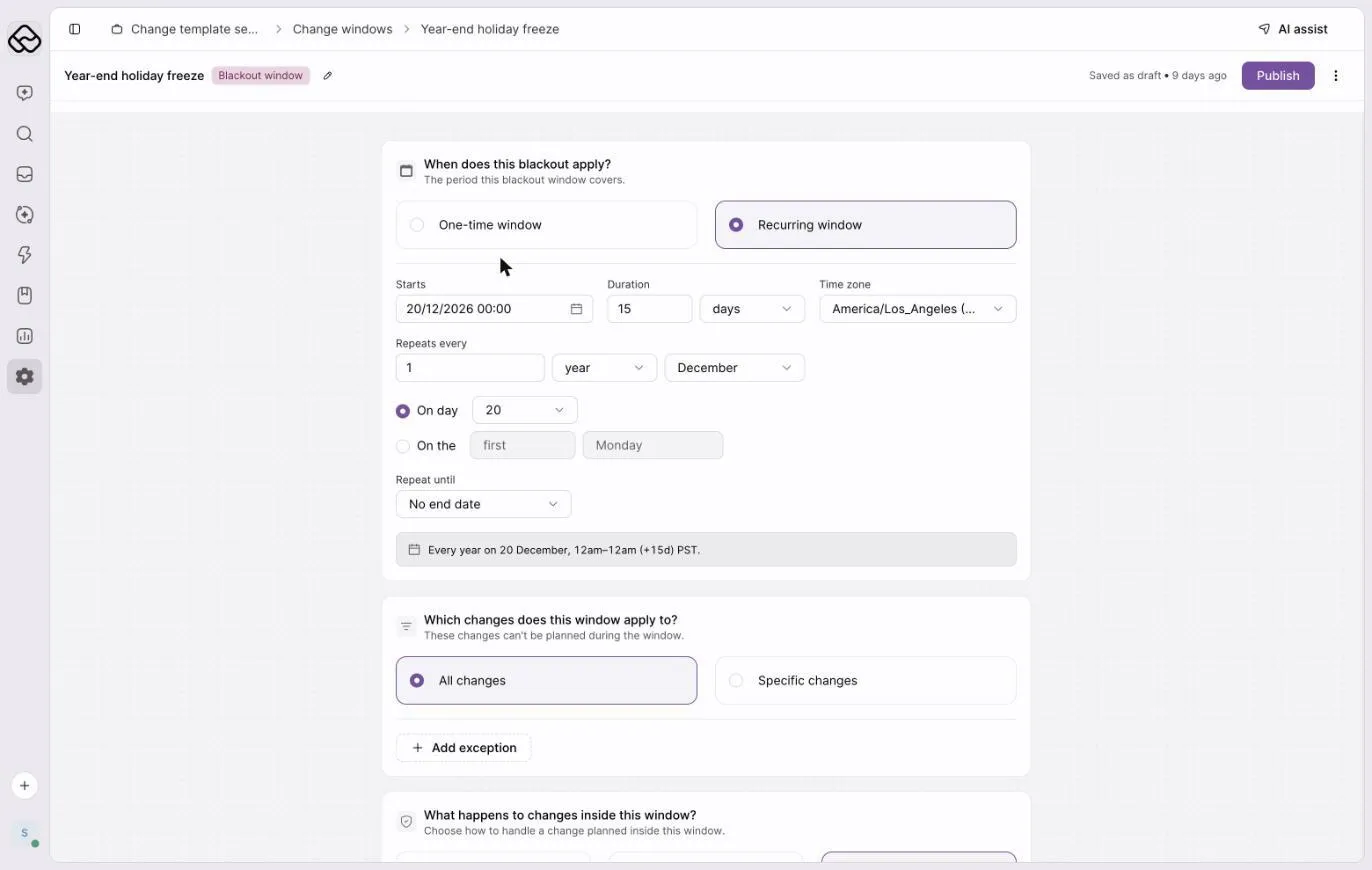
Recurring windows repeat on a daily, weekly, monthly, or yearly schedule:
- Daily: every day, every other day, or every Nth day.
- Weekly: on selected days of the week, every Nth week.
- Monthly: on set dates (the 1st and 15th) or on a weekday pattern (the last Friday of the month).
- Yearly: on a set date or a weekday pattern in a specific month, with a duration in minutes, hours, or days.
Every window has an explicit time zone, which is useful for teams working across several. Each window shows a plain-English summary of its schedule — for example, “Every year on 20 December, 12am–12am (+15d) PST.” — so you can verify it before publishing.
A recurring window can repeat until a specific date, or indefinitely.
What happens when a change conflicts
When a change lands in conflict with a window, the enforcement mode you chose decides what happens next:
- Warn and notify: The change is flagged as a conflict and the people you designate are notified. The change can still be created.
- Send for approval: The change is held until an approver signs off. You decide whether one approver or all approvers must approve.
- Block creation: The change cannot be created until the conflict is resolved.
Catching conflicts while planning
When an agent sets a planned start and end for a change, the calendar beside the form shows what else is happening at that time: other changes and any blackout windows (shown as a hatched band). A conflicting change is flagged before the agent submits.
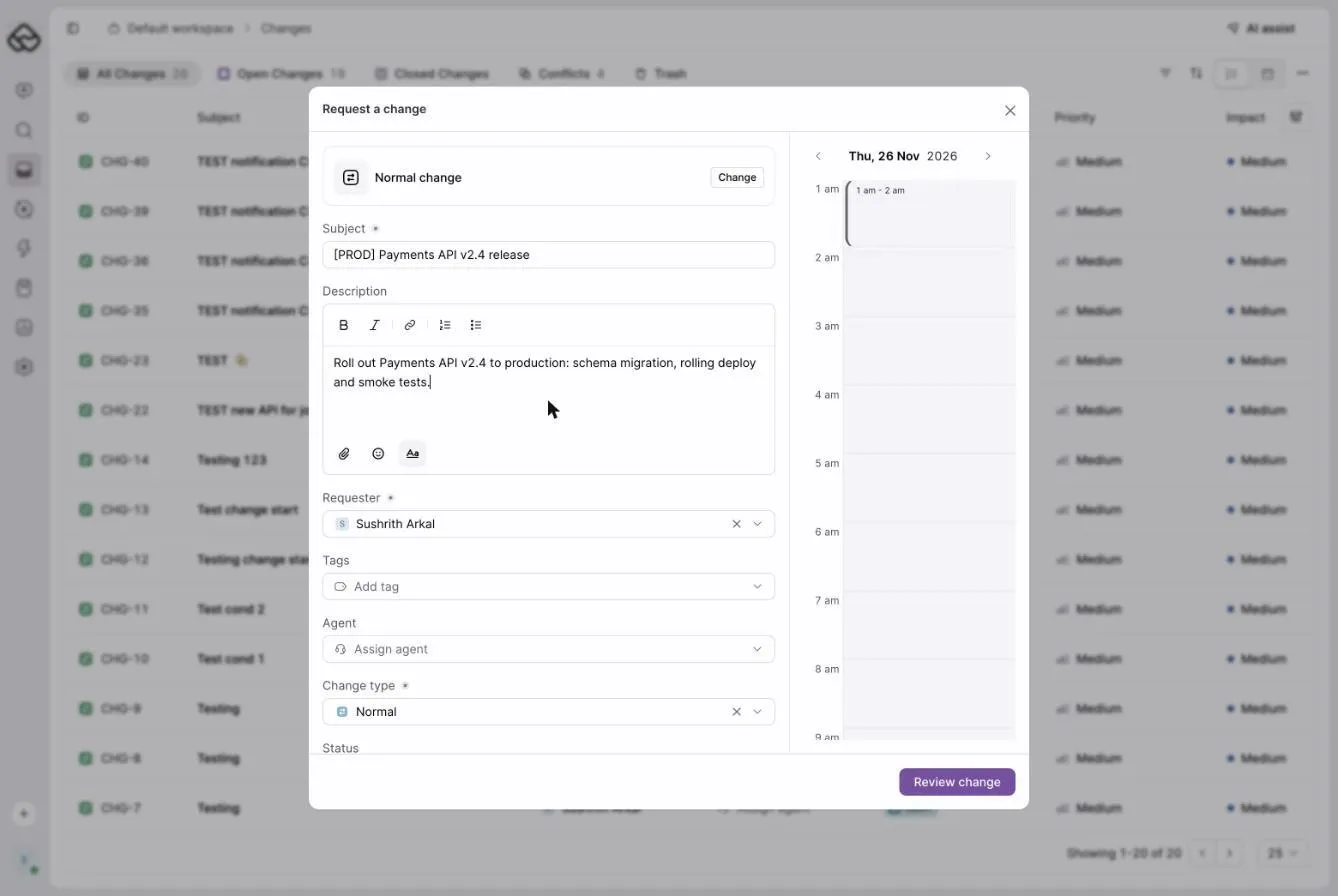
Click Create change and Atomicwork checks every window that applies to that slot. The result is either a clean pass — “No conflicts — No maintenance windows, blackouts or rules apply to this time” — or a list of conflicts, each naming the window, its type, and its dates. For example: “Month-end production freeze · Blackout · Mon, Nov 30, 9:00 AM – 6:00 PM.” Conflicts are checked again on every update to the schedule.
Changes raised by employees are still subject to change windows after creation — the conflict check at creation time applies to agents only.
Suggested times
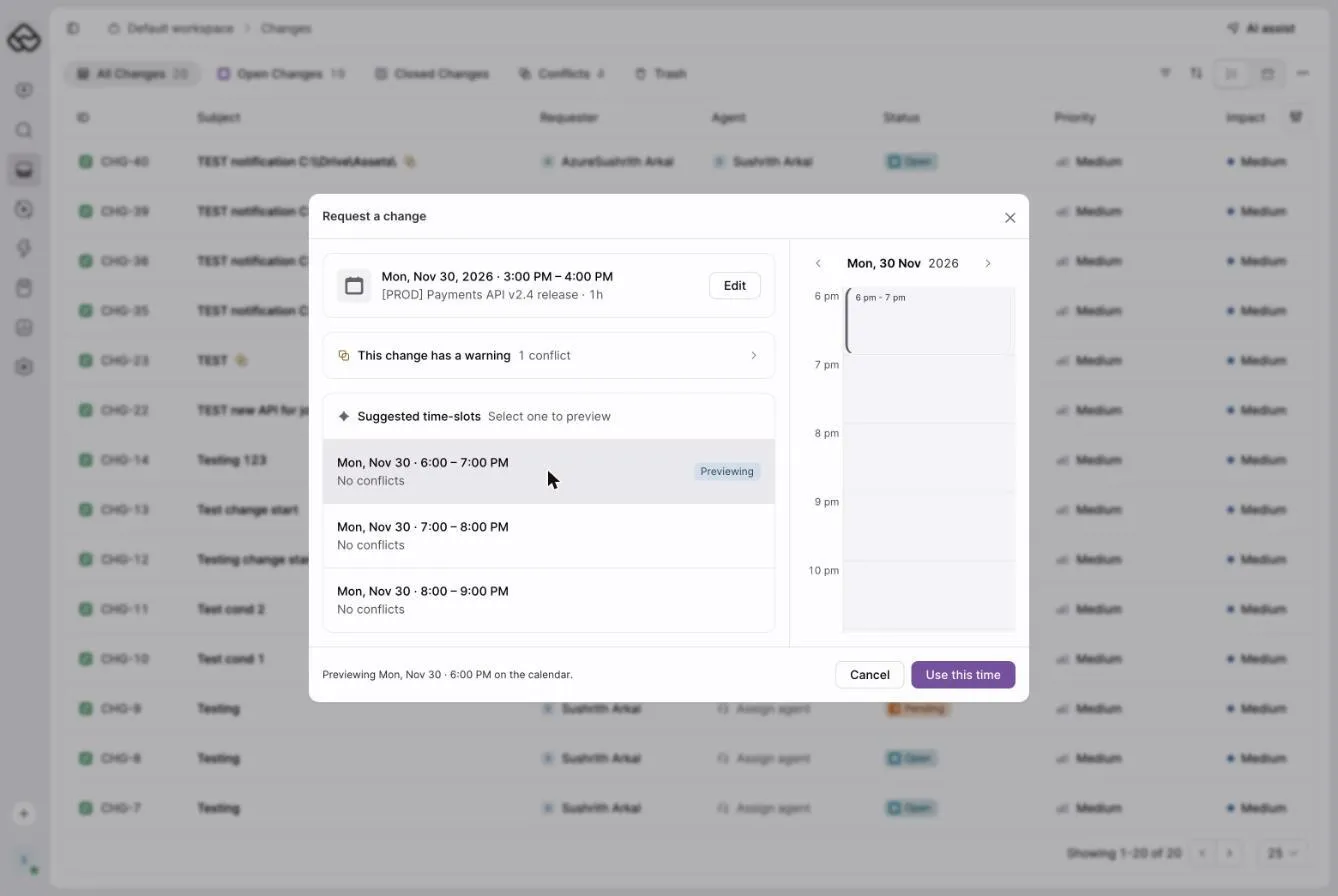
When a slot conflicts, the review offers suggested time-slots. Suggestions respect every window that applies: if a maintenance window is involved, the suggested times land inside it, labeled “No conflicts · Inside Weekly production maintenance window.” Select a suggestion to preview it on the calendar, then click Use this time to create the change at the new time. The suggestion keeps your original duration, so there’s no arithmetic. Click Cancel to go back and adjust the schedule yourself.
How conflicts stay visible
Conflicts don’t disappear after a change is created:
- A conflict icon appears next to the change in every list view.
- A dedicated Conflicts tab is seeded by default on the changes list in every workspace.
- On the change itself, a banner reads the number of warning conflicts detected with a Review button.
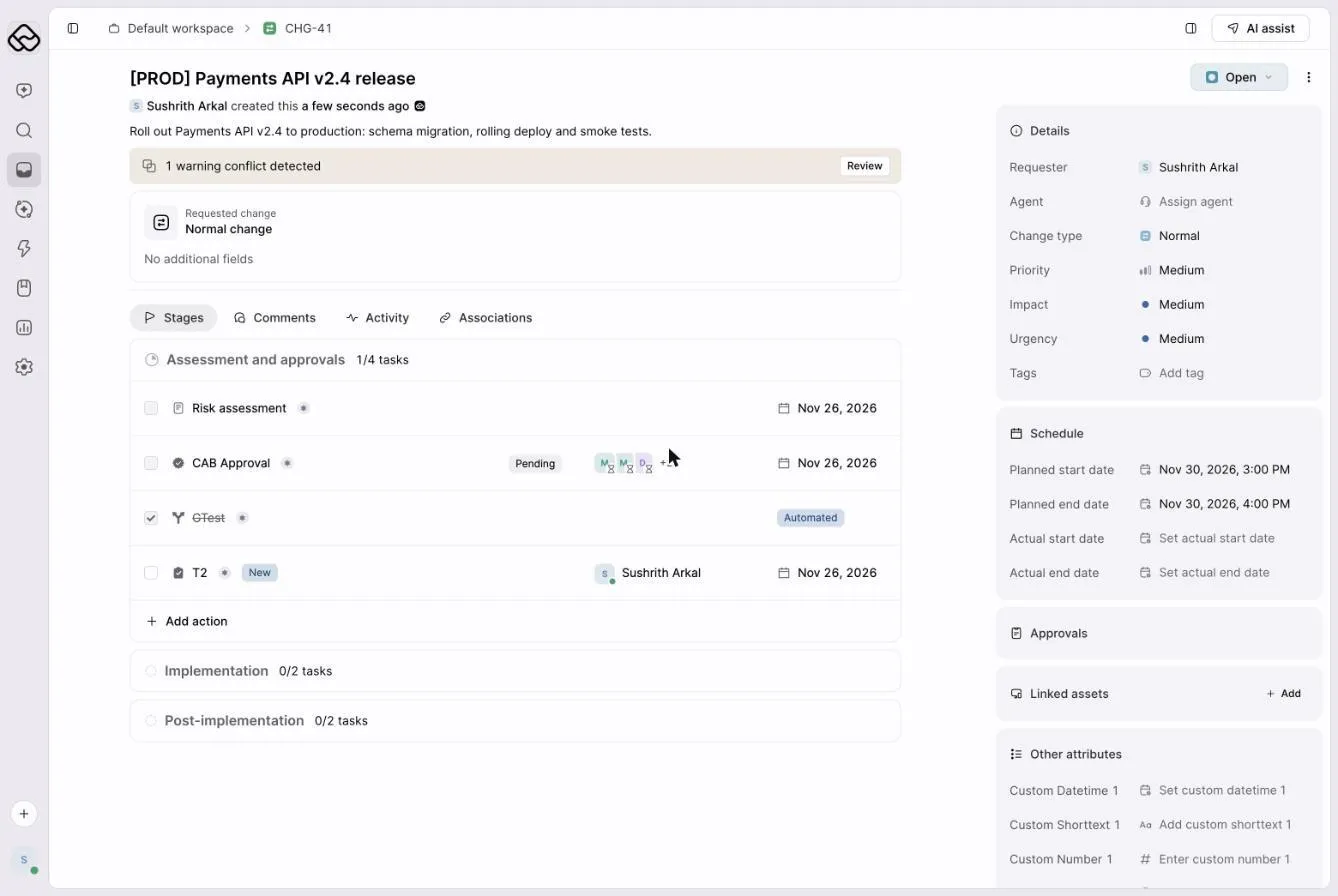
- Clicking Review opens the Resolve scheduling conflicts view, listing every window involved with a Reschedule button.
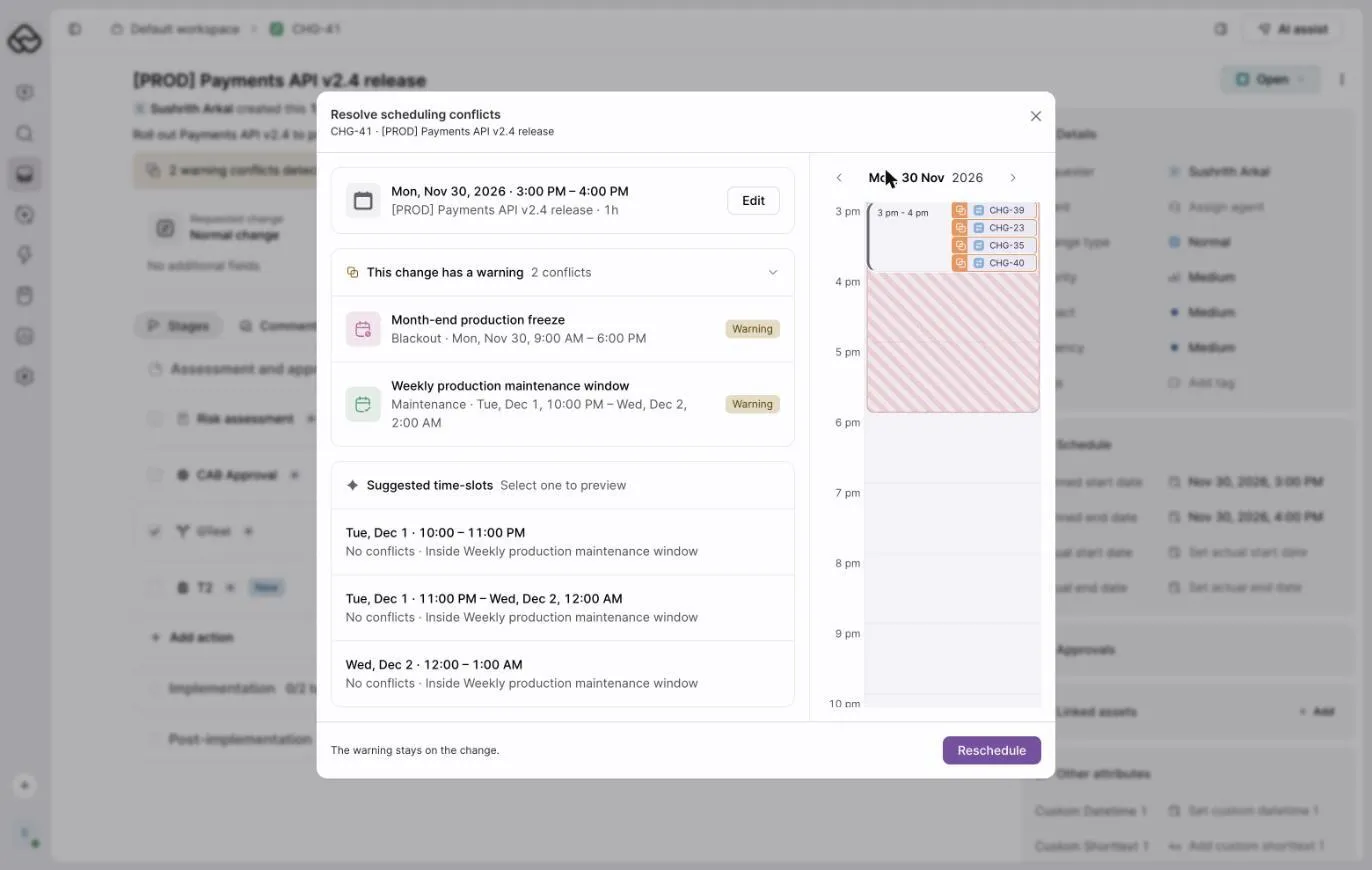
- Conflicts are recalculated whenever a change is rescheduled or a window is edited or deleted.
- The Activity tab on a change logs each conflict alongside creation and approval steps — for example, “Warning conflict detected, Month-end production freeze.”
Notifications
People are notified about conflicts through email, Slack, Microsoft Teams, and the universal action gateway:
- The people you designate on the window are notified when a change starts conflicting or when a conflict clears.
- Conflict approvers are notified on their chosen channels and can act on the approval from Teams and Slack.
- Assignees are notified automatically when their changes conflict with a window.
The change calendar
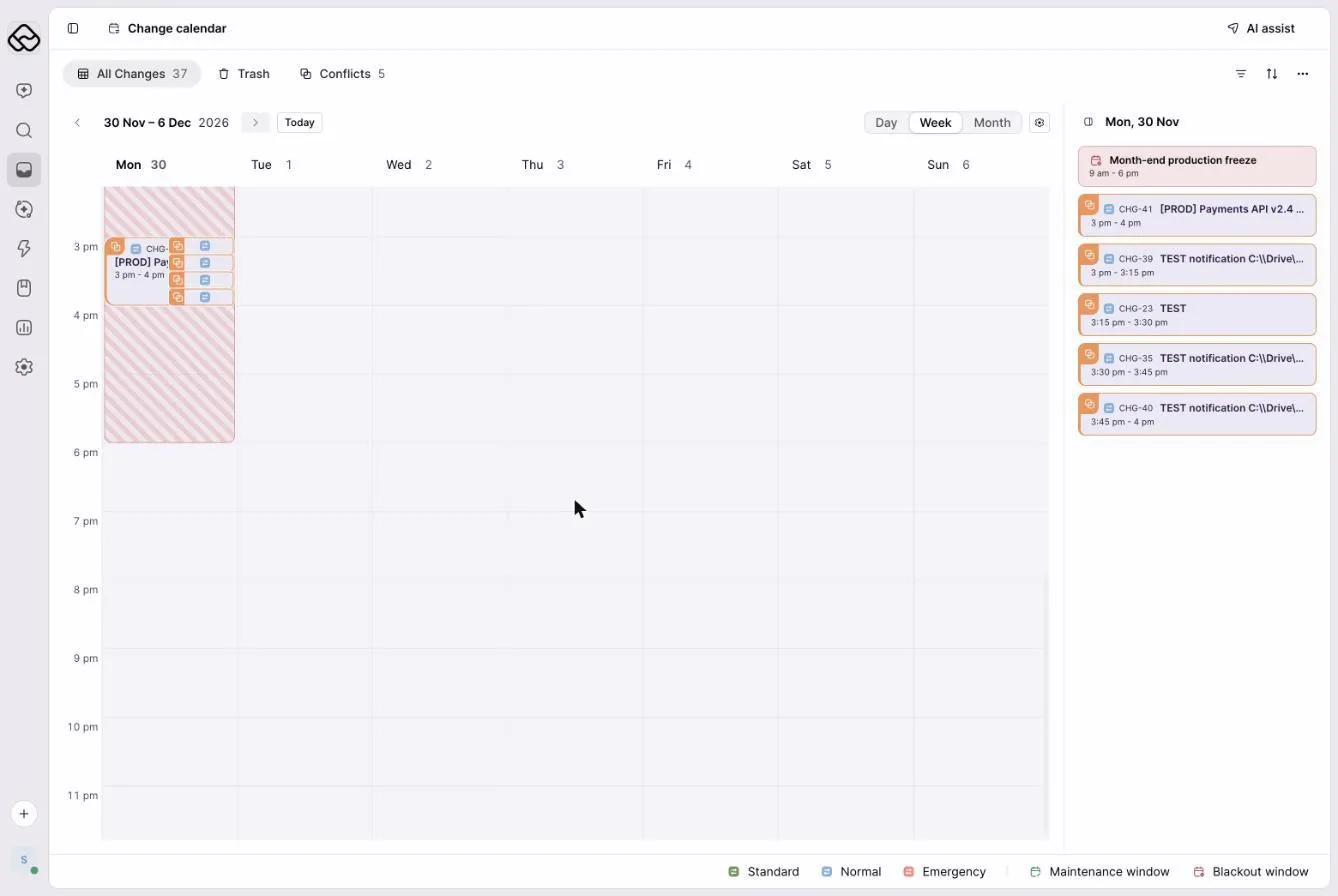
The change calendar shows changes alongside maintenance and blackout windows. A legend at the bottom distinguishes Standard, Normal, Emergency, Maintenance window, and Blackout window entries. Open a week that includes a window and you see the hatched band, any conflicting changes, and that day’s list in the sidebar.
Creating a change window
Set the schedule
Choose One-time window or Recurring window. For a recurring window, set the start date and time, duration (in minutes, hours, or days), time zone, and the repeat frequency (daily, weekly, monthly, or yearly). For monthly and yearly windows, choose between a fixed date (On day) and a weekday pattern (On the, for example “the last Friday”). Set an end date under Repeat until, or leave it as No end date to repeat indefinitely.
Check the plain-English summary at the bottom of the schedule section to verify it reads as expected.
Scope the window
Under Which changes does this window apply to?, choose All changes or Specific changes. For specific changes, build conditions using the filter builder. Click + Add exception to exclude certain changes from the window.
Note
You can generate a plain-language description of what a window does from its configuration. This is useful for documenting the purpose of a window without writing the description by hand.
Managing change windows
Draft, publish, and unpublish
A change window starts as a draft. While a published window is running, you can edit a draft version of it safely — the published version stays in effect until you publish the draft. Unpublishing a window gives you an editable copy you can republish later.
Clone a window
Click Clone to duplicate a window as a starting point for a similar one.
Bulk actions
Select multiple windows (up to 100) and unpublish, clone, or delete them in one action. If an individual window in the batch fails, the rest still complete and you see per-window results.
Activity feed
Each window has an activity feed showing who changed what and when, including discarded drafts and before-and-after values.
Year-end holiday freeze
Every workspace includes a seeded Year-end holiday freeze window: a blackout from 20 December to 4 January, repeating yearly, applying to all changes. It starts as a draft. Review it, adjust the dates or scope if needed, and publish it.
FAQ
Can a single change conflict with multiple windows? Yes. A change can fall inside a blackout window and outside a maintenance window at the same time. The review step and the conflict banner list every window involved.
What happens if I edit a published window? You edit a draft copy. The published version keeps running until you publish the updated draft or unpublish the window.
Do maintenance windows block all changes outside the slot? Only the changes the window governs. If you scope a maintenance window to changes with “[PROD]” in the subject, changes without that tag are unaffected.
Are conflicts recalculated automatically? Yes. Conflicts are recalculated whenever a change is rescheduled, or whenever a window is edited, published, unpublished, or deleted.
What’s next
- How to create changes for the full change creation workflow, including the change calendar.
- Customizing change templates to configure the fields and layout agents see when planning a change.