
Approvals in workflows
Set up approval workflows and shorten approval lifecycles so your employees and agents get stuff done quickly. Here is an example to show you how approvals can be set up in Atomicwork:
-
An employee requests a new laptop. Atom matches the request to a service in the catalog and creates a service request.
-
A new laptop workflow is executed, so Atom sends an approval request to the requester’s manager through Teams/Slack. If there are multiple approvers, all approvers get notified through Teams/Slack.
-
The manager approves/declines the request either through the Teams/Slack card or by logging into the web portal and going to Inbox > Approvals. The Approve and Decline links in approval emails open the decision in the web app. Atom notifies the agent, updates the request, and notifies the requester of the decision based on the approval policy. If there are further steps in the workflow for the Approved, Declined or Cancelled outcome, they are executed.
-
Approvers can also ask Atom “What are my pending approvals?” and approve or decline requests directly from Atom’s response.
Add an approval to a workflow
In a workflow, an approval is a step that waits for a decision. Describe the approval to AI Assist, including which approval policy to use. Approval policies are managed under Automations > Approval policies.
Managing approvals
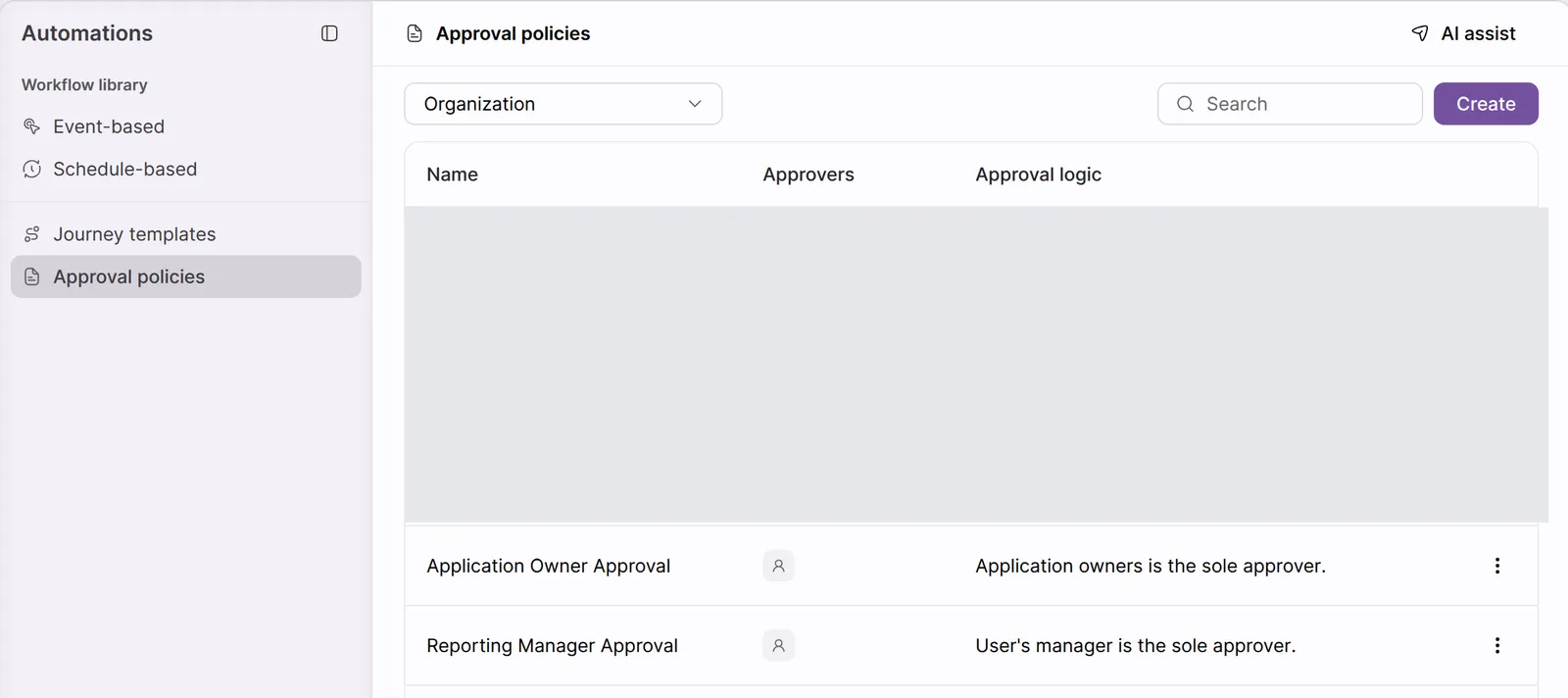
- Go to Automations > Approval policies. Select Organization for organization-level policies, or select a workspace for workspace-level policies. Workspace policies are organized into Request and Change tabs.
-
You can search policies by name or the approval policy members.
-
Each approval policy has a name, a list of approvers, and a Consider as approved setting:
-
Based on the first decision: The first approver to approve or decline decides the outcome for everyone.
-
When everyone approves: Every approver must approve before the approval is approved.
-
-
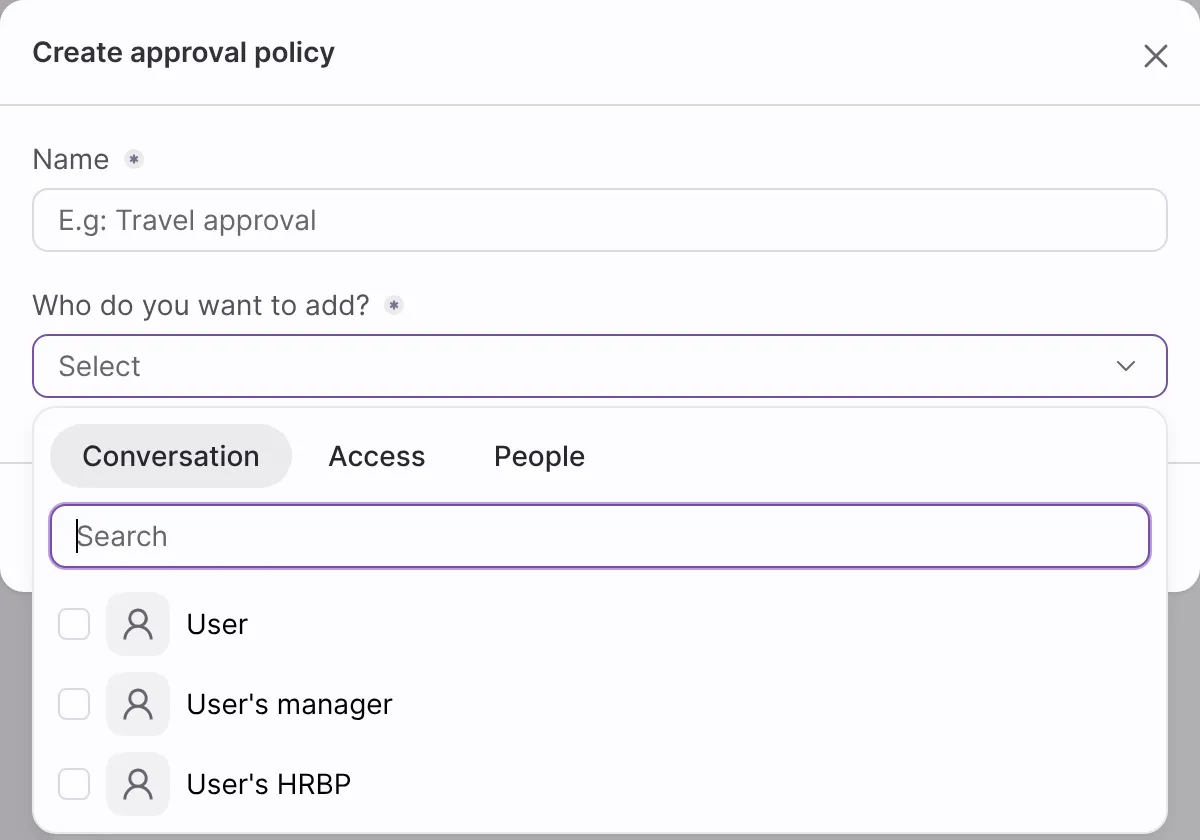
You can add more than one approver to a policy. Each approver can be any employee in your organization, or a dynamic approver that Atomicwork works out for each approval. Organization-level policies offer these choices under Conversation and Access, as well as individual employees under People:
-
User
-
User’s manager
-
User’s HRBP
-
Application owners (under Access)
Workspace-level Request policies also offer Requester, Requester’s manager, Requester’s HRBP, and Assigned agent under Request; service relationships under Service; and User segments. Workspace-level Change policies offer Change, Change Templates, and People tabs.
The organization-level picker does not offer groups. Workspace-level Request policies can use User segments as approvers.
-
-
The Approval policies page has an AI Assist panel that can help you create and edit policies.
-
To start from an existing approval policy, open its three-dot menu (⋮) and select the Duplicate option, then adjust what you need.
Notes
-
Any employee in Atomicwork can be added as an approver. Approvers can log into Atomicwork to view their pending approval requests through Inbox > Approvals on the left navigation bar.
-
Approvals are available on requests (service requests and incidents), service items, changes, and change-window conflicts.
-
An approval can have one of these statuses:
-
Pending: Waiting for a decision.
-
Approved
-
Declined
-
Cancelled: The approval was cancelled while pending, for example because the request was withdrawn.
-
Not needed: The approver didn’t need to respond.
-