
Approvals in legacy workflows
In a legacy workflow, you add approvals with the Send for approval action. For how approval policies work, see Approvals in workflows.
Setting up an approval workflow
-
Go to Automations > Workflow library and select the workspace the request or change workflow belongs to.
-
Create a new workflow or choose the workflow where you want to add the approval.
Both request and change workflows can include the Send for approval action, allowing approvals to be configured across service requests, incidents, and changes.
-
Click Add action, then select Send for approval when you want to add an approval.
-
Select Use approval policy to choose a saved policy, or Add specific approvers to define approvers inline. Approval policies are managed under Automations > Approval policies.
-
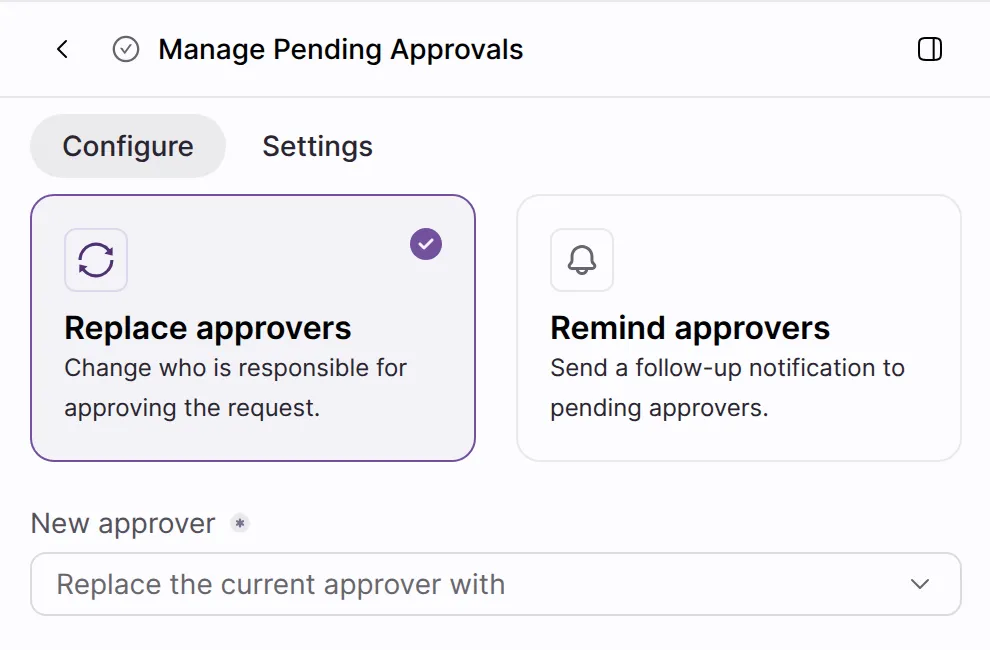
You can also add the Manage Pending Approvals action and select Replace approvers or Remind approvers. This is useful in scheduled workflows that check for approvals that remain pending beyond a defined period and follow up automatically.
- Set up the actions that must be executed based on the approval decision. You can specify paths for Approved, Declined and Cancelled. The Cancelled path runs when a request is withdrawn or no longer needed while the approval is still pending.
Amount-based and chained approvals
Approval policies don’t have amount thresholds. To route approvals based on a value, such as a purchase amount, add a Condition to the workflow and put a different Send for approval action on each branch. For example, send purchases under 1,000 or more to the manager and then to finance.
To chain approvals, add the next Send for approval action on the Approved path of the previous one, so the second approval starts only after the first is approved.