
Skip to navigation

Workflow events

View as Markdown

Every workflow starts with an event: something that happens to a record, such as a request being created or an asset’s warranty date changing. You pick the events in the Events section of the workflow builder by clicking Add event. You can add more than one, and any one of them starts the workflow.

Events tell a workflow when to run. To narrow down which records it acts on, add conditions after the events. For example, you might start a workflow on Priority is updated, then add a condition so it only continues when the new priority is Urgent.

The events you can pick depend on the kind of record the workflow runs on.

Request events

These events are available for request workflows, including service requests and incidents.

EventStarts the workflow when
Request is createdA new request is raised.
Request is updatedAnything on the request changes.
Request is convertedThe request is converted to another type, for example a service request to an incident.
Request is movedThe request is moved to another workspace.
Request is restoredA deleted request is restored.
Private note is addedA private note is added to the request.
Reply is sentA reply is sent to the requester.
Approval status is updatedAn approval on the request changes state.
Resolution SLA is breachedThe request misses its resolution target.
First response SLA is breachedThe request misses its first response target.
Service item is added, updated or removedThe service catalog item on the request is added, changed or removed.
Incident form is added, updated or removedThe incident form on the request is added, changed or removed.
Subject is updated / Description is updatedThe subject or description changes.
Group is updated / Agent is updatedThe request is reassigned to a different agent group or agent.
Tags is updatedTags are added to or removed from the request.
Status is updated / Priority is updatedThe status or priority changes.
Impact is updated / Urgency is updatedThe impact or urgency changes.
Linked assets is updatedAssets are linked to or unlinked from the request.

Change events

These events are available for change workflows.

EventStarts the workflow when
Change is createdA new change is raised.
Change is updatedAnything on the change changes.
Change is restoredA deleted change is restored.
Private note is added / Reply is sentA private note is added or a reply is sent on the change.
Subject is updated / Description is updatedThe subject or description changes.
Tags is updatedTags are added to or removed from the change.
Group is updated / Agent is updatedThe change is reassigned to a different agent group or agent.
Change type is updatedThe change type changes.
Status is updated / Priority is updatedThe status or priority changes.
Urgency is updated / Impact is updatedThe urgency or impact changes.
Planned start date is updated / Planned end date is updatedThe planned window for the change moves.
Actual start date is updated / Actual end date is updatedThe recorded start or end of the change is updated.
Linked assets is updatedAssets are linked to or unlinked from the change.

For an end-to-end example, see Automate your change lifecycle with event-driven workflows.

Asset events

These events are available for asset workflows. Besides Asset is updated, which starts the workflow when anything on the asset changes, there’s an event for each asset attribute, including the custom attributes you add. The most commonly used ones are below.

EventStarts the workflow when
Asset is updatedAnything on the asset changes.
Operating system is updated / OS version is updatedThe device’s operating system or OS version changes.
Last connected is updated / Last check-in is updatedThe last connected or last check-in time changes.
Cost is updated / Date of purchase is updated / Warranty expiration date is updatedPurchase or warranty details change.
Local Asset Id is updated / Management ID is updatedThe asset’s identifiers change.
App logo URL, App support URL, App status URL or App access URL is updatedThe details of an application asset change.

For example, a workflow that starts on Warranty expiration date is updated can check whether the new date falls within the next 30 days and open a service request to renew the warranty.

User events

These events are available for user workflows. They start a workflow when a person’s record in your directory is created or changes, for example when an HR system or identity provider syncs an update.

EventStarts the workflow when
User is createdA new user is added to Atomicwork.
User is updatedAnything on the user’s record changes.
Work email is updated / Personal email is updatedEither email address changes.
Employee ID is updatedThe user’s employee ID changes.
First name, Middle name or Last name is updatedAny part of the user’s name changes.
Date of birth is updated / Gender is updatedThose personal details change.
Hire date is updated / Exit date is updatedThe user’s start or leaving date is set or changed.
Job title, Level, Team or Department is updatedThe user’s role or place in the organization changes.
Reporting manager is updated / HR Business Partner is updatedThe user’s manager or HR business partner changes.
Timezone is updated / Language is updatedThe user’s timezone or language preference changes.

For example, a workflow that starts on Exit date is updated can kick off offboarding as soon as HR records a leaving date, well before the person’s last day.

Update event payload

When a user workflow starts because a user’s record was updated, the update event is passed in the workflow payload. You can reference the previous and new values of any field that changed:

  • {{user.event.changeLog.<field>.from}} — the previous value
  • {{user.event.changeLog.<field>.to}} — the new value
  • {{user.event.changeLog.<field>.fromName}} and {{user.event.changeLog.<field>.toName}} — the previous and new display names, for fields that store an id, such as the user’s manager

For example, when a user’s manager changes, use {{user.event.changeLog.manager.from}} and {{user.event.changeLog.manager.to}} for the previous and new manager records, and {{user.event.changeLog.manager.fromName}} and {{user.event.changeLog.manager.toName}} for their names.

These placeholders are available in every user update workflow.

To open a user workflow, go to Automations > Workflow library. On Event-based, select Users, open the workflow, and click Builder. Add or open a trigger event such as Reporting manager is updated.
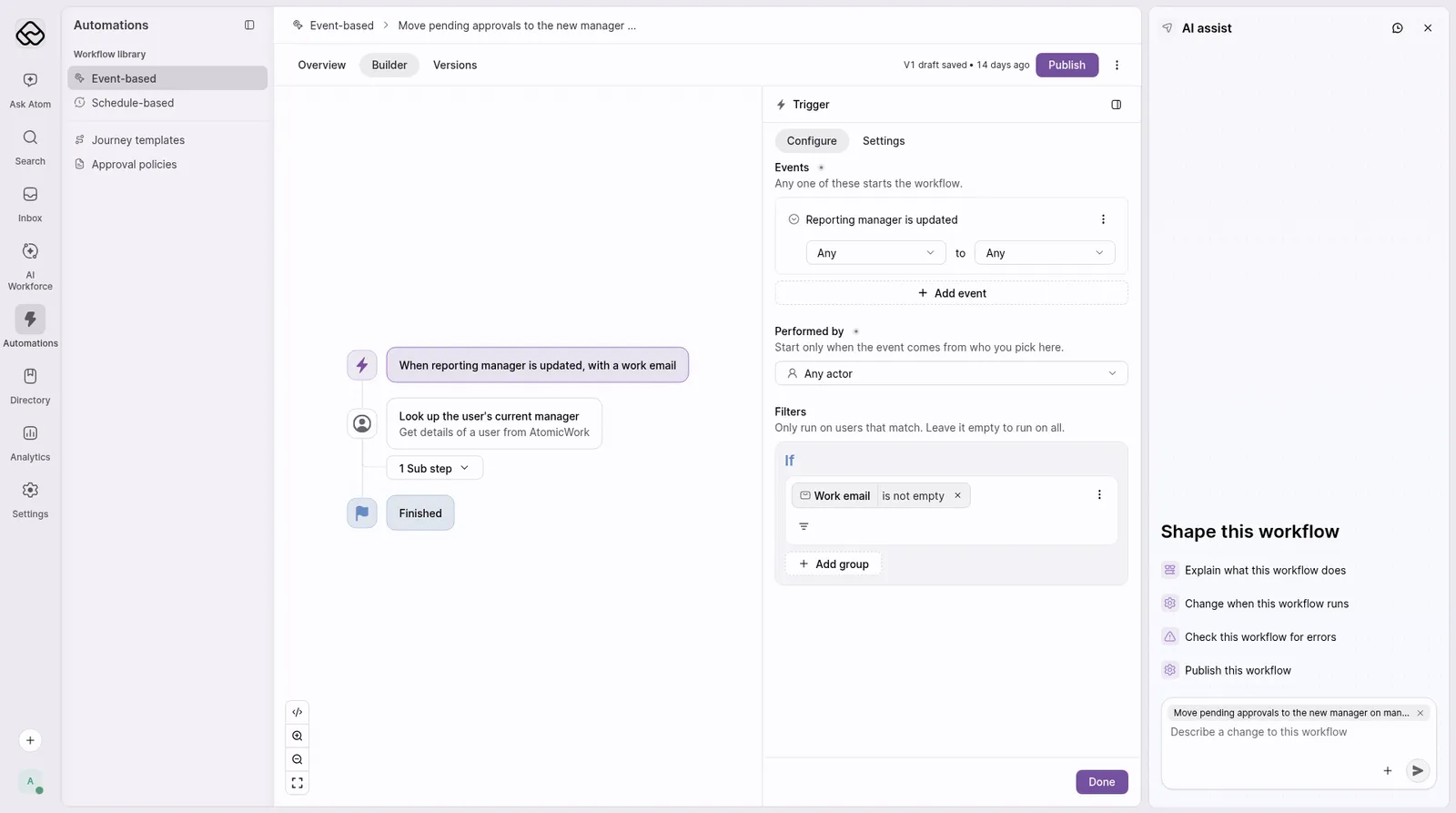
The Builder for a user workflow, with the trigger open on Reporting manager is updated, from Any to Any, and a filter that the work email is not empty

In the Builder, click Show code to inspect the payload. It arrives as input.trigger_context.event_data.
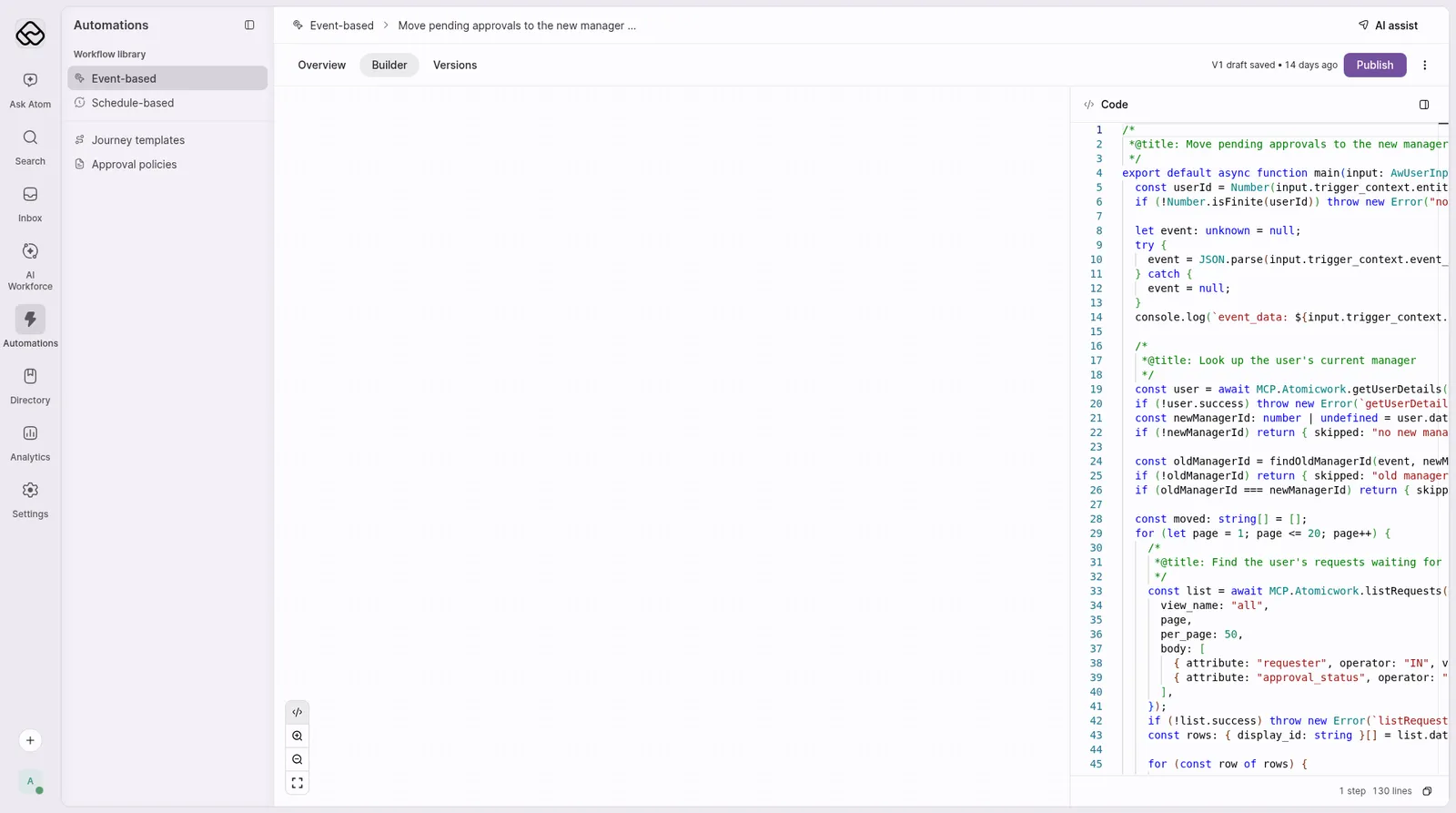
The code view of a user workflow, with the script reading the update event from input.trigger_context.event_data

Example: move pending approvals when a manager changes

A common use is a manager change. Start a workflow on Reporting manager is updated, then ask AI Assist to add a step that reads the previous and new manager from the event and replaces the old approver with the new one on pending requests.

Custom object events

Every custom object type gets its own set of events, built from its attributes:

  • [Object] is created and [Object] is updated, for the record as a whole.

  • [Attribute] is updated for each attribute on the object type.

For example, a Location object with Display name, Name, Location type, Time zone, Site Contact and Business hours attributes offers Location is created, Location is updated, Display name is updated, Name is updated, Location type is updated, Time zone is updated, Site Contact is updated and Business hours is updated. When you add an attribute to the object type, a matching event becomes available.

Limiting who can trigger a workflow

Events say what has to happen. Performed by says who has to do it: the workflow only starts when the event comes from the actor you pick. For example, a workflow on Reply is sent with Performed by set to Requester runs when the employee replies but not when an agent does, which makes it a good way to reopen a request that was waiting on the requester.

Choose the actor in the Performed by section of the trigger, under Events. Request workflows offer these options:

OptionStarts the workflow when the event comes from
Any userAny person, whether an employee or an agent.
RequesterThe person who raised the request.
Assigned agentThe human agent assigned to the request.
Any agentAny human service desk agent.
Assigned AI agentThe AI agent assigned to the request.
Any AI agentAny AI agent, assigned or not.
Any user or AI agentAny person or AI agent, but not an automation.
SystemAn automation, another workflow, or an integration.
System or any userAn automation or any person.
System or any AI agentAn automation or any AI agent.
Any actorAny person, AI agent, or automation.

We’d recommend Any user or AI agent for workflows that update the records they run on. Updates made by other workflows and integrations then don’t start the workflow again, so workflows don’t keep triggering each other.

Schedules

Workflows can also run on a schedule instead of an event. See Scheduled workflows.