
Build workflows with AI Assist
Describe what you want to automate in plain English, and AI Assist builds the workflow for you. You review the draft, test it, and publish it. You can come back later and change it by chat.
AI Assist builds workflows, where every step after the trigger is code that AI Assist writes.
Start a workflow
You can start from the Workflow library list or from the assistant beside it.
Start from New
-
Go to Automations > Workflow library.
-
Pick Event-based for a workflow that starts on an event, or Schedule-based for one that runs on a schedule.
-
Select Organization to build a workflow for the whole organization, or select a workspace to build it for that workspace only. Then select the object the workflow runs on, such as Request.
-
Click New. A full-page AI assist opens with the scope already set.
Start from AI assist
Click AI assist at the top right of the Workflow library to open the assistant beside the list. It shows Build a workflow with the same starter suggestions.
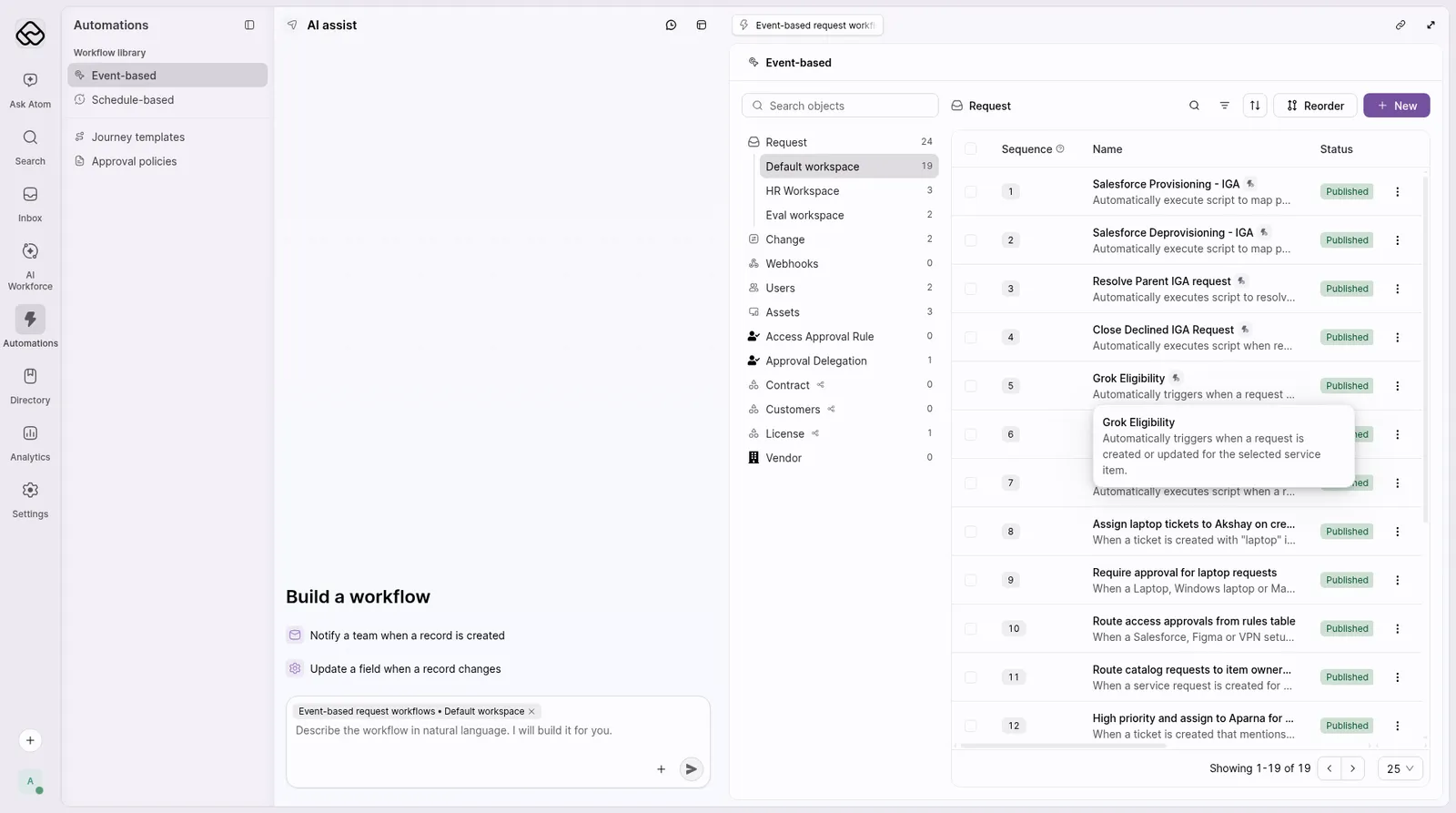
Describe the workflow
Describe the workflow in the prompt box, or pick a starter such as Notify a team when a record is created or Update a field when a record changes. Say what starts the workflow, what it should check, and what it should do.
For example: “When an incident is created with Urgent priority, post it to the #it-major-incidents Slack channel and assign it to the Network team.”
When a request could mean more than one thing, AI Assist asks a question card. When it builds a workflow, it groups its open questions into a single stepped card. Answer the questions to fill in details such as groups, tags and priorities.
Review, test and publish
AI Assist shows you the draft before tests run. Read through the steps in the Builder and ask for changes until the workflow does what you want.
Workflow tests use simulated data. Live verification runs only with your approval, on a labeled test record.
When you’re happy with the workflow, click Publish so that Atomicwork can run it. You can also ask AI Assist to publish it.
Edit an existing workflow
To change a workflow, open it and click AI assist. The panel opens beside the Builder with these suggestions:
- Explain what this workflow does
- Change when this workflow runs
- Check this workflow for errors
- Publish this workflow
You can also describe a change in the Describe a change to this workflow box. For example: “Also send a Slack message to #it-support when the priority is High.”
Sample use cases
Here are some use cases that our customers have built using AI Assist:
-
Analyze the request to see if the requester is frustrated. If they are, set the priority to high. Otherwise, set the priority to medium.
-
If the last reply to the request is a thank you message, don’t reopen the ticket. Add a private note to let other agents know to ignore it because it’s a thank you. If it’s not a thank you, set the status of the ticket to open.
-
Check if the request type is an incident. If so, and if the description or subject mentions a wifi issue, set the priority to high and assign the ticket to a teammate.
-
Schedule a workflow at 9am to check if any high-priority tickets are close to violating the Resolution SLA. If so, escalate it to a supervisor through email or Slack or Teams.
Tips
-
Be specific. Instead of asking to notify someone, name the exact group and priority level.
-
Review the draft before you publish.
-
Say that the workflow is scheduled if you want it to run periodically.
-
Make one change at a time when you edit an existing workflow.