
Coworker routines
A routine is an instruction plus a schedule, attached to one AI Coworker. When the schedule comes around, the coworker does the work on its own. Nobody needs to raise a request or prompt it.
Use routines for work that has to happen on a regular cadence. For example, a weekly summary of open P1 incidents, a daily check for requests that have gone quiet, or a monthly access review reminder.
A few things to know up front:
-
A coworker can have several routines. Each routine has its own instruction and schedule.
-
Routines don’t add new abilities. A routine can only use the tools, skills, and knowledge the coworker already has. If a routine needs to read or act on a system, enable that tool on the coworker first.
-
Every run is recorded as a request. Each run creates a request in the coworker’s workspace, so you can review what the coworker did, the same way you review any other request.
-
Routine changes are published with the coworker. Routines are part of the coworker’s configuration. Changes save as a draft and take effect only when you publish a new version of the coworker. The exception is pausing or resuming a routine with its Active toggle, which takes effect right away.
Before you begin
-
Permissions: You need permission to manage AI Workforce. See Workforce roles and permissions.
-
A working coworker: Routines run on an existing AI Coworker. If you haven’t built one yet, see Setting up an AI Coworker.
-
A reporting manager: The coworker must have a reporting manager. Routines don’t run on a coworker that has no reporting manager.
-
The right tools: Check the coworker’s Tools and Skills tabs. The coworker can only do what it’s already set up to do.
Find routines on a coworker
Go to AI Workforce > AI Coworkers, open a coworker, then go to Configuration > Routines.
If the coworker has no routines yet, you’ll see an empty state with a New routine button.
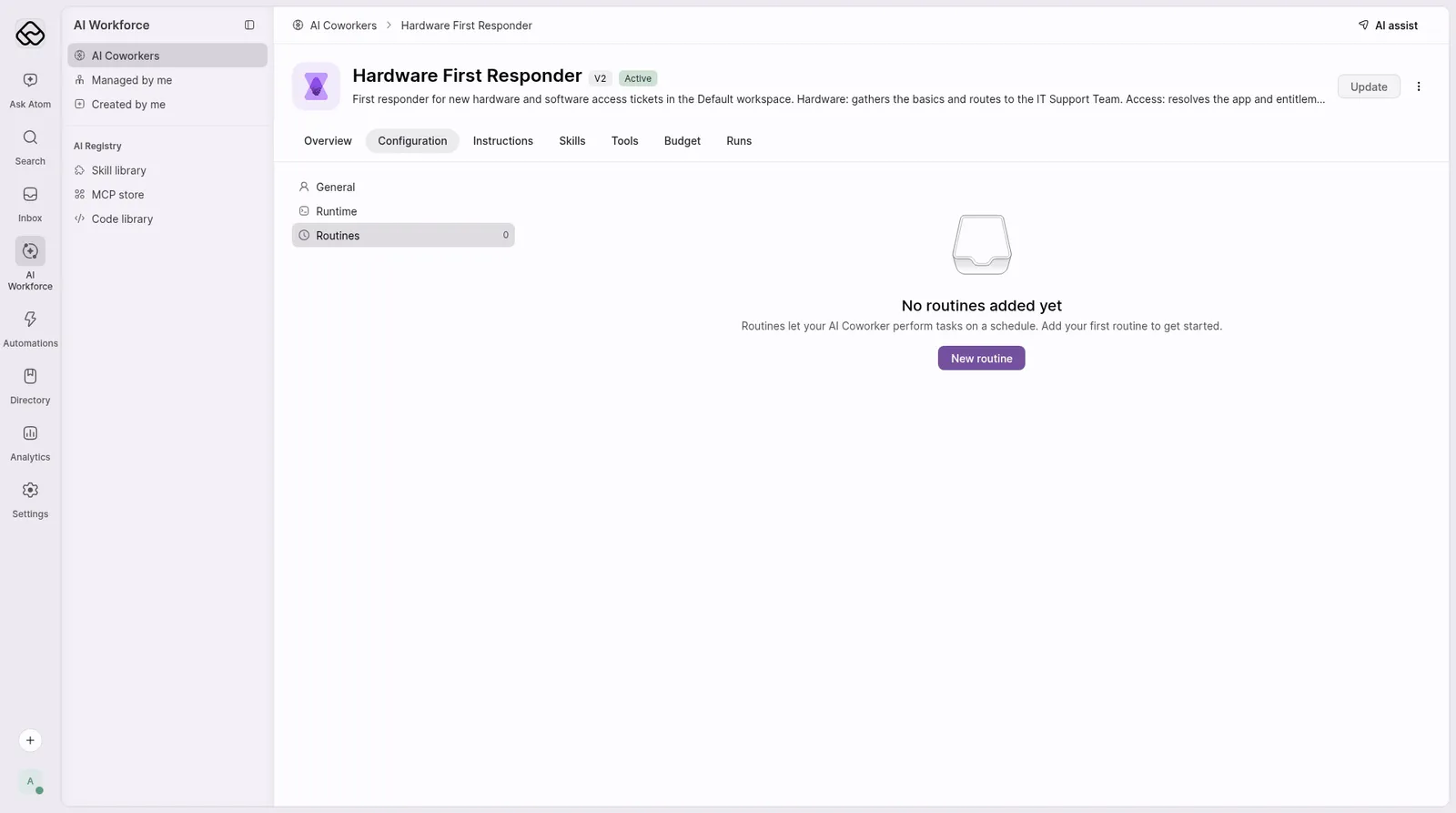
You can create a routine two ways: describe it to AI Assist, or build it yourself with New routine.
Create a routine with AI Assist
The fastest way to create a routine is to describe the recurring work in plain language and let AI Assist set it up for you.
Describe the recurring work
Say what should happen and when. Include the day, time, and time zone, what the coworker should look at, and what it should produce.
For example: “Add a routine to this coworker: every Monday at 9:00 AM IST, review all open P1 incidents in the Default workspace and post a summary of status, owner and next steps.”
Be specific about the output. “Summarise each open P1 incident in a table of ticket, status, owner, and next step” gets you a more consistent result than “summarise P1s”.
Create a routine manually
Open the Routines tab
Go to AI Workforce > AI Coworkers, open the coworker, and go to Configuration > Routines.
Click New routine
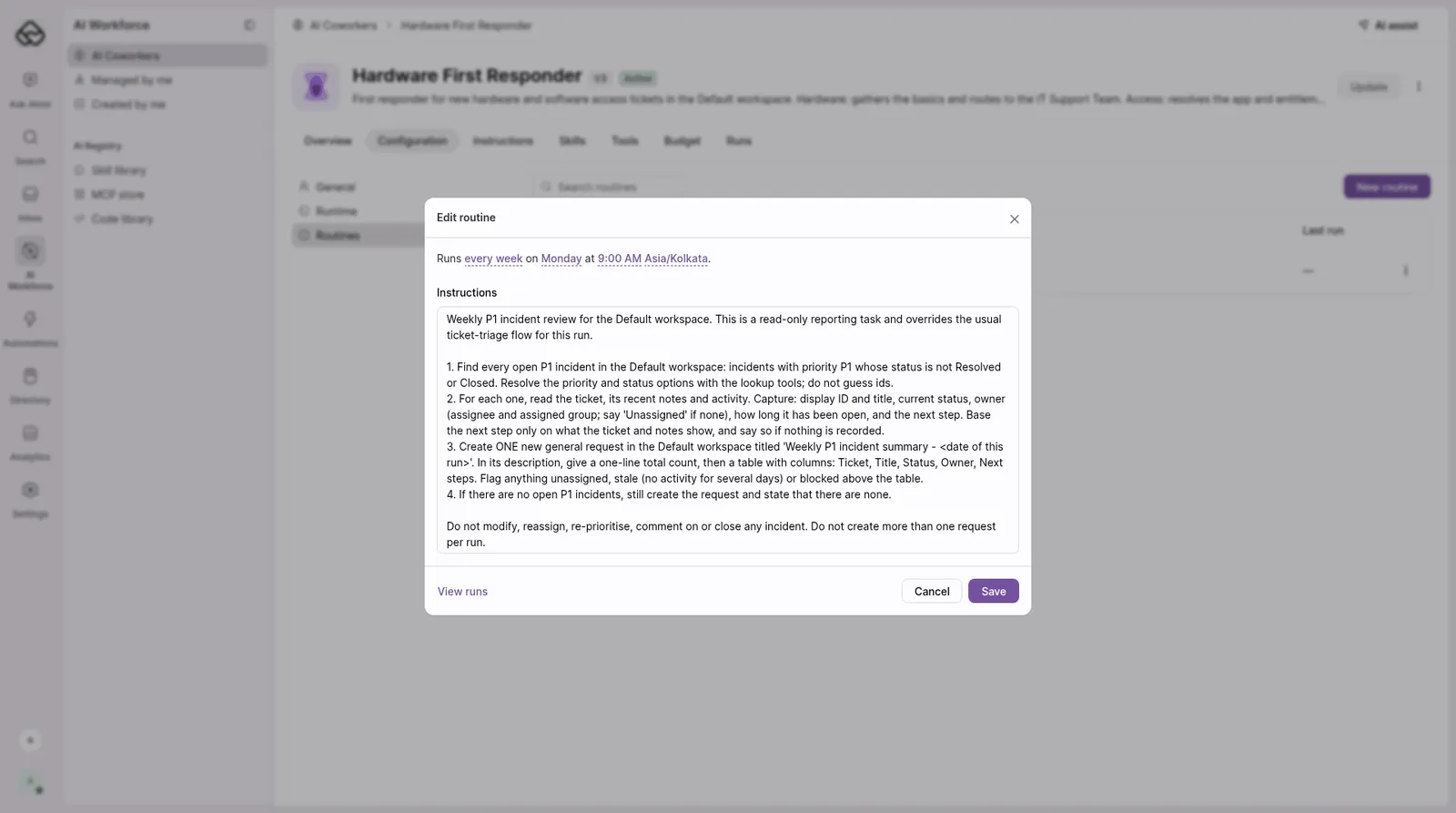
The New routine window opens with a default schedule that reads like Runs every day at 9:00 AM, followed by a time zone.
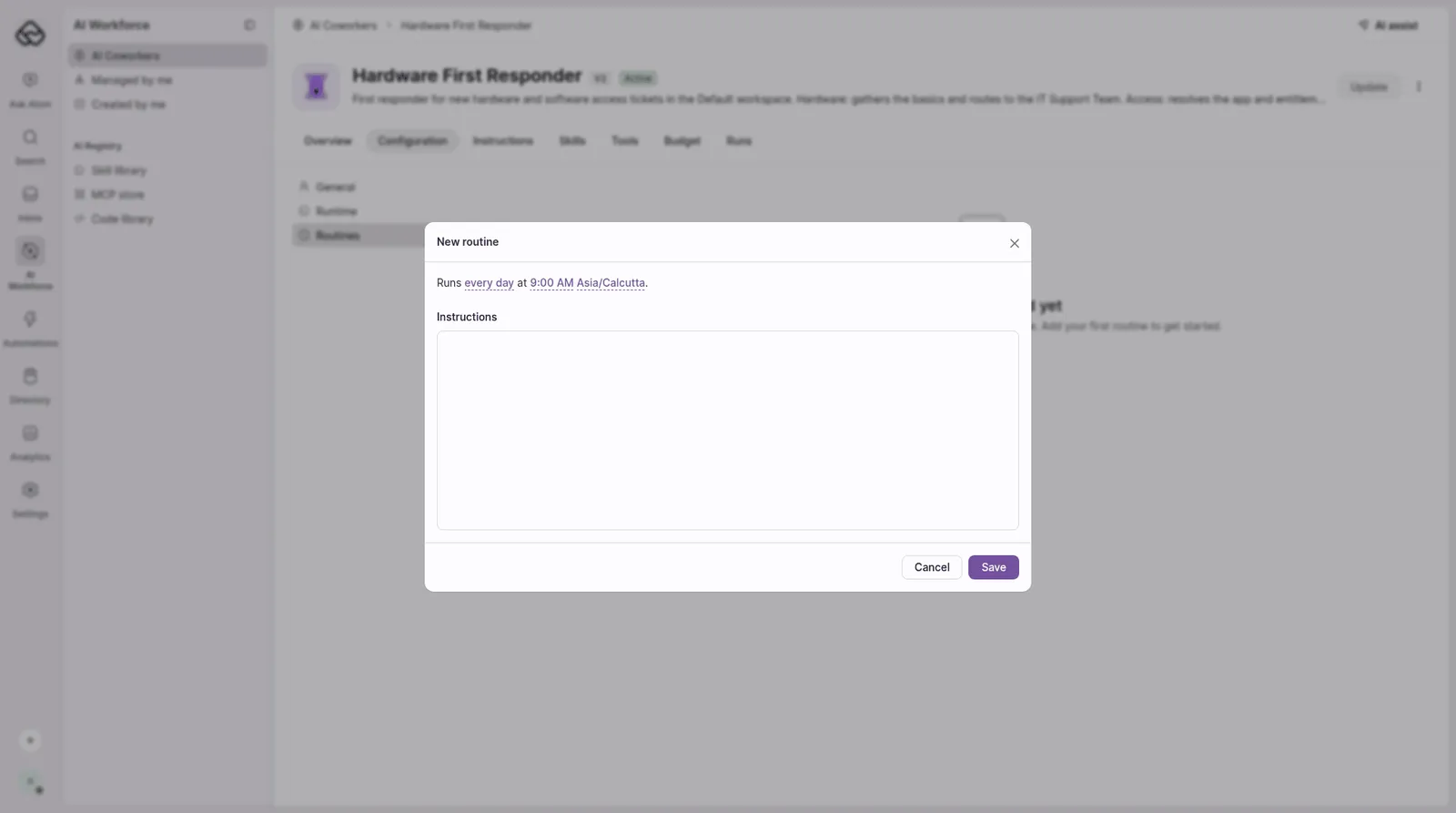
Set the schedule
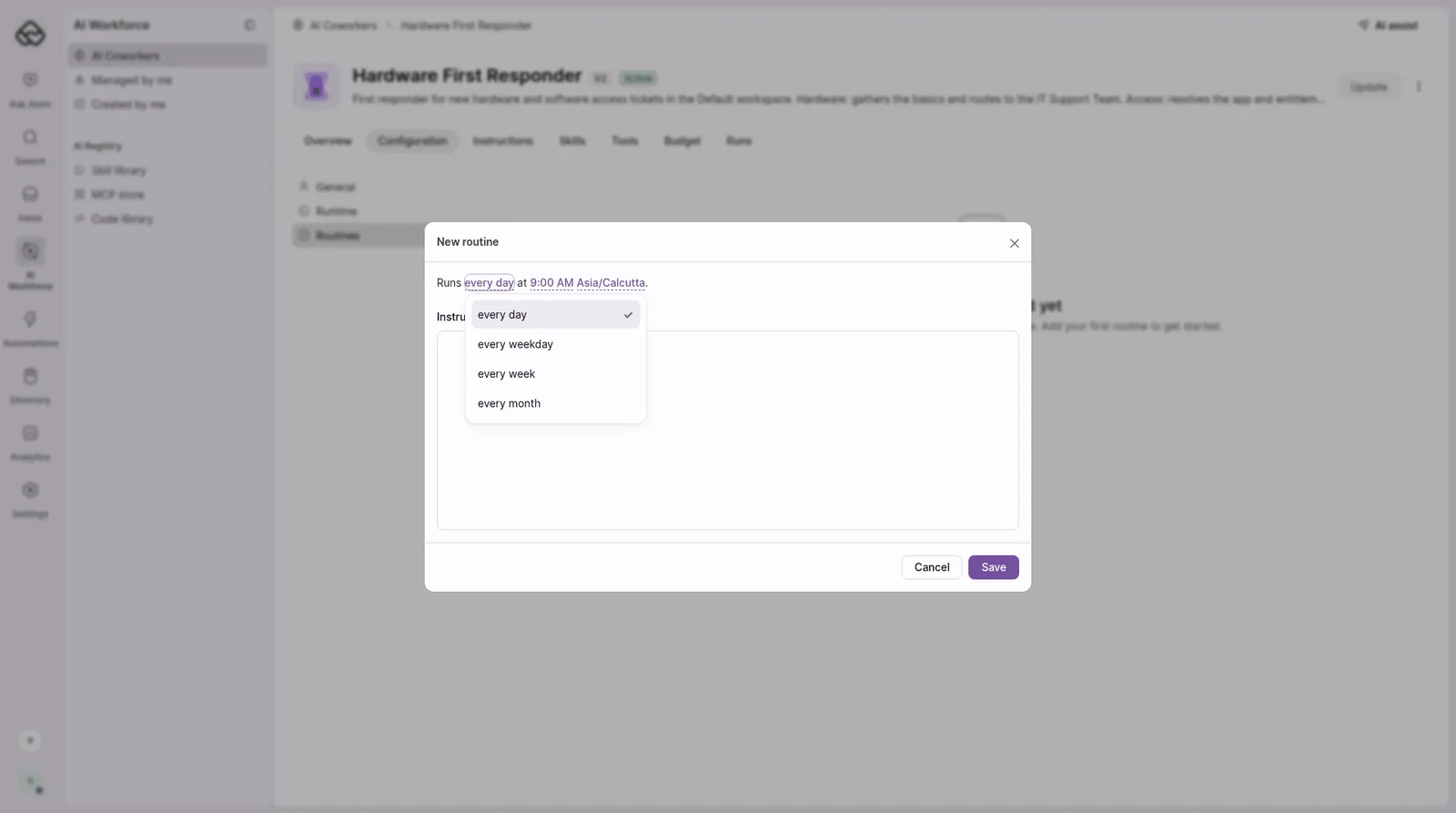
The schedule reads as a sentence. Click the underlined parts of the sentence to change them:
- Frequency – every day, every weekday, every week (choose the days), or every month (choose a day from 1 to 28).
- Time – the time of day the routine runs.
- Time zone – the time zone the schedule follows.
Write the instructions
In Instructions, describe the work in plain language, the way you’d brief a teammate. Say what to look at, what to do, and what to produce. If the routine should not take certain actions, say so.
There’s no name field. The routine’s name is inferred automatically from its instructions.
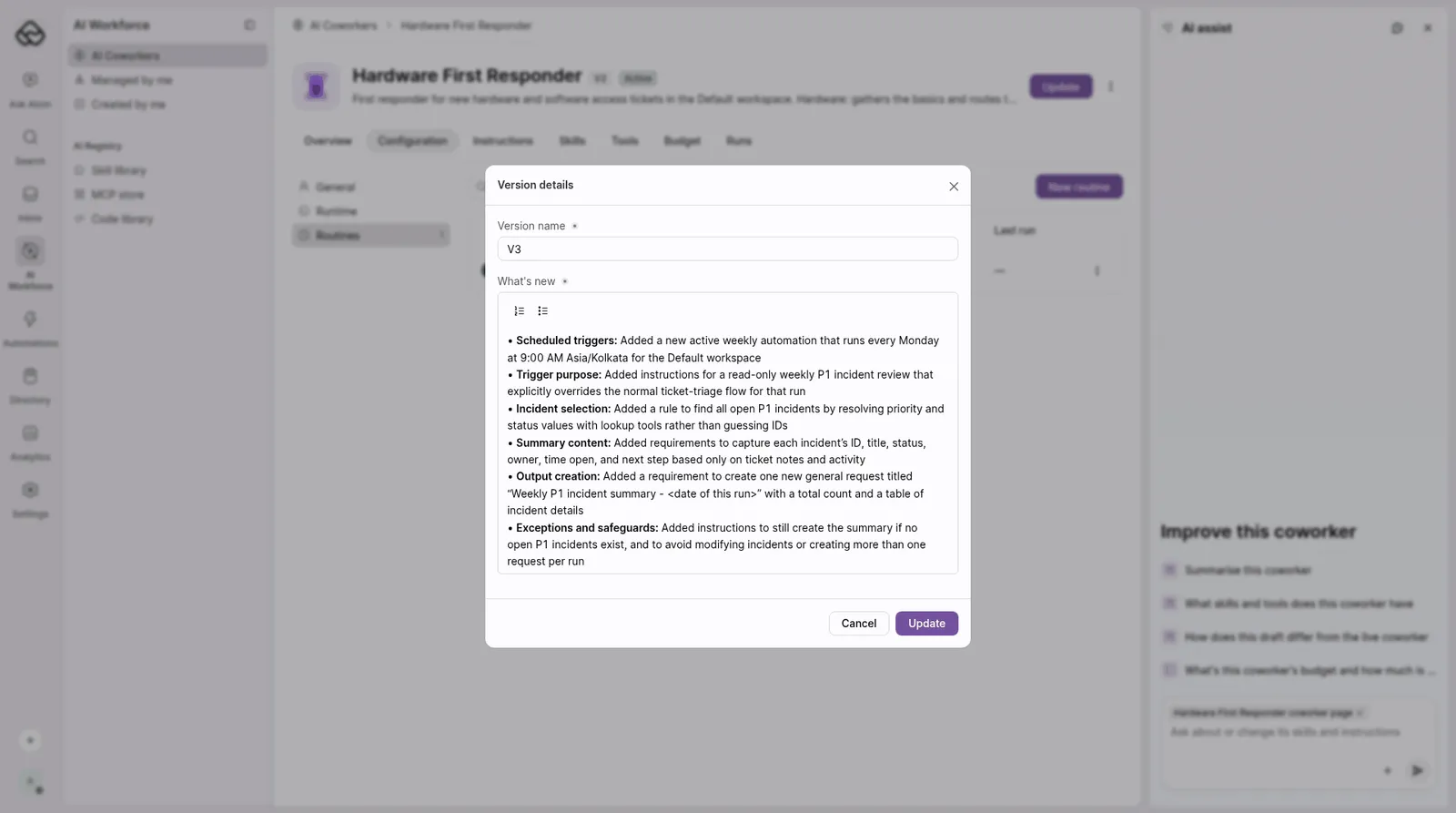
Routine changes appear in the coworker’s version history, like any other configuration change. Scheduled runs and Run now always use the published version of the coworker, never the draft. Pausing or resuming a routine is different: it takes effect right away, with no publish needed.
Manage routines
The Routines tab lists every routine on the coworker, with these columns:
- Routine – the routine’s name, inferred from its instructions.
- Schedule – when it runs.
- Last run – when it last ran.
Each row has an Active toggle and a more menu (⋮).
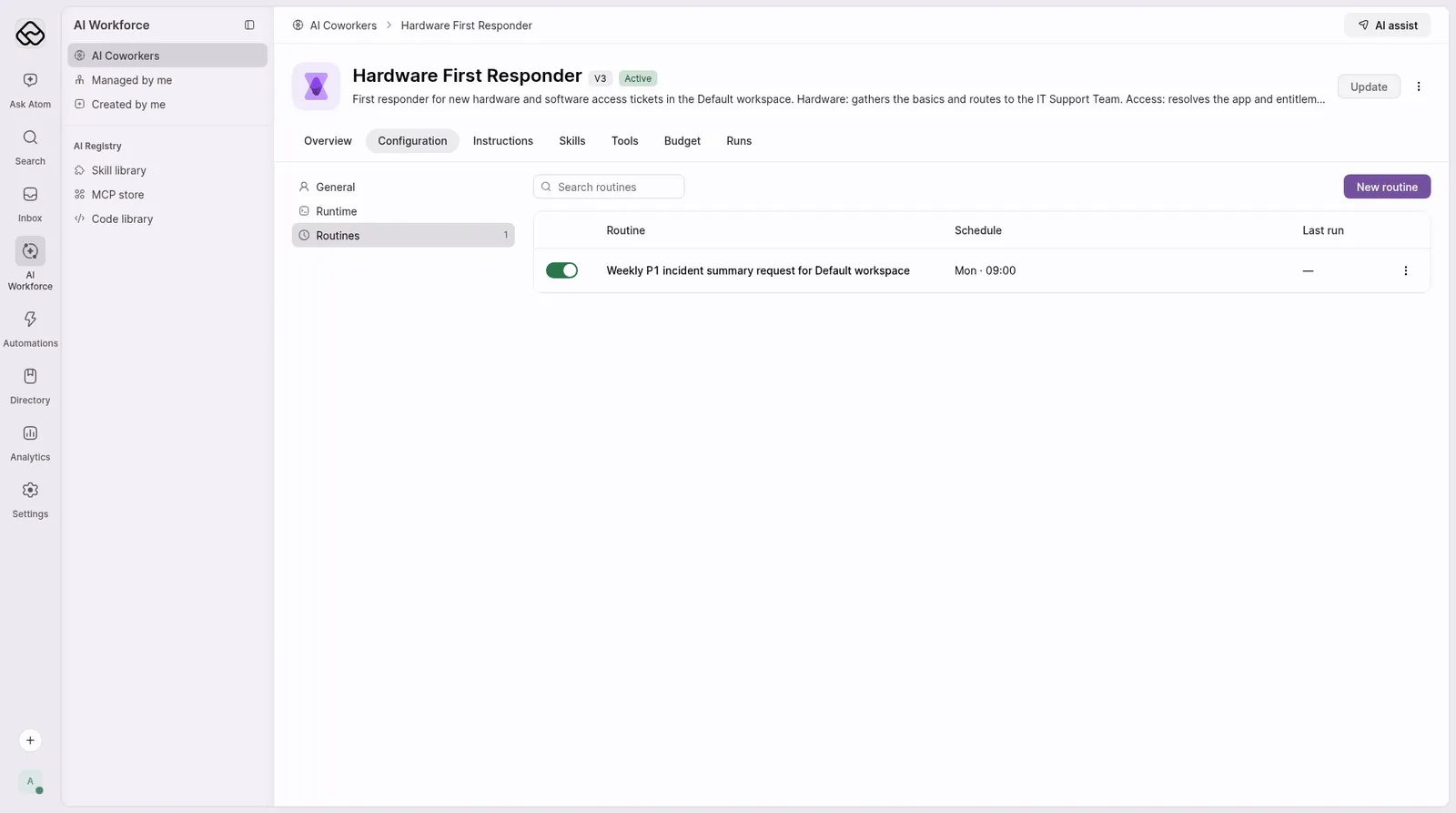
Edit a routine
Open the routine from the list to see Edit routine. Change the schedule sentence or the instructions, then click Save. Publish the coworker for the change to take effect.
Pause or resume a routine
Turn off the Active toggle on the routine’s row to pause it. Turn it back on to resume.
Pausing and resuming take effect right away. You don’t need to publish the coworker.
Pausing the coworker also pauses all of its routines.
Run a routine now
To run a routine immediately instead of waiting for its schedule, open the more menu (⋮) on its row and choose Run now.
Run now always uses the published version of the coworker, never the draft. If you’ve edited the routine or the coworker but haven’t published yet, Run now uses the last published version.
View past runs
Open the routine and click View runs to see the requests each run created. The Last run column on the routines list shows when the routine last ran.
Delete a routine
On the Routines tab, find the routine in the list and choose Delete. To stop a routine for now without losing it, pause it instead.
If a run fails or is missed
Open the routine, click View runs, and check the request the run created. Then edit, pause, or delete the routine as needed.
How a routine run works
When a routine’s schedule comes around:
-
A request is created. The run creates a request in the coworker’s workspace containing the routine’s instructions. The request is marked with a routine (scheduled trigger) source, so you can tell it apart from requests raised by people.
-
The coworker is assigned. The coworker is assigned the request and works it like any other request, using its own tools, skills, and knowledge. That request is the record and audit trail of the run.
-
It remembers recent runs. The coworker uses context from its last 5 runs of the same routine.
-
It works as itself. Runs use the coworker’s own identity.
-
Approvals still apply. Approvals follow whatever the coworker’s tools and policies already require.
-
Conflicts get flagged. If a routine’s instructions conflict with the coworker’s own instructions or skills, the coworker reasons about the conflict and typically flags it.
To dig into what the coworker did during a run, see Understanding how AI Coworkers run.
When a routine doesn’t run
A routine doesn’t run when:
- Its Active toggle is off.
- The coworker is paused.
- The coworker has no reporting manager.
Examples
These are examples to adapt for your own coworkers. They aren’t built-in templates.
Weekly P1 incident summary
Schedule: every week on Monday at 9:00 AM
Instructions: Review all open P1 incidents and summarise the status, owner, and next steps for each.
Daily stale-ticket check
Schedule: every weekday at 10:00 AM
Instructions: Find requests with no update in 3 or more days and nudge their owners.
Monthly access review reminder
Schedule: every month on day 1
Instructions: List the apps that are due for an access review and open the follow-ups.
Each example only works if the coworker already has the tools it needs, for example access to requests, incidents, or the apps under review.
Current limitations
- Schedules only. Routines run on a schedule. Event-based triggers aren’t supported.
- No hourly or minute schedules. The most frequent option is once a day.
- No end date. You can’t set an end date or stop a routine after a set number of runs. Pause it with the Active toggle instead.
- Requests only. Routines can’t run on conversations. Every run creates a request.
- Monthly runs use days 1 to 28.
FAQ
I saved a routine, but it isn't running. Why?
Check that you’ve published the coworker since saving the routine. Routine changes stay in draft until you publish a new version. Also check that the routine’s Active toggle is on, the coworker isn’t paused, and the coworker has a reporting manager.
Does Run now use my unpublished changes?
No. Run now always uses the published version of the coworker. Publish your changes first, then use Run now.
How do I name a routine?
You don’t need to. There’s no name field. The routine’s name is inferred automatically from its instructions.
Do I need to publish after pausing a routine?
No. Pausing or resuming a routine with its Active toggle takes effect right away.
A run failed or didn't happen. What should I do?
Open the routine, click View runs, and check the request the run created. Then edit, pause, or delete the routine as needed.
Can a routine do something the coworker can't normally do?
No. A routine uses only the coworker’s configured tools, skills, and knowledge. To give a routine a new ability, add the tool or skill to the coworker first.
Where do I see what a routine did?
Every run creates a request. Open the routine and click View runs to see those requests, then open one to see the coworker’s work.
Can I run a routine every hour?
Not yet. Routines can run every day, every weekday, every week, or every month.
What happens to routines when I pause the coworker?
They pause with it. They don’t run until the coworker is active again.
Can one coworker have more than one routine?
Yes. Add as many as you need, each with its own instructions and schedule.