
Standalone workflows
Some work doesn’t belong to a single ticket. A morning digest, a weekly cleanup, a monthly report: these jobs just need to run on time. Standalone workflows run on a schedule without an underlying request, user, asset, or custom object record, so you can automate the routines that sit around your service desk.
With standalone workflows, you can:
-
Send digests and summaries – Post a daily Slack summary of open urgent requests, or email a weekly backlog report to your team leads.
-
Run housekeeping jobs – Look up stale records across workspaces and act on them in one run.
-
Sync on a timer – Pull data from or push data to another system every hour.
A scheduled workflow on requests or users runs once for each record that matches its conditions. A standalone workflow runs once per schedule, whether or not any record exists. If the workflow needs records, it looks them up in its own steps.
Creating a standalone workflow
Find the Standalone category
-
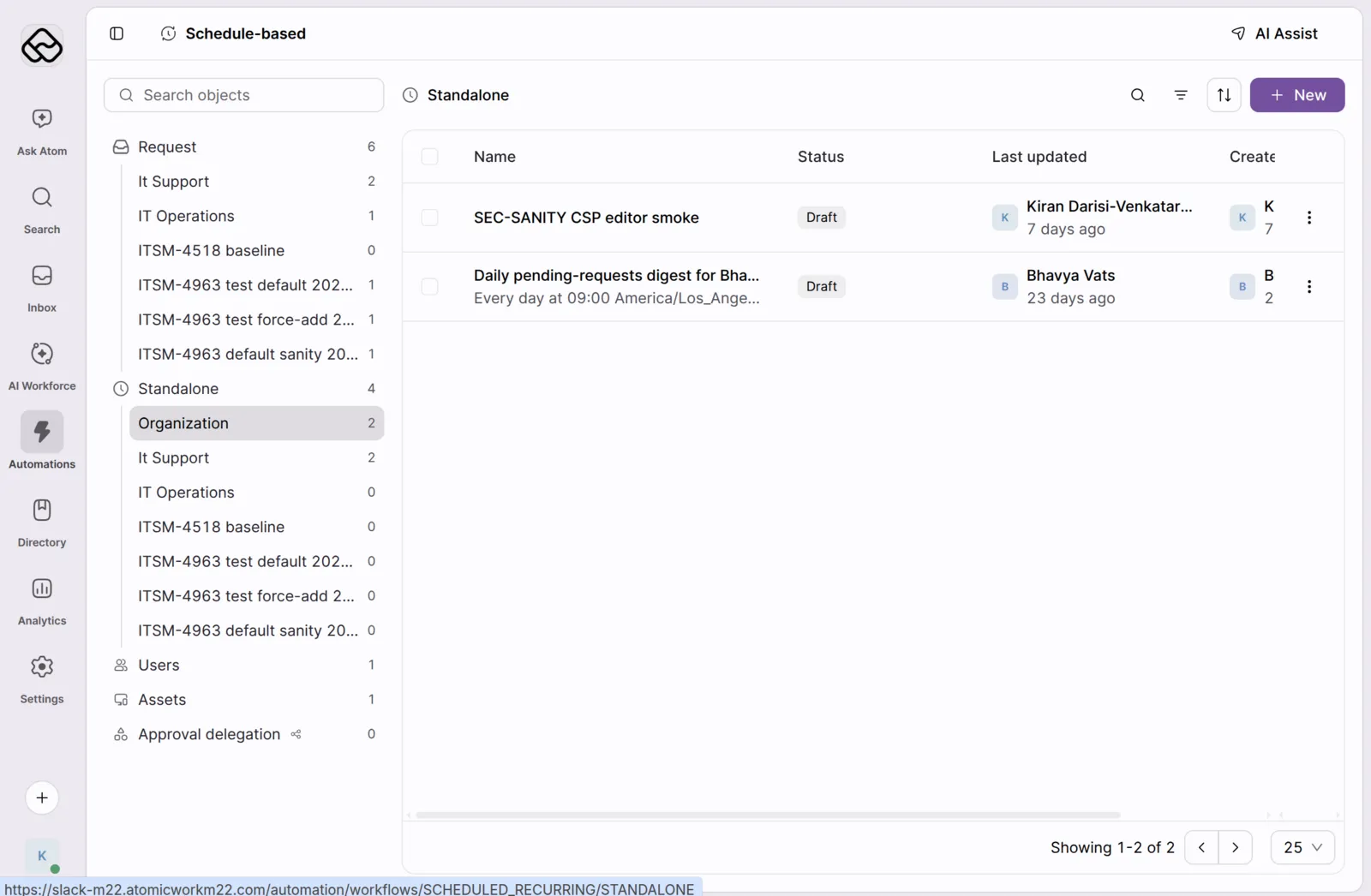
Go to Automations and select Schedule-based in the Workflow library.
-
In the object list, select Standalone. Choose Organization for workflows that apply across your organization, or a workspace to keep the workflow in that workspace.
Describe the workflow to AI Assist
-
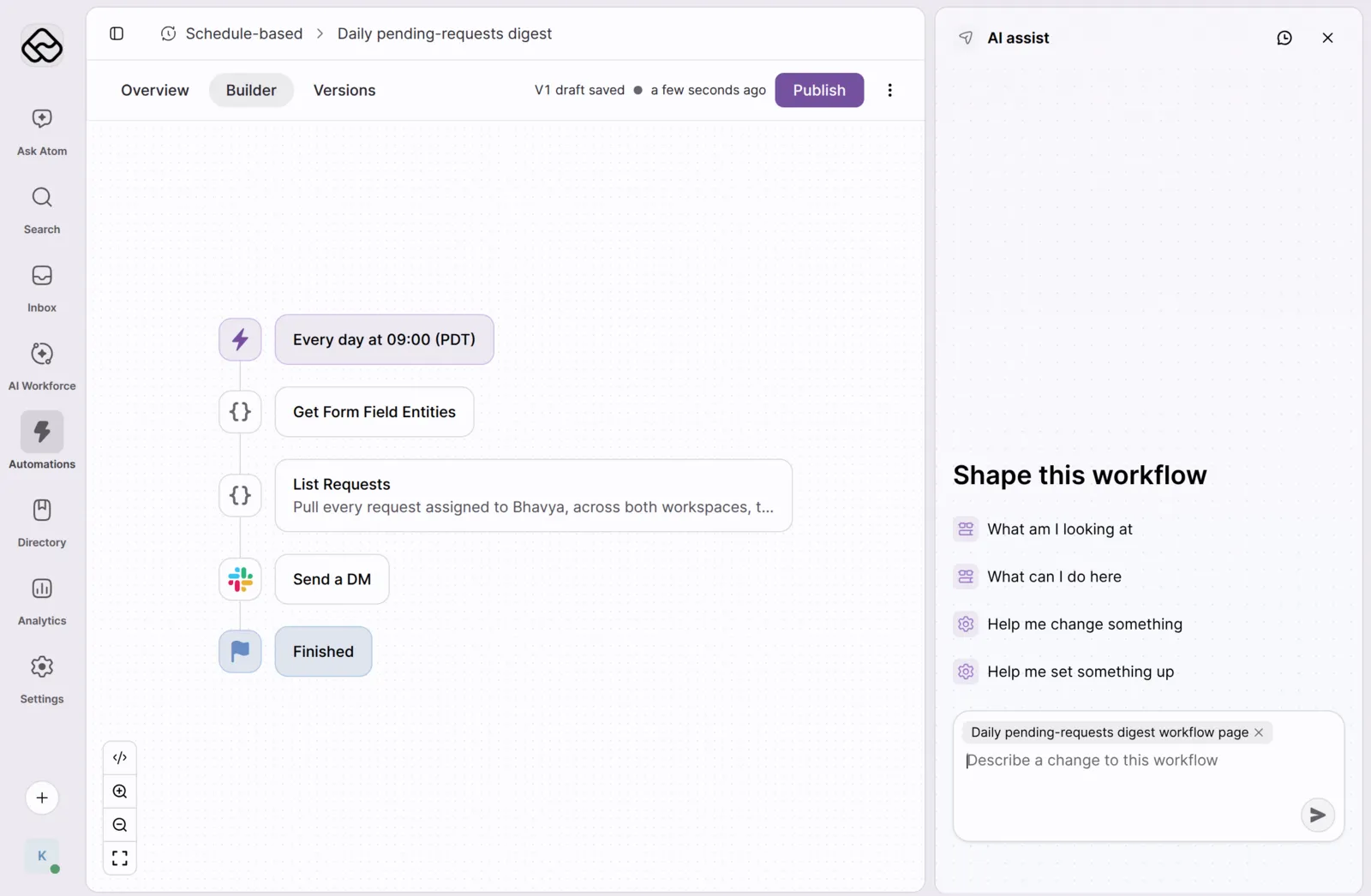
Click New. AI Assist opens with the Scheduled standalone workflows context already selected.
-
Describe the schedule and what the workflow should do on each run. For example:
Every day at 9:00 AM Pacific time, find every request assigned to me across IT Support and IT Operations that isn’t complete, and send me a Slack DM that lists them with links. If there are none, don’t send anything.
-
AI Assist builds the workflow and saves it as a draft. See Build workflows with AI Assist for tips on writing prompts.
The draft opens in the Builder. The first step is the schedule trigger, followed by the steps that AI Assist created.
Configuring the schedule
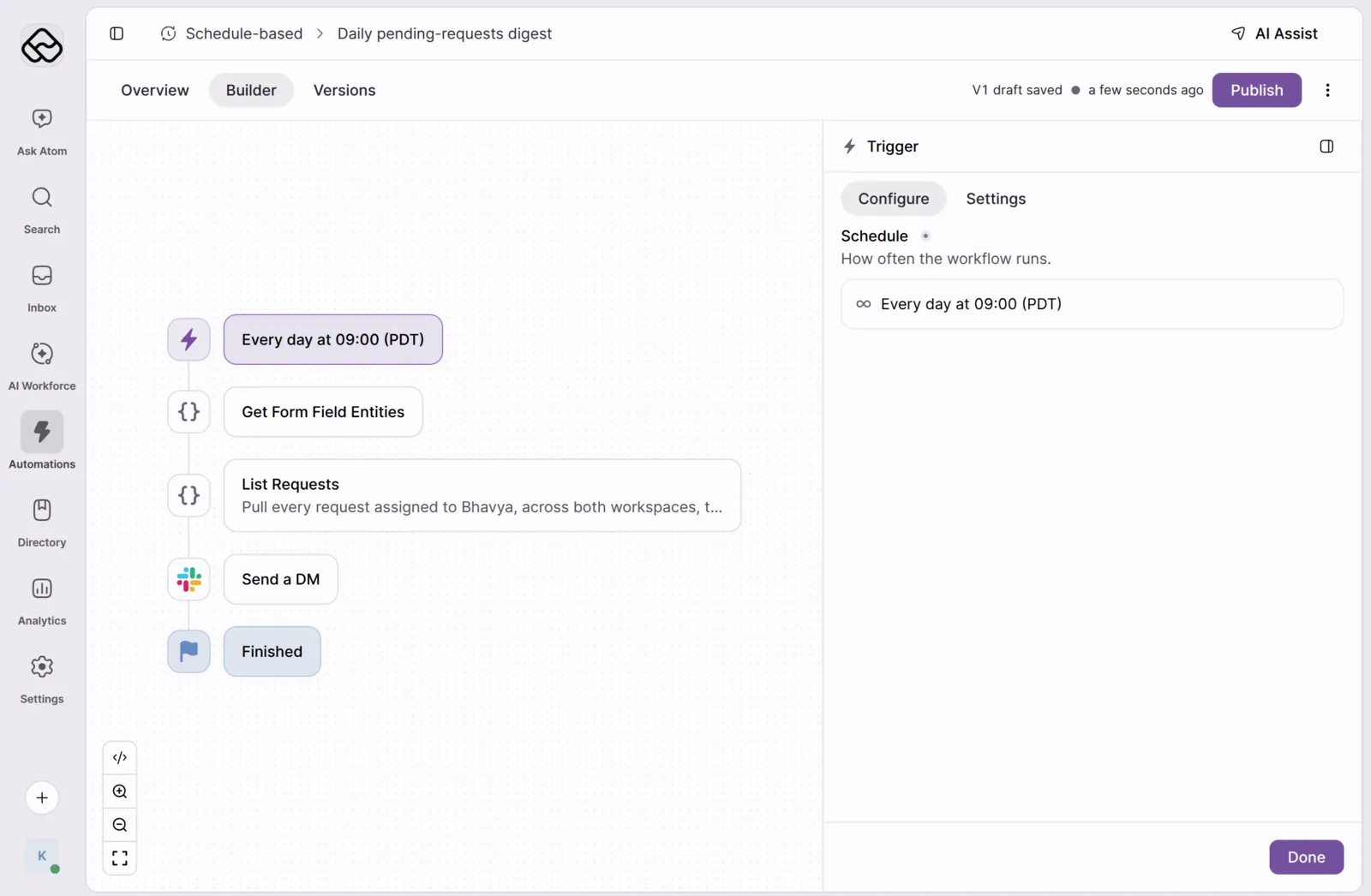
Standalone workflows always use a recurring schedule.
- Click the trigger step to open the Trigger panel. Schedule shows how often the workflow runs.
-
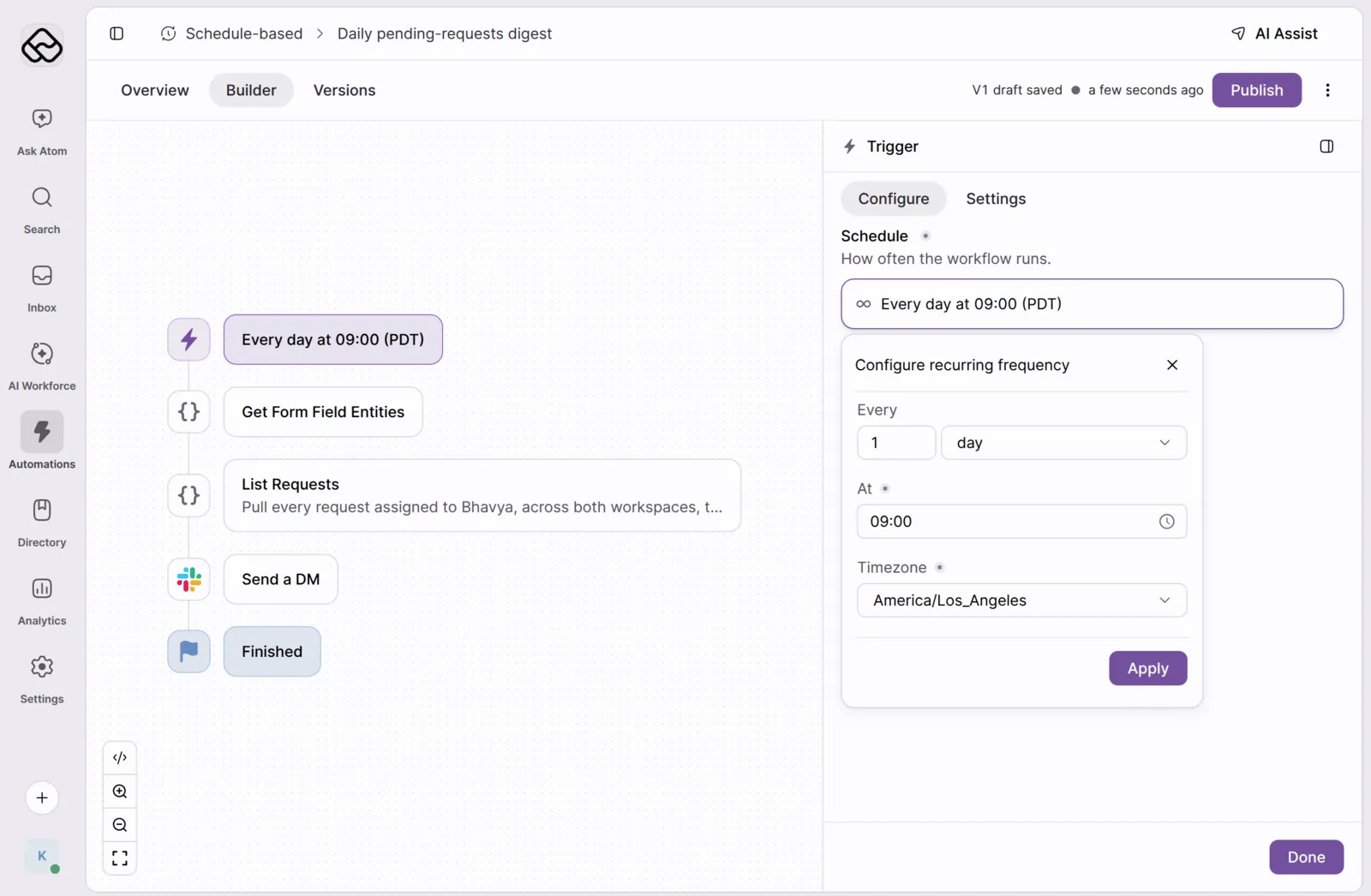
Click the schedule to open Configure recurring frequency, and set:
-
Every – A number and a unit: hour, day, week, or month.
-
At – The time of day the workflow runs.
-
Timezone – The time zone for the run time, so the workflow runs at the right local time for your team.
-
-
Click Apply, then Done.
Using data in standalone workflows
Because there is no request or user behind a standalone run, request and user placeholders are not available. Use the workflow placeholder to read account and workspace details, and add steps such as List Requests to look up the records the workflow should act on. Later steps can use the results of those lookups.
Publishing the workflow
-
Review the steps in the Builder. You can ask AI Assist to change the workflow, or click the code icon to see the steps as code.
-
Click Publish. The workflow runs on its next scheduled time, and then on every schedule after that.