
External webhook workflows
Your other tools already know when something important happens. External webhook workflows let them tell Atomicwork. A monitoring tool raises an alert, an HR system hires someone, a CI pipeline fails, and a workflow starts in Atomicwork right away, using the data the app sent.
Each external webhook workflow gets its own URL. Any app that can send an HTTP request can call it. There is no request, user, or asset needed to start the workflow. The incoming payload is the trigger.
With external webhook workflows, you can:
-
Turn alerts into incidents – Create an urgent request when your monitoring tool reports a critical alert.
-
Sync events from other systems – Start onboarding when your HRIS posts a new hire, or update an asset when your MDM reports a change.
-
Reply to the caller – Send back a status code and a JSON body so the calling app knows the event was received.
External webhook workflows receive calls from other apps. To send a request from a workflow to another app, use HTTP requests instead.
Creating an external webhook workflow
Find the Webhooks category
-
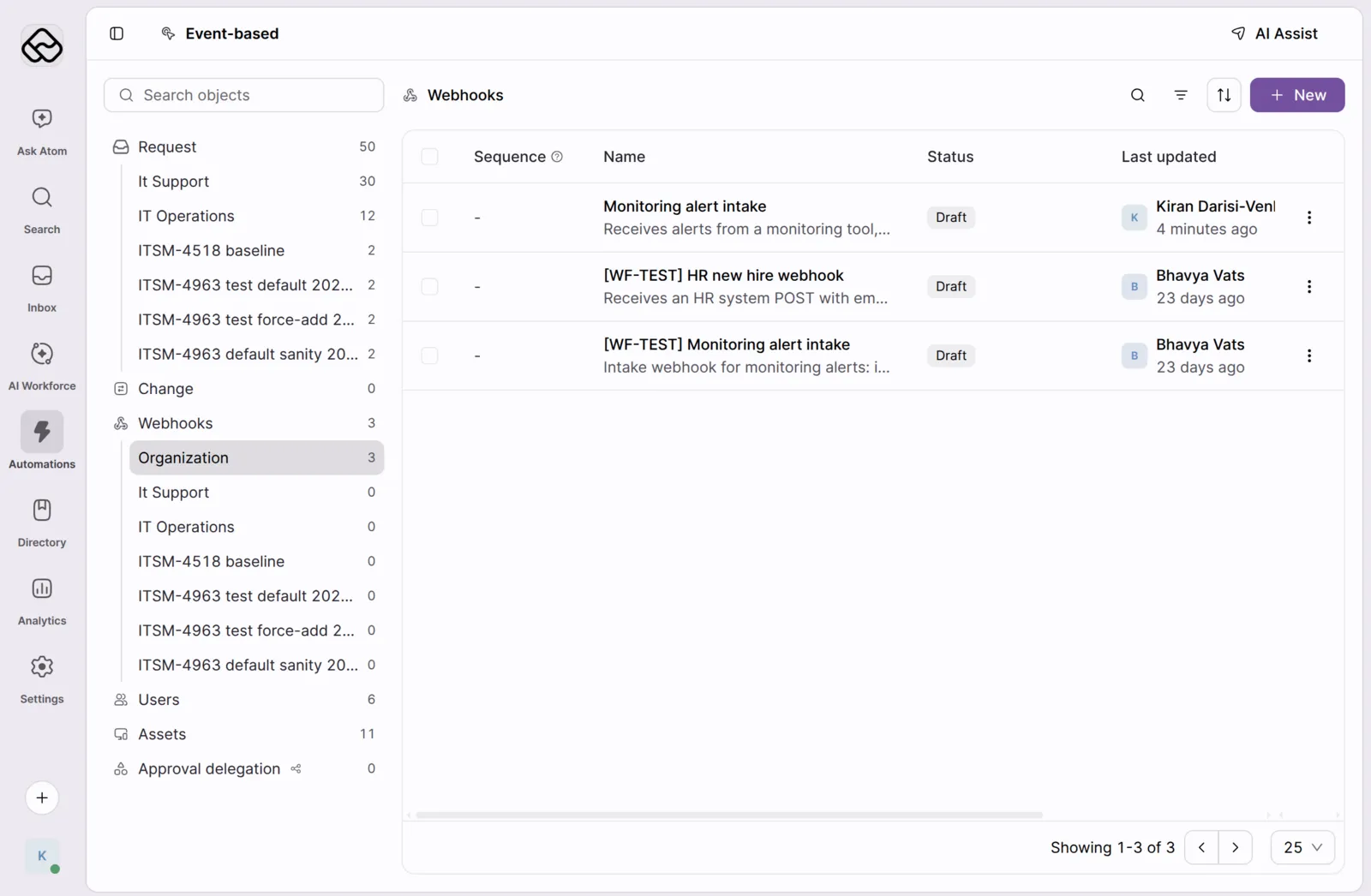
Go to Automations and select Event-based in the Workflow library.
-
In the object list, select Webhooks. External webhook workflows are organization-wide, so they are listed under Organization.
Describe the workflow to AI Assist
-
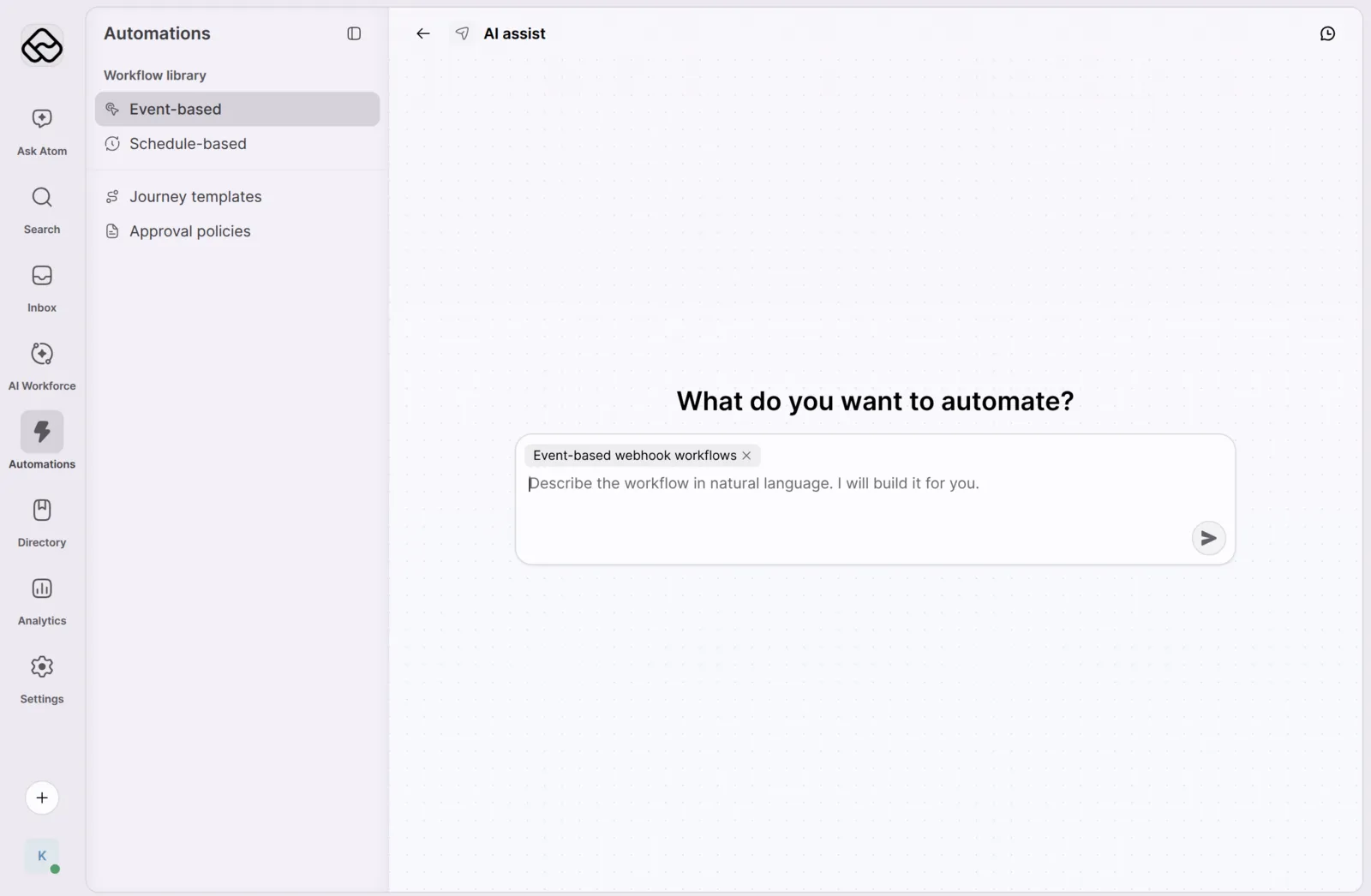
Click New. AI Assist opens with the Event-based webhook workflows context already selected.
-
Describe what should happen when the webhook is called. Name the fields you expect in the payload, so AI Assist can use them. For example:
When our monitoring tool posts an alert with
alert_id,severity,service, andsummary, ignoreinfoalerts. Forwarningandcriticalalerts, create an incident in IT Support with the summary as the subject. If an open request already exists for the samealert_id, add a note to it instead. -
AI Assist builds the workflow and saves it as a draft. See Build workflows with AI Assist for tips on writing prompts.
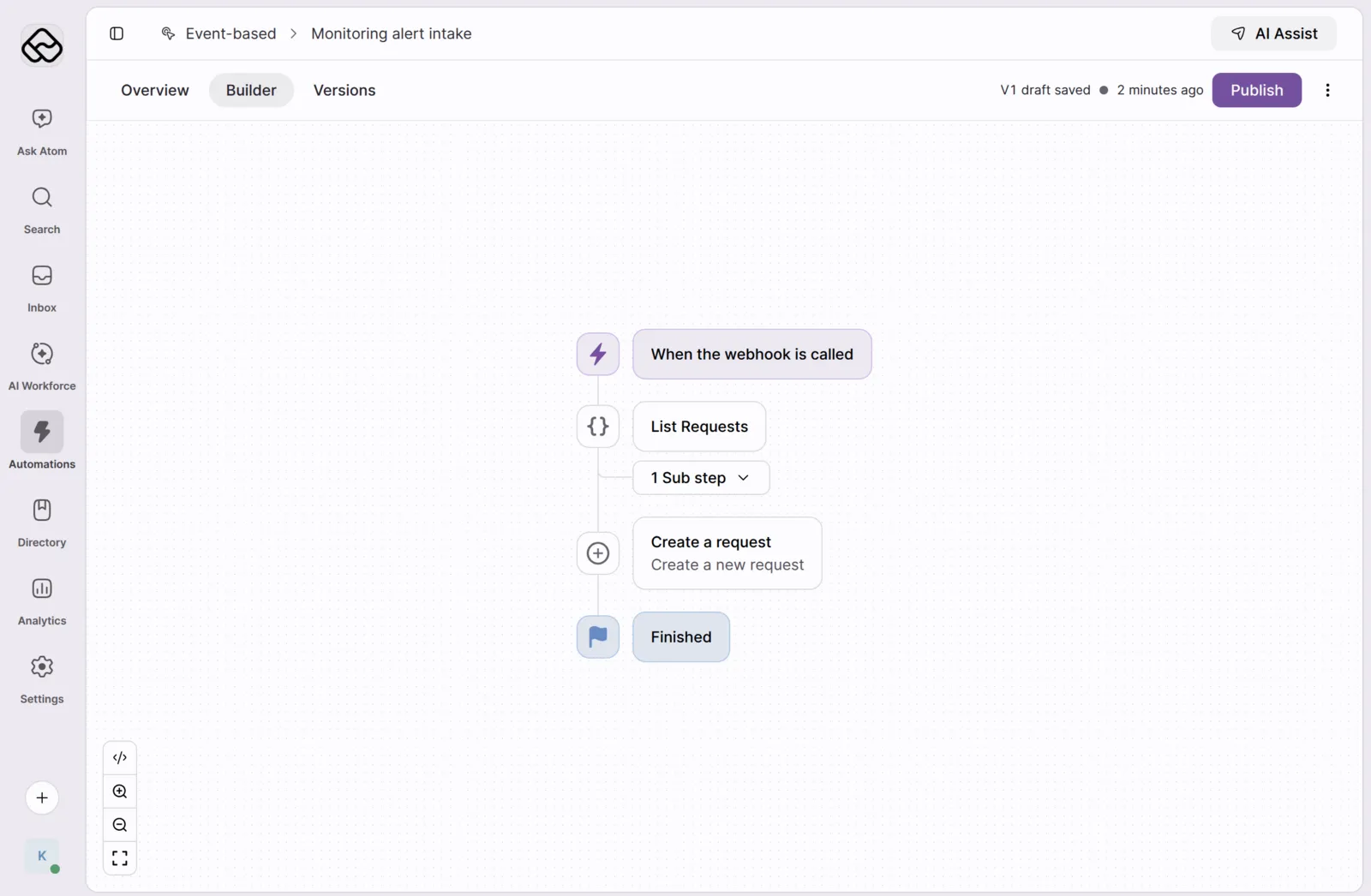
The draft opens in the Builder. The first step is always the When the webhook is called trigger, followed by the steps that AI Assist created.
Configuring the webhook
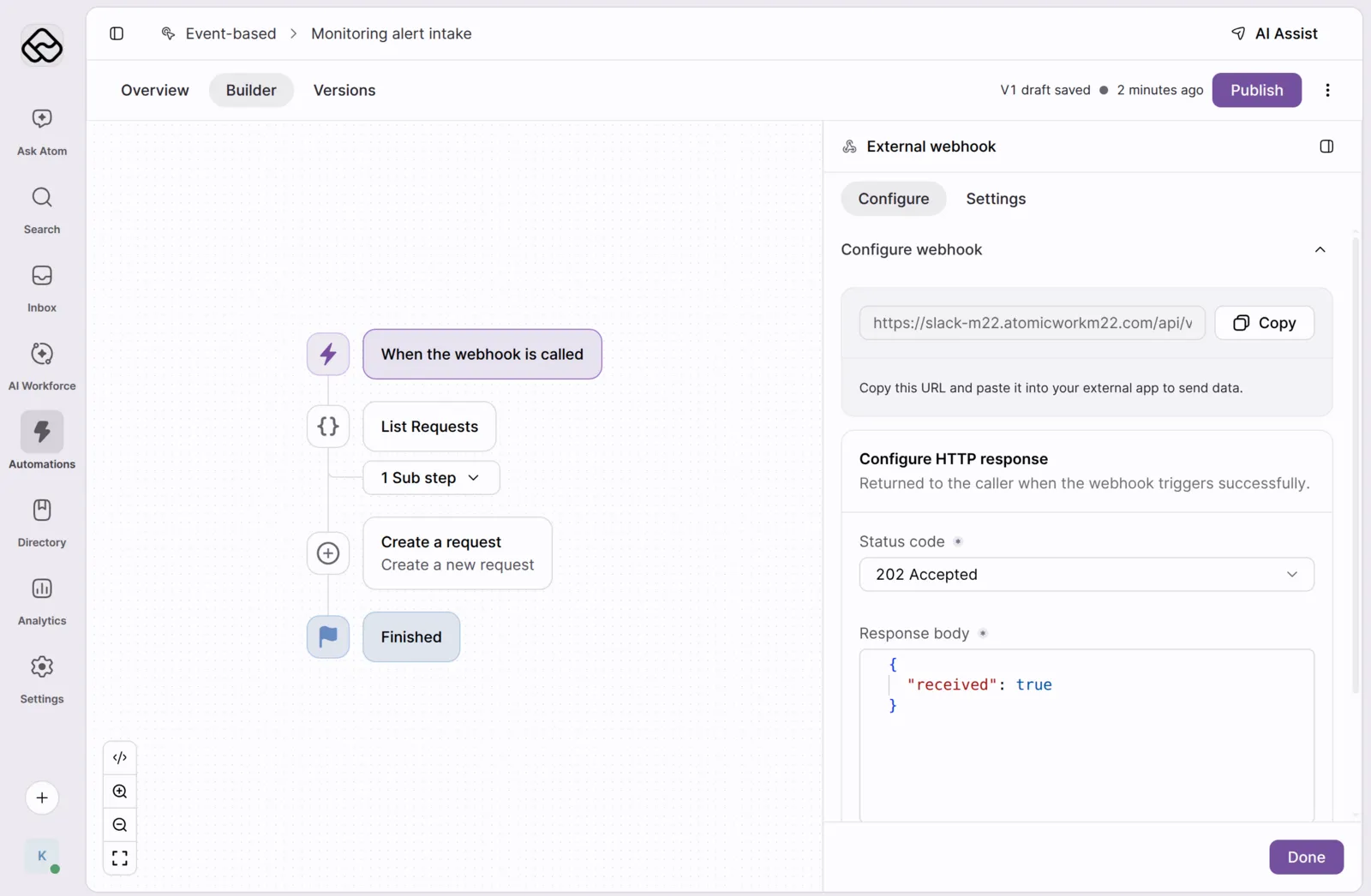
Click the When the webhook is called trigger to open the External webhook panel.
Copy the webhook URL
The webhook URL is generated once the workflow is saved. It has this format:
Click Copy and paste the URL into the webhook or notification settings of your external app. The URL accepts GET, POST, PUT, PATCH, and DELETE requests. Send JSON payloads in the request body.
Treat the webhook URL like a password. Anyone who has the URL can start the workflow. Share it only with the app that needs to call it.
Configure the HTTP response
Under Configure HTTP response, choose what Atomicwork returns to the caller when the webhook triggers successfully:
-
Status code – Pick a
2xxstatus code, such as200 OKor202 Accepted. -
Response body – Enter the JSON that the caller receives, for example
{ "received": true }.
The workflow runs in the background after Atomicwork replies, so the response tells the caller that the event was accepted, not that every step finished.
Set up placeholders from a sample payload
Placeholders let later steps use values from the incoming call. To set them up, send a real sample to the webhook first.
-
Call the webhook URL from your app, or with a tool such as
curl: -
Open Setup placeholders and click Fetch payload. Atomicwork shows the latest 3 payloads it received.
-
Choose the payload that matches what your app sends. Atomicwork lists the fields it found and their types. Click Open in editor to adjust the payload structure by hand.
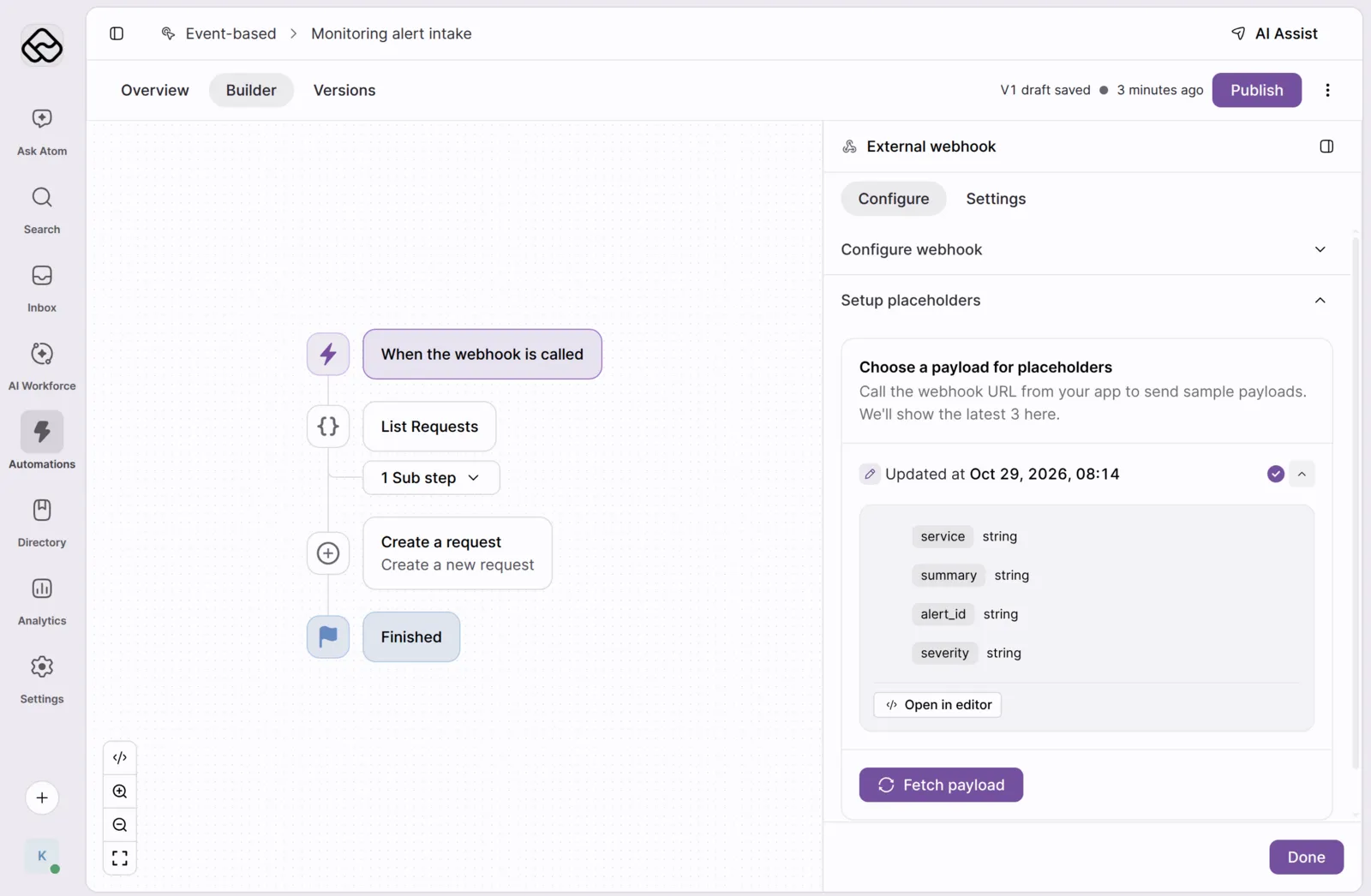
You can send sample payloads while the workflow is still a draft. A draft does not run any steps: Atomicwork stores the payload and replies with 204 No Content.
Use webhook data in your steps
Values from the incoming call are available under the event placeholder:
Publishing the workflow
-
Review the steps in the Builder. You can ask AI Assist to change the workflow, or click the code icon to see the steps as code.
-
Click Publish.
Once the workflow is published, every call to the webhook URL starts a new run, and the caller receives the status code and body you configured. Check the runs of the workflow to confirm that each call was processed.