
Set up a custom-branded Slack app for Atom
You can configure Atom in Slack to use your own company name, icon, and identity. It also supports Atom in Slack through Slack’s AI Agents and Assistants experience. You’ll generate a Slack app manifest from Atomicwork’s API, use it to create a new app in your Slack workspace, and connect that app back to Atomicwork.
A manifest file is a configuration file written in JSON that defines the structure of a Slack app.
Prerequisites
-
A Slack workspace with app creation privileges
-
Atomicwork org admin access
-
curlandjqinstalled locally (or any API client of your choice)
Step 1: Generate the manifest
Atomicwork exposes an API endpoint that returns a Slack app manifest pre-configured for your tenant. You’ll call it, then use the response in Slack.
-
Disconnect any existing Slack app Go to your Atomicwork tenant at
https://your-domain.atomicwork.com/settings/apps/SLACK. If a Slack app is already connected, disconnect it before continuing. -
Create a public API token
- Go to Settings > My account > Credential store and click Create token.
- Click Create token and give it a name (e.g. “Slack custom app”).
- Copy the token immediately and store it somewhere secure.
- Generate the manifest
From a terminal, Postman, or any API client, run the following. Replace
<your-domain>with your Atomicwork subdomain and<your-token>with the token from the previous step.
The | jq -r '.manifest' at the end extracts and unescapes the manifest from the API response, giving you a clean, ready-to-paste JSON manifest. The output will look like this:
Note: Event Subscriptions use /api/v2/slack/events/custom-app while interactivity URLs remain on /api/v1.
Copy this output — you’ll paste it into Slack in the next step.
Step 2: Create the custom app in Slack
- Create the app from your manifest
- Go to https://api.slack.com/apps. and click Create New App.
- Select From a manifest.
- Pick a workspace and click Next.
- Select JSON as the format and paste in the manifest output you’d copied in the previous step.
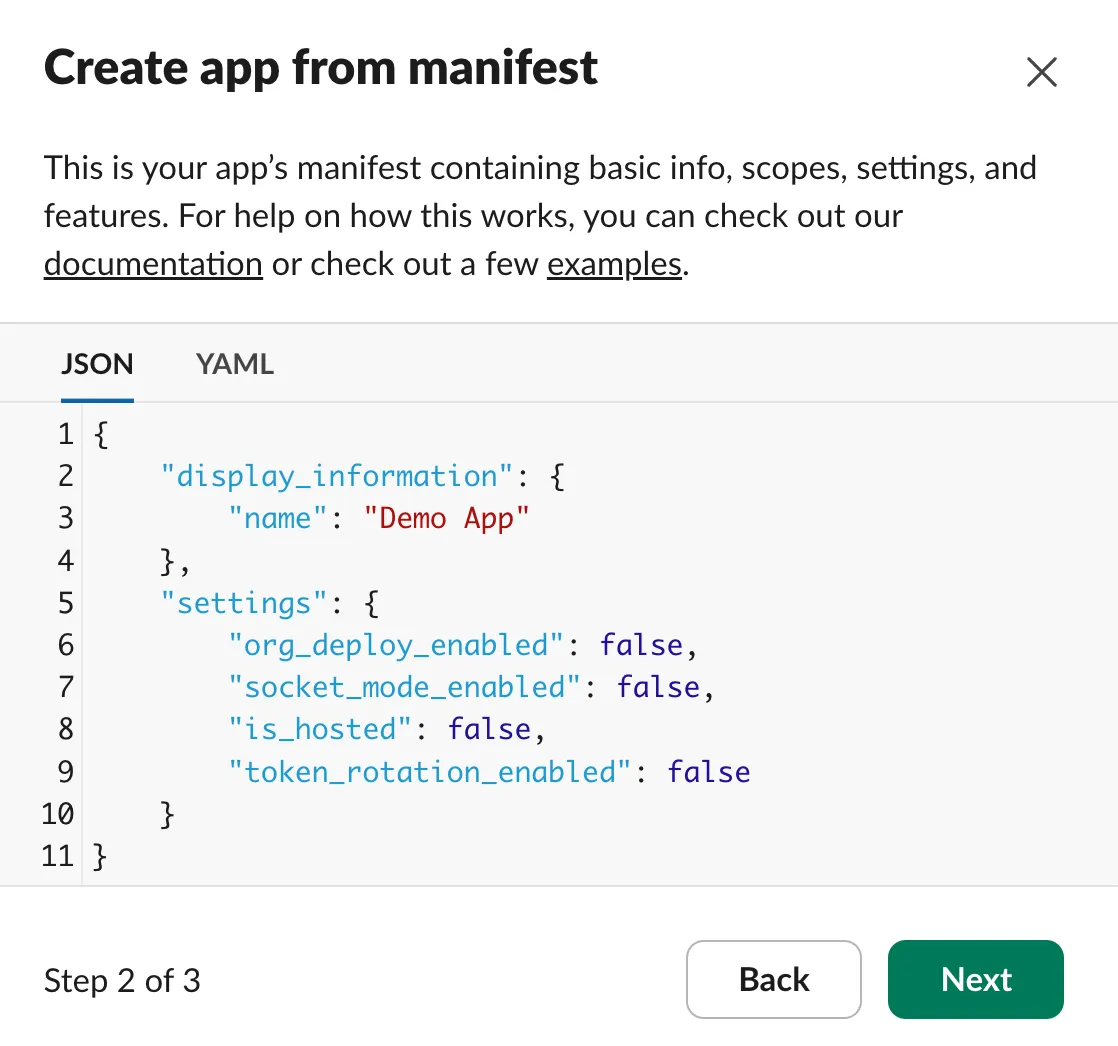
- Confirm the requested scopes match the list below, then click Create.
- Verify the Request URL
- In the app settings, go to Event Subscriptions (under Features).
- In the Request URL field, confirm the endpoint is
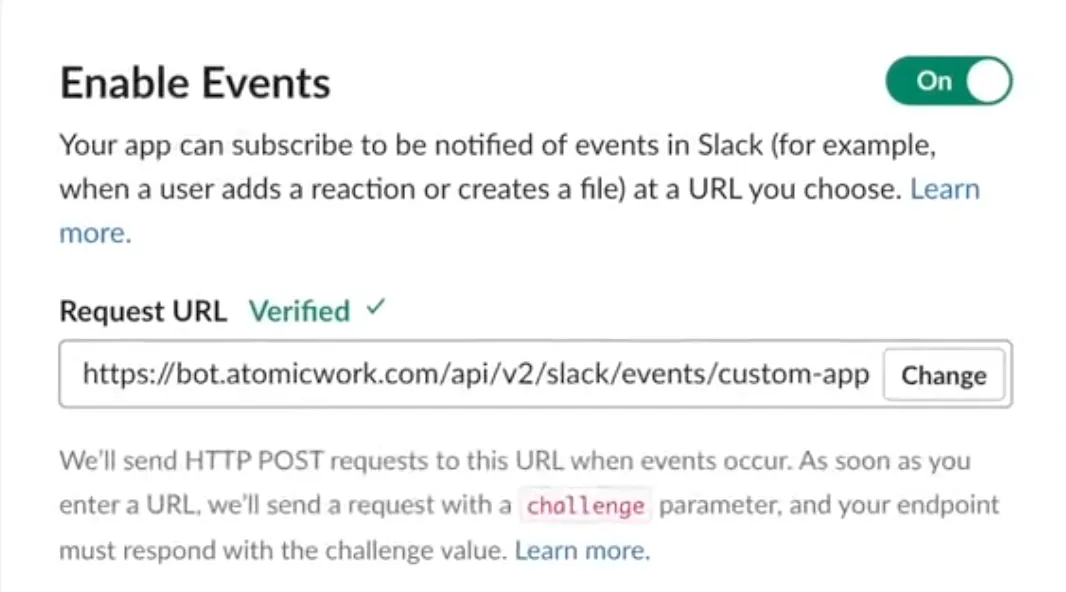
https://bot.atomicwork.com/api/v2/slack/events/custom-app, then click Retry to verify the app with Atomicwork.
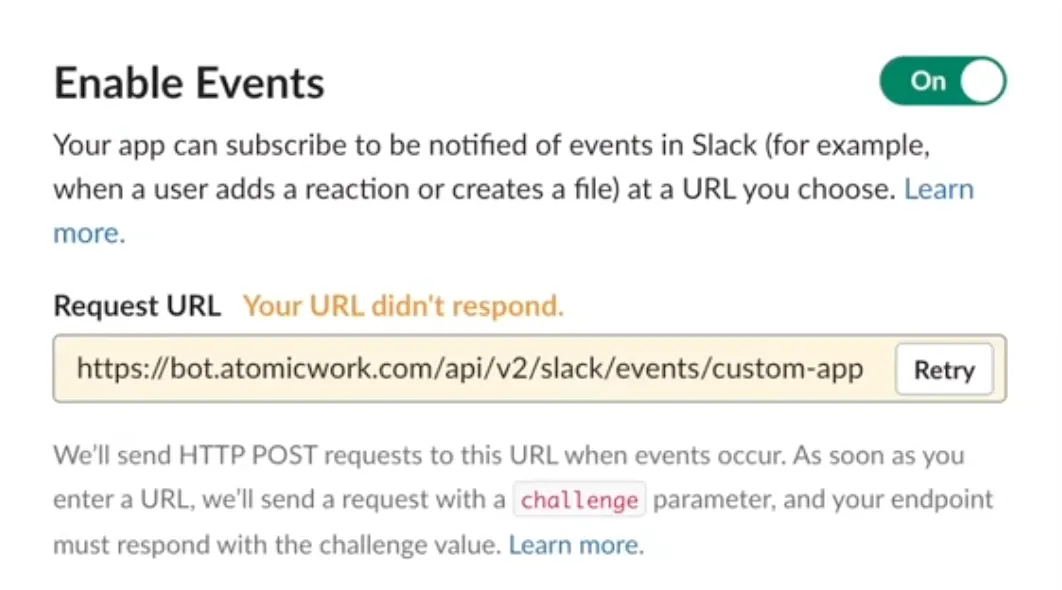
- Once verified, click Save Changes.
- Install the app to your workspace
- Go to Install app (under Settings) in the sidebar and click Install to your workspace.
- Review the permissions and click Allow.
- Copy the Slack credentials
-
After installing, Slack displays a Bot User OAuth Token. Copy it and store it somewhere secure.
-
Go to Basic information (under Settings) in the sidebar.
-
Under App Credentials, copy the Signing Secret and store it securely as well.
Step 3: Connect the app to Atomicwork
- Register the app with Atomicwork
- Use the Slack credentials you just copied and run the following from a terminal, Postman, or any API client.
Replace
<your-domain>with your Atomicwork subdomain,<your-token>with the Public API token from Step 1,<bot-user-token>with the Bot User OAuth Token, and<signing-secret>with the Signing Secret.
Step 4: Verify the connection
In Atomicwork, go to Settings → Apps → Slack. If the status shows Connected to your Slack workspace, your custom-branded Slack app is set up and ready to go.