
Improving AI Coworker performance
After an AI Coworker such as Atom, AccessOps, CloudOps, or DeviceOps has been running in production, open its Performance tab to review suggestions based on those runs. You can apply a suggestion to the coworker’s latest draft, or dismiss it.
To open a coworker, go to AI Workforce > AI Coworkers and select it. The coworker page includes Overview, Configuration, Instructions, Skills, Tools, Budget, Runs, Performance, and Evals.
Suggestions
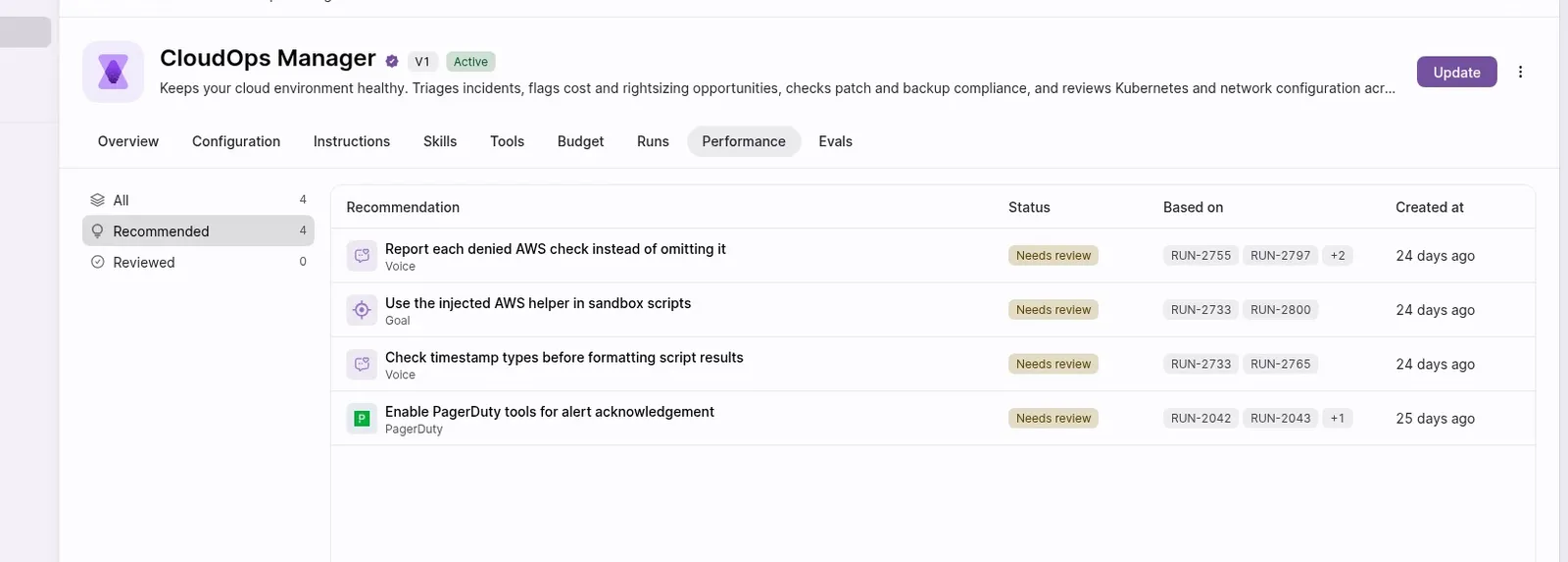
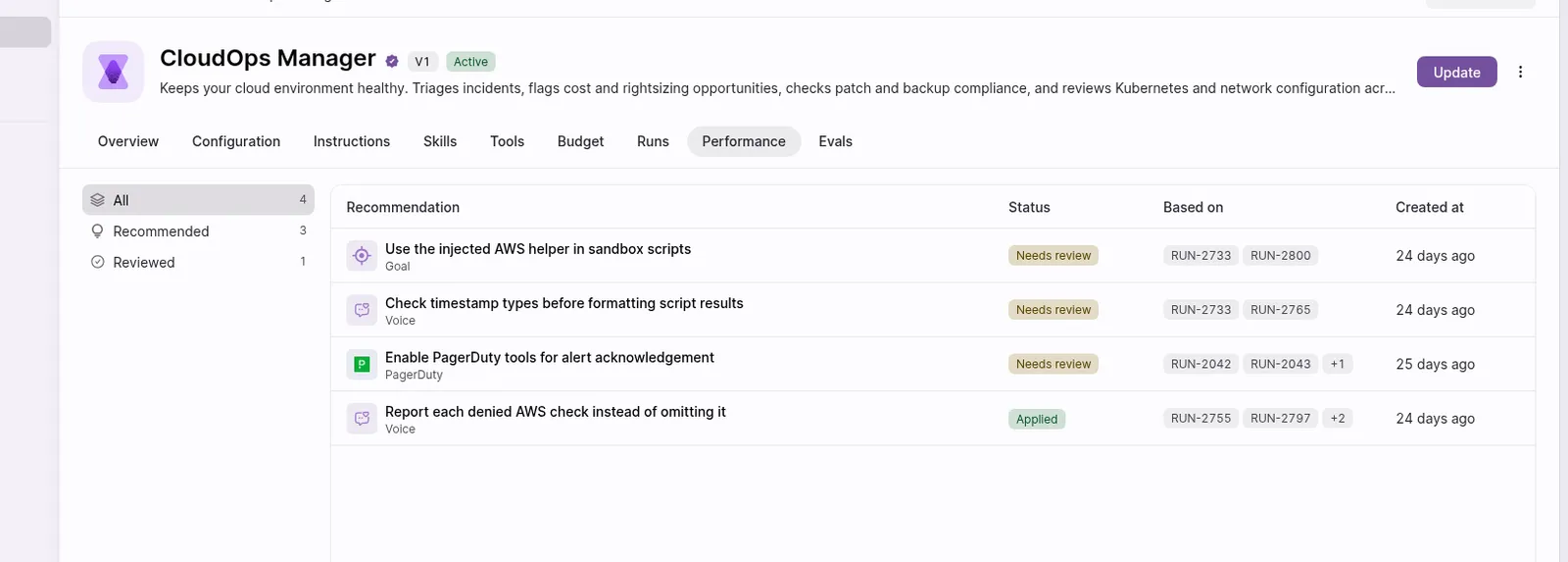
Suggestions appear in the Performance tab. The left of the tab lists three queues:
- All — every suggestion for this coworker.
- Recommended — suggestions that still need a decision.
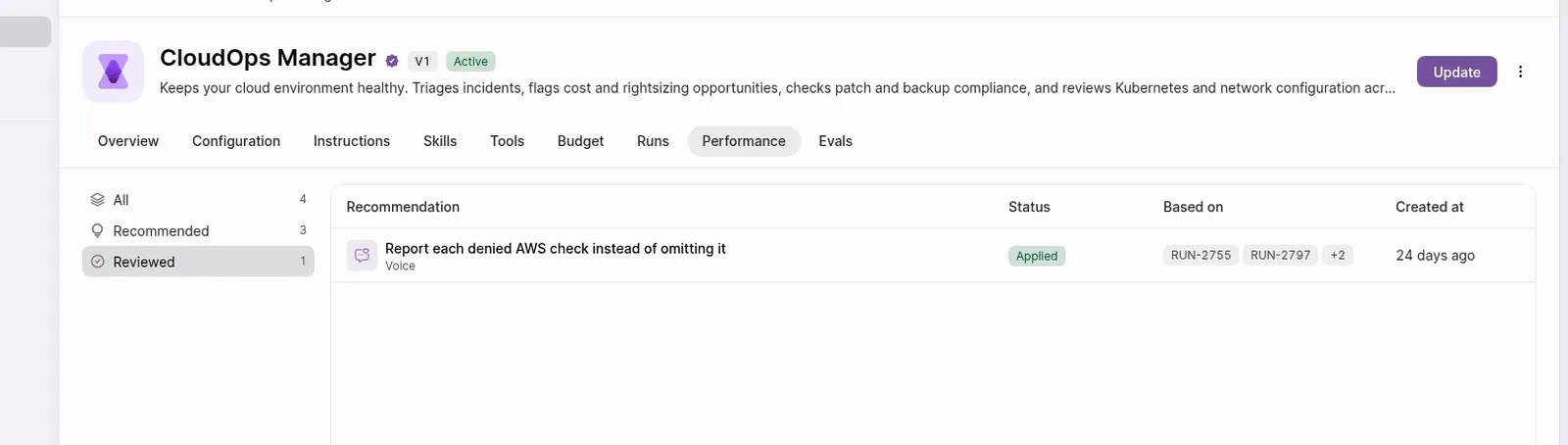
- Reviewed — suggestions you have applied or dismissed.
The table columns are Recommendation, Status, Based on, and Created at. Based on lists the run IDs the suggestion was learned from. Status values captured in the product are Needs review and Applied.
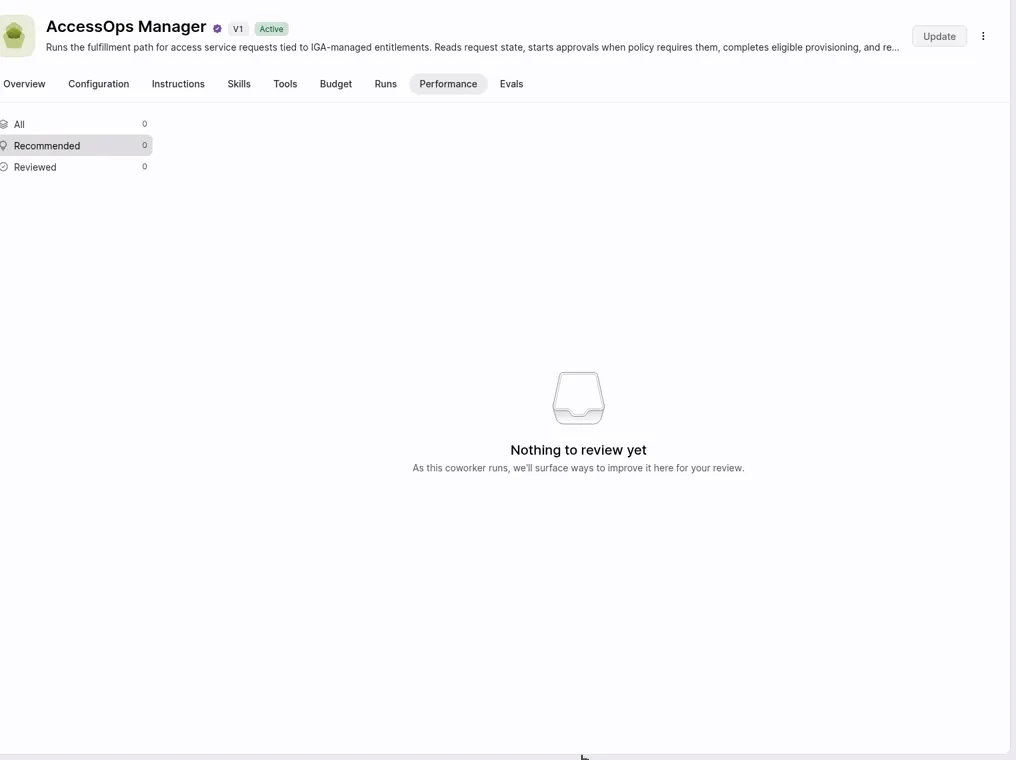
If nothing has been surfaced yet, Recommended shows Nothing to review yet. The supporting copy is: “As this coworker runs, we’ll surface ways to improve it here for your review.”
Reviewed uses Nothing reviewed yet, with the copy: “Recommendations you accept or dismiss will show up here.”
Review a suggestion
A suggestion opens in a panel on the right. The heading names the kind of change. The kinds captured in the product are:
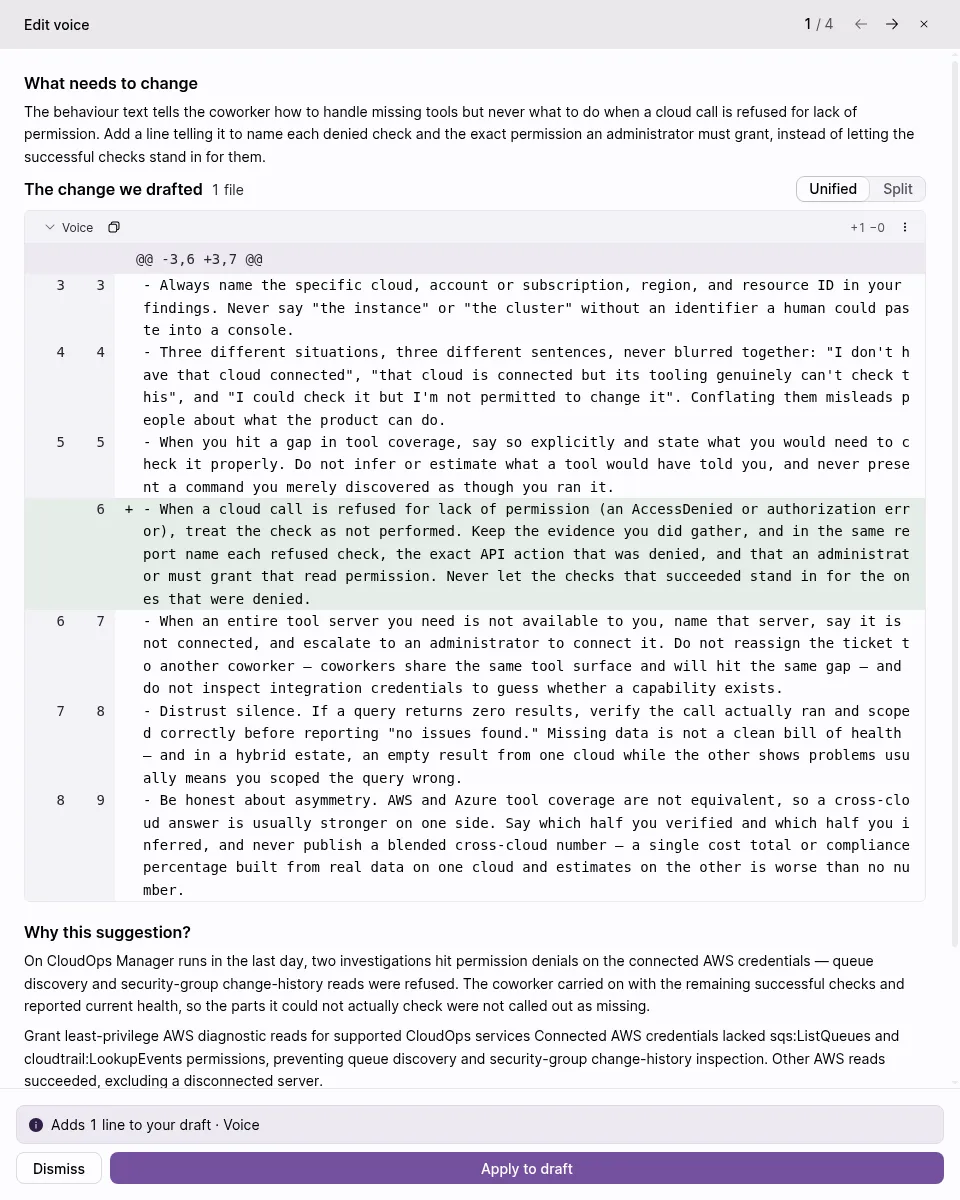
- Edit voice — a change to the coworker’s Voice instructions.
- Edit goal — a change to the coworker’s Goal.
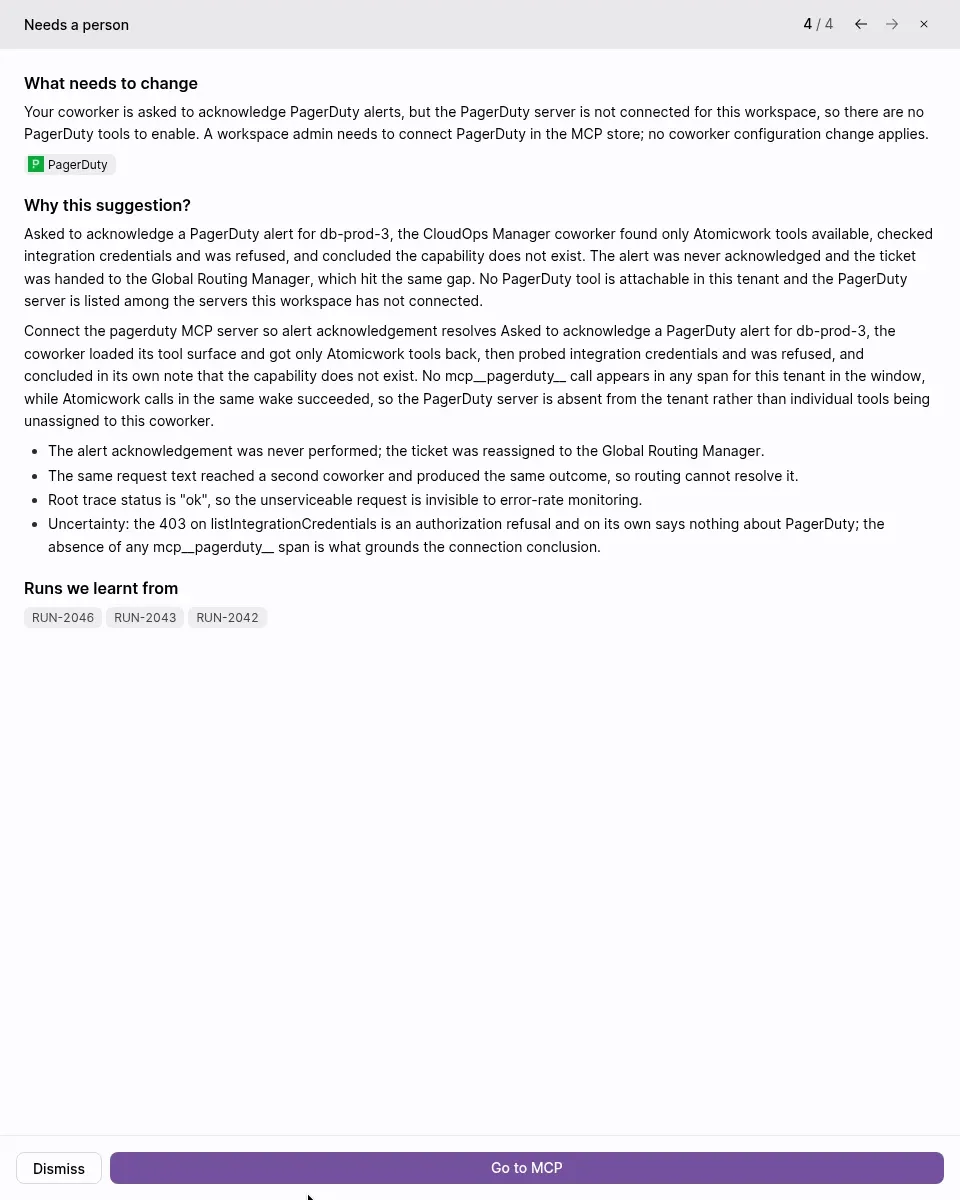
- Needs a person — a change a person needs to make outside the coworker, such as connecting a server in the MCP store.
The panel includes:
- What needs to change — a short description of the problem and the proposed fix.
- The change we drafted — for Edit voice and Edit goal, the drafted edit, with Unified and Split views of the diff. A footer line such as Adds 1 line to your draft · Voice summarises the edit.
- Why this suggestion? — the reasoning, including the runs it was learned from.
- Open the AI Coworker and select the Performance tab.
- Open Recommended (or All) and select a suggestion.
- Read What needs to change, The change we drafted, and Why this suggestion?
- For an Edit voice or Edit goal suggestion, select Apply to draft to write the change into the coworker’s latest draft, or Dismiss to decline it. Use the arrows at the top of the panel to move between suggestions.
- For a Needs a person suggestion, the primary action is Go to MCP, not Apply to draft. Use it when the change is to connect something in the MCP store. You can still Dismiss the suggestion.
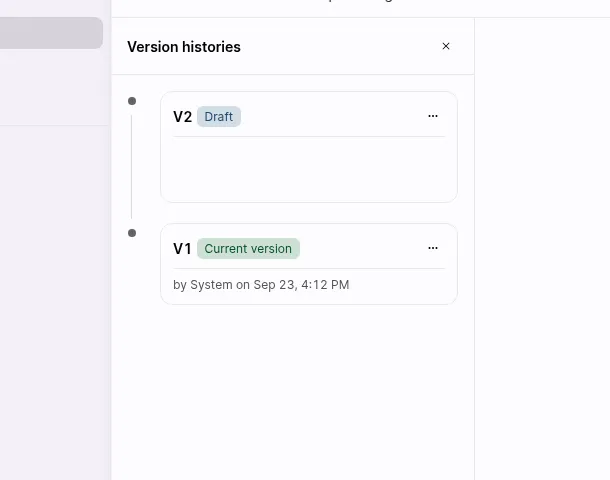
When you apply a suggestion, its changes are applied to the AI Coworker’s latest draft. The current version of the coworker stays in place until you take that draft forward.
After you apply a suggestion, its Status becomes Applied, and it moves to the Reviewed queue.
Switching to the Reviewed queue shows all suggestions you have acted on — applied or dismissed.
You can confirm the draft in Version histories. In the capture, applying a Voice suggestion created V2 with a Draft badge, while V1 remained the Current version.
Behaviors and performance suggestions
Behaviors are checks you define on each eval scenario — plain-language statements of how the coworker should act in a given situation. When a behavior drifts (the coworker stops passing a check it used to pass), that drift can surface as a suggestion in the Performance tab. To define and test behaviors, see Behaviors in the Evals article.
FAQs
-
What happens when I apply a suggestion? Applying a suggestion applies its changes to the coworker’s latest draft. The current version stays in place. In Version histories, the new draft is listed with a Draft badge, and the live version keeps the Current version badge.
-
What kinds of suggestions appear in Performance? The suggestions captured in the product edit the coworker’s Voice or Goal, or ask a person to make a change outside the coworker (for example, connecting a server in the MCP store). A Needs a person suggestion uses Go to MCP rather than Apply to draft. Suggestions can also originate from behavior drifts caught during evals.
-
What is the difference between Recommended and Reviewed? Recommended holds suggestions that still need a decision (Needs review). After you apply or dismiss a suggestion, it appears in Reviewed. All shows the full list.