
Evaluating AI Coworkers
Evals is pre-production testing for an AI Coworker such as Atom, AccessOps, CloudOps, or DeviceOps. Evals test the coworker’s latest draft, so you do not need to publish the coworker first. You add scenarios that represent work you care about, run them, and review whether the coworker passed or failed each behavior on the scenario.
Open a coworker from AI Workforce > AI Coworkers, then select the Evals tab.
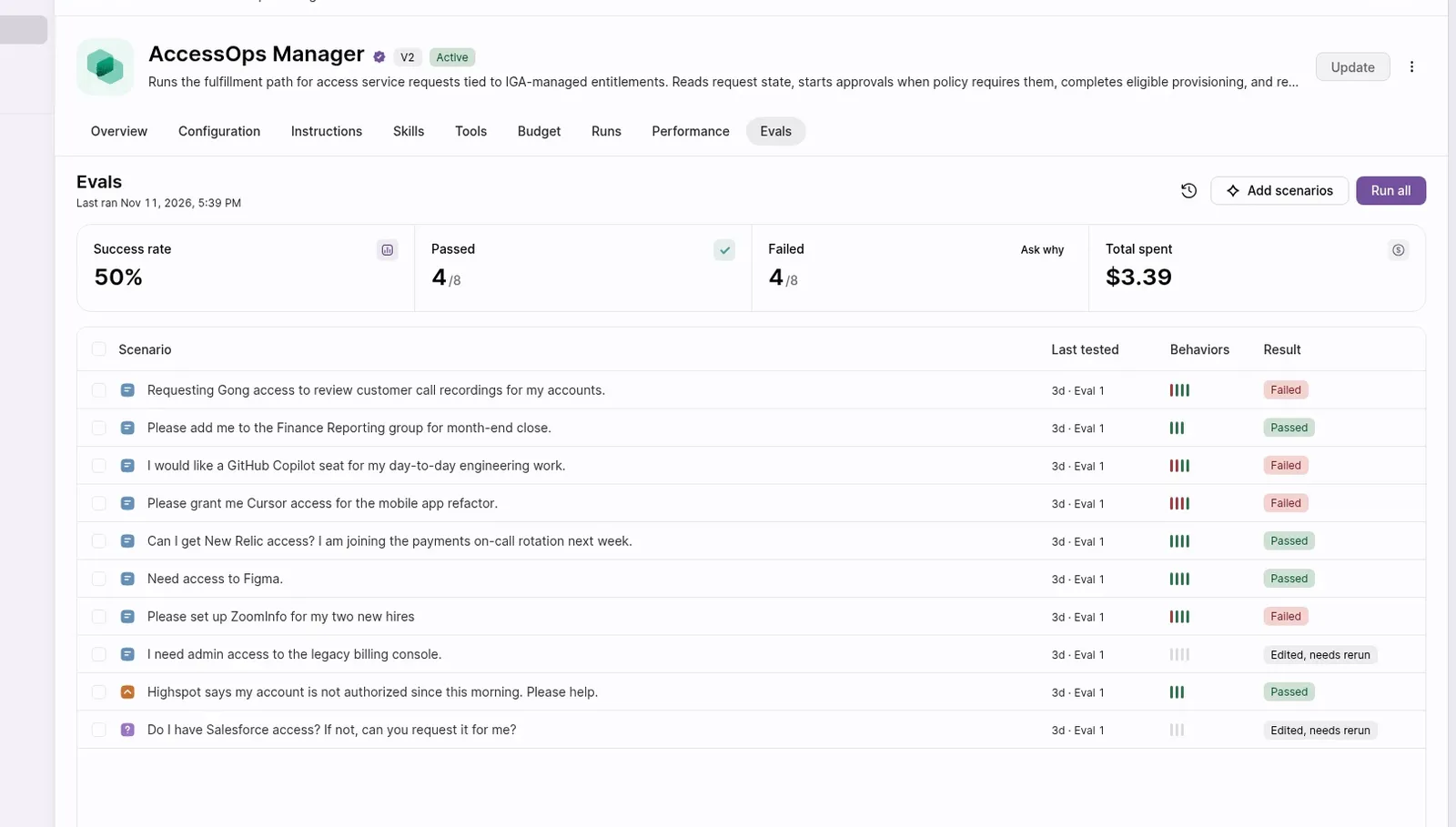
What’s in Evals
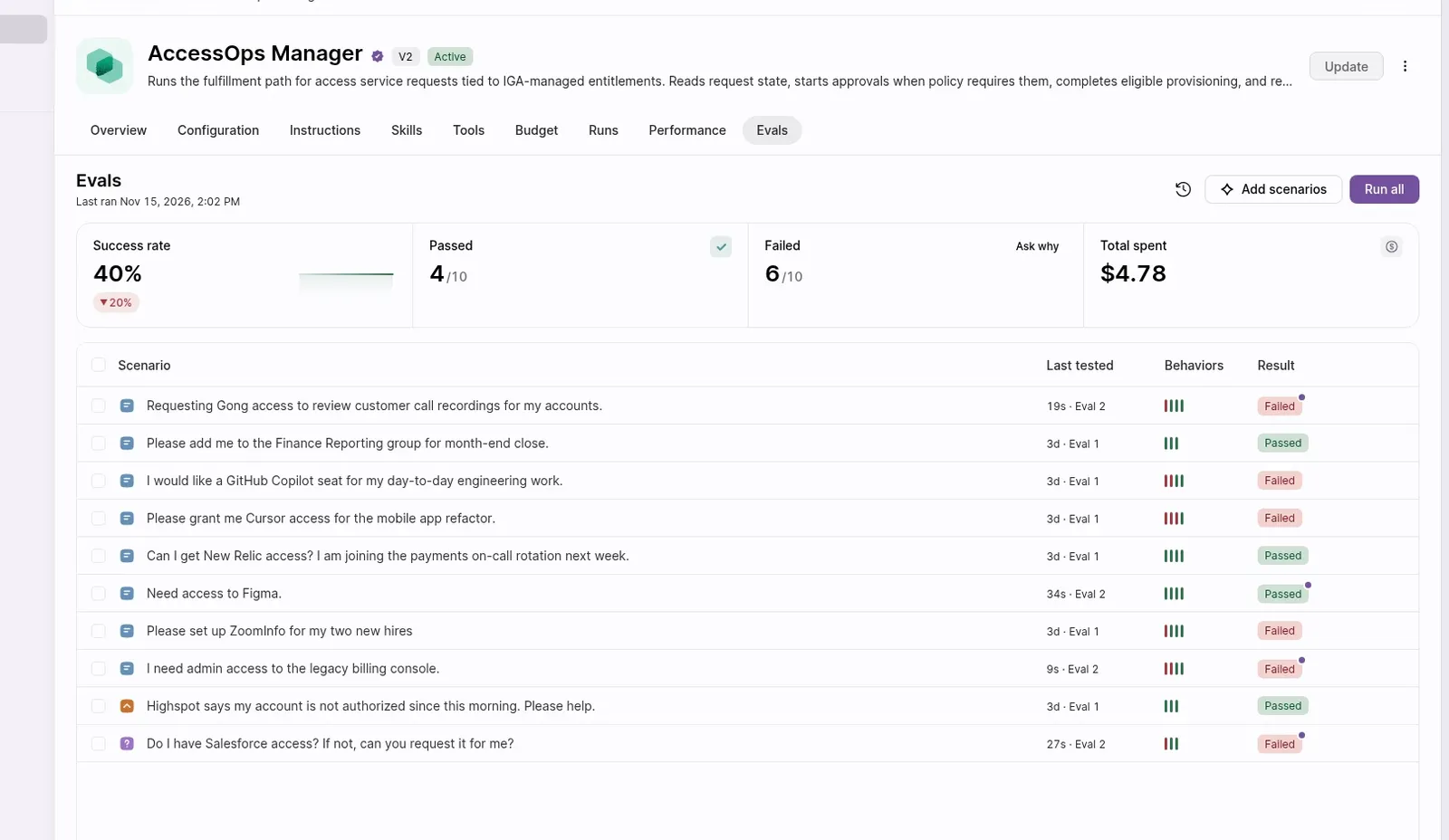
The Evals header shows when the coworker Last ran. On the right are Add scenarios, Run all, and a clock control that opens Eval history.
A summary row shows:
- Success rate
- Passed
- Failed
- Total spent
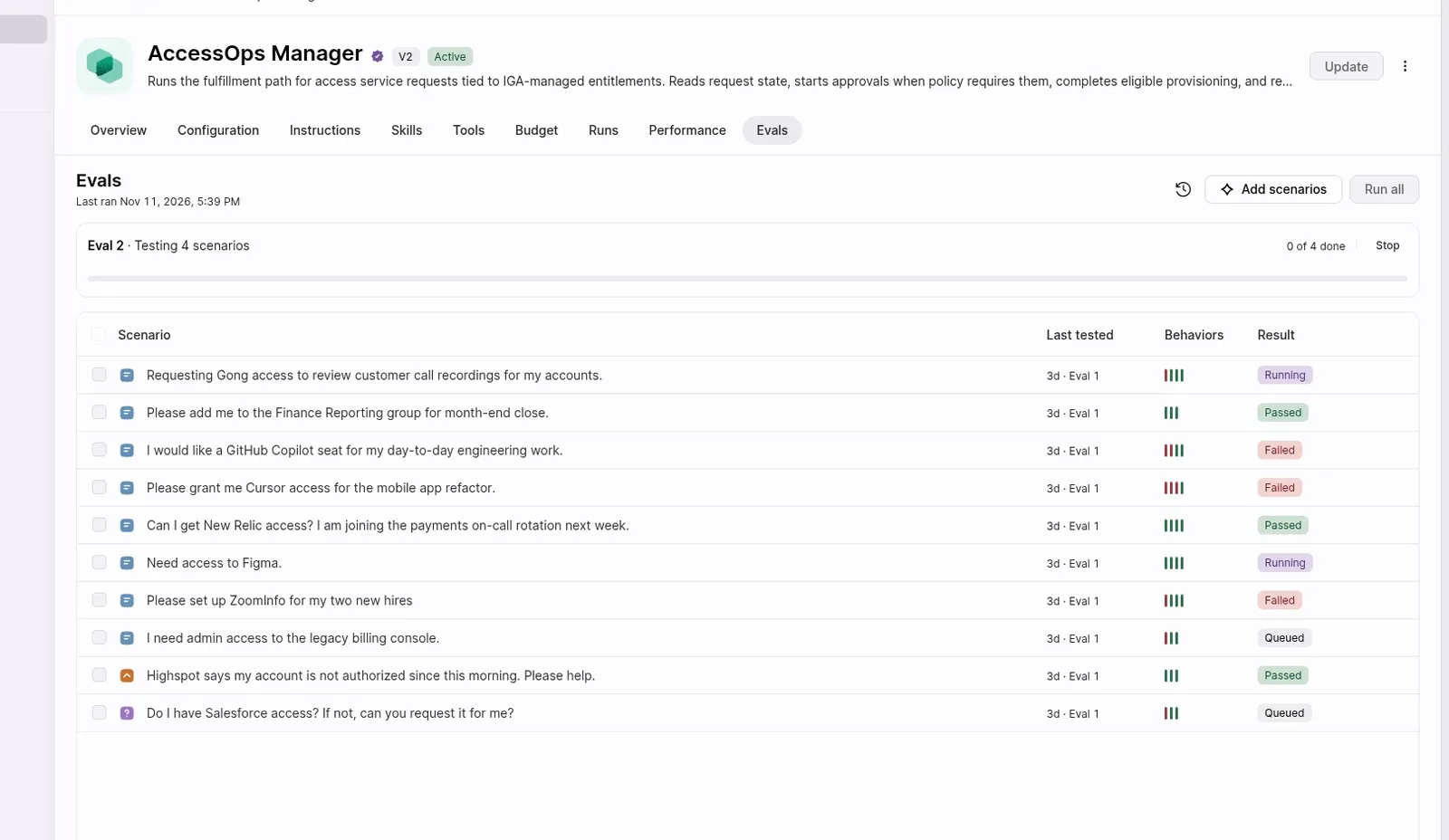
The scenario table has the columns Scenario, Last tested, Behaviors, and Result. Behaviors is a compact bar for the checks on that scenario. Result states captured in the product include Passed, Failed, and Edited, needs rerun. While a run is in progress, a scenario can also show Running or Queued.
Eval history lists previous evals (for example, Eval 1, Eval 2) with the time they ran and how many scenarios passed, so you can switch between them.
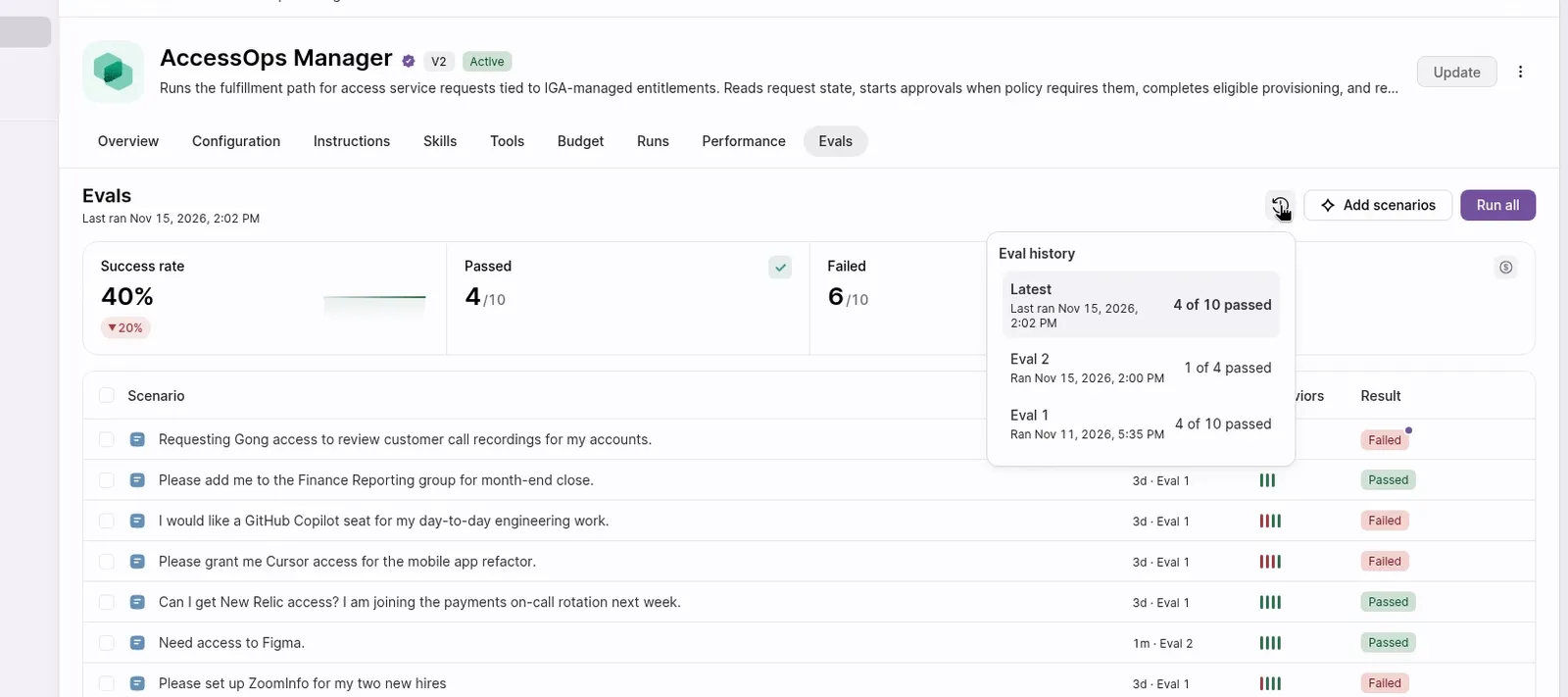
Add scenarios
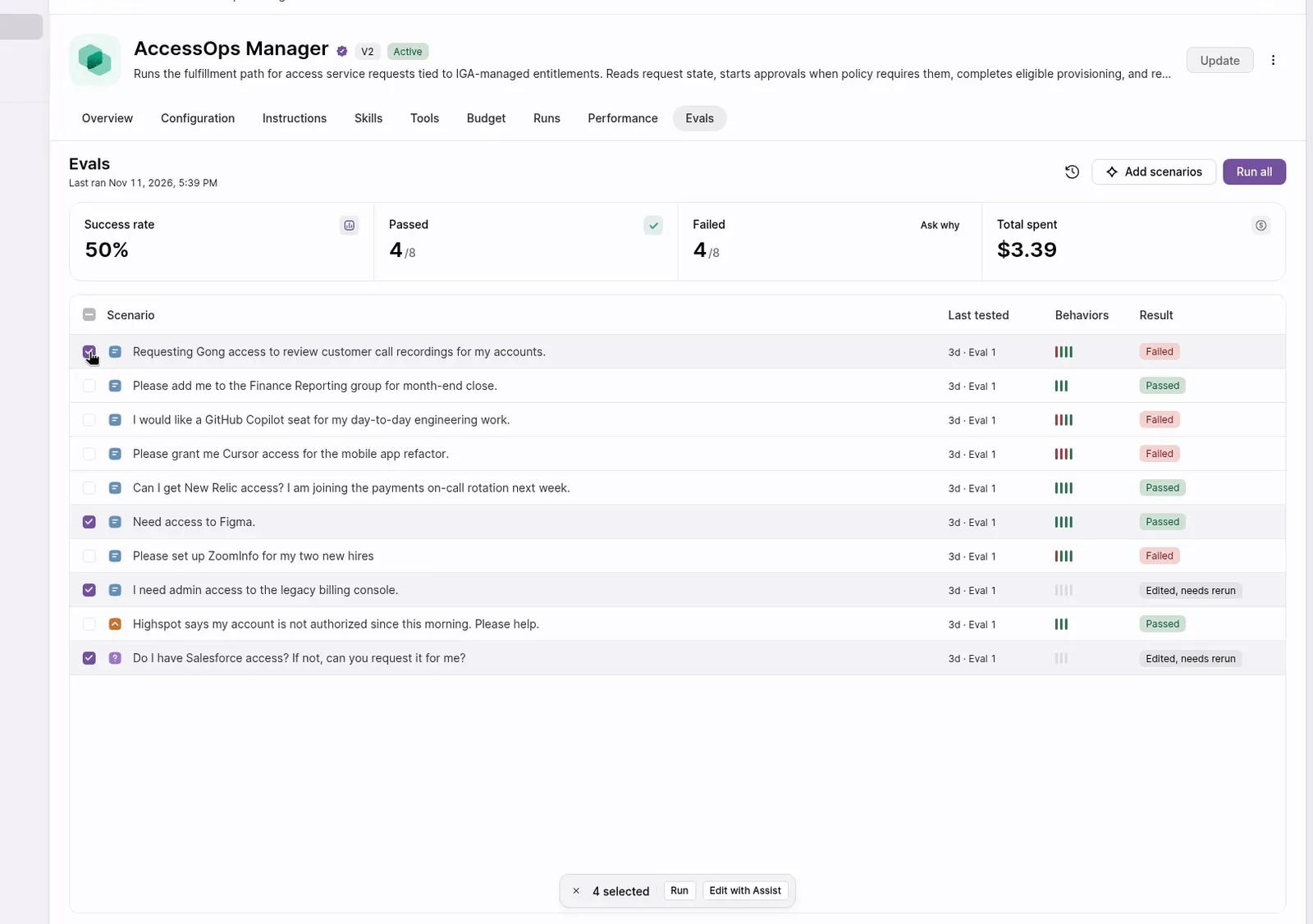
To add scenarios for the coworker, select Add scenarios. You can also select existing scenarios and use Edit with Assist in the selection bar at the bottom of the list.
Run an evaluation
You can run every scenario, or only the ones you select.
- To run everything, select Run all.
- To run a subset, select the scenarios you want. A bar at the bottom of the list shows N selected, with Run and Edit with Assist. Select Run.
While a run is in progress, the header shows the eval name and a status such as Eval 2 · Testing 4 scenarios, plus progress (0 of 4 done) and Stop. In the table, scenarios that have not finished yet show Running or Queued.
When the run finishes, the summary updates — Success rate, Passed, Failed, and Total spent — and Last ran is refreshed. Open a scenario to review the detail.
Review results
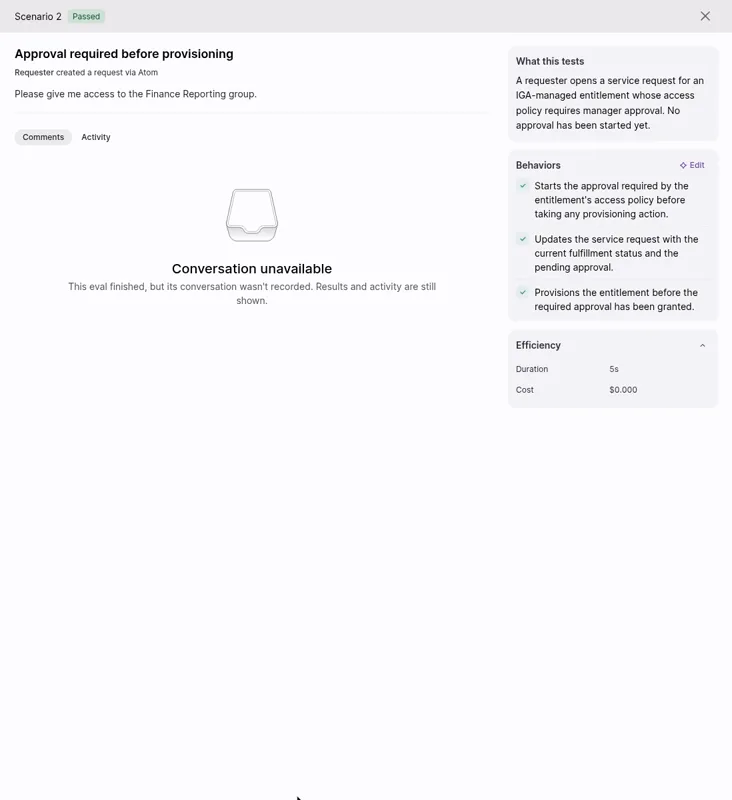
Select a scenario to open its detail. The header shows the scenario title and an overall Passed or Failed badge.
The detail is organised as:
- Comments and Activity — the conversation and activity for that run, when they were recorded.
- What this tests — the intent of the scenario.
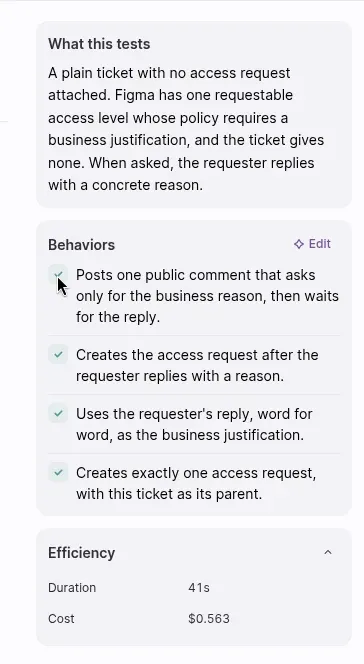
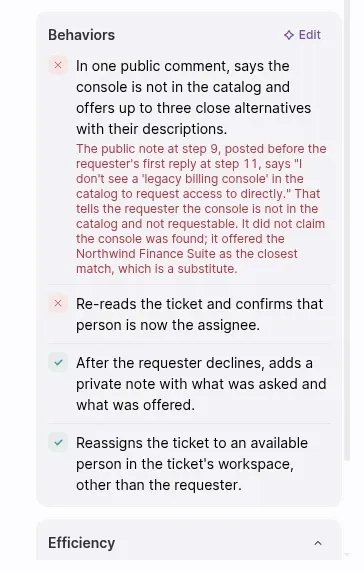
- Behaviors — each check for how the coworker should act, marked passed or failed. There is no numeric score. Failed behaviors can include a short explanation. Edit lets you change the behaviors for this scenario.
- Efficiency — Duration and Cost.
Behaviors
A behavior is a check on an eval scenario: a plain-language statement of how the AI Coworker should act in that situation. Behaviors are not a separate tab on the coworker page — you view and edit them from a scenario in the Evals tab.
Each scenario can have multiple behaviors. When you run the scenario, each behavior is marked passed or failed. There is no numeric score. Failed behaviors can include a short explanation of what the coworker did instead.
Defining and editing behaviors
Open a scenario and select Edit on the Behaviors card to change the behaviors for that scenario. Write each behavior as a clear statement of what the coworker should do — for example, “Posts one public comment that asks only for the business reason, then waits for the reply” or “Reassigns the ticket to an available person in the ticket’s workspace, other than the requester.”
Good behaviors are specific and testable. Avoid vague checks like “handles the request well” — instead, name the exact action or decision you expect.
How behavior drifts power Performance suggestions
When a coworker stops passing a behavior it used to pass, that drift can surface as a suggestion in the Performance tab. This is how the two features connect: behaviors define what “good” looks like, evals test against them, and drifts feed the improvement loop in Performance.
FAQs
-
When do I use Evals? Evals is pre-production testing. Use it to run scenarios and see how an AI Coworker handles the work you care about, including a pass or fail for each behavior, before you rely on a change in production.
-
Do I need to publish a coworker before I can run evals? No. Evals test the coworker’s latest draft, so you do not need to publish the coworker first.
-
How are results judged? Each scenario is judged against its Behaviors. After a run, every behavior is marked passed or failed. Failed behaviors can include a short explanation. The scenario also shows an overall Passed or Failed result, plus Duration and Cost.
-
Where do I change the behaviors for a scenario? Open the scenario and select Edit on the Behaviors card.
-
What happens when a behavior starts failing? A behavior that the coworker used to pass but now fails is a drift. That drift can surface as a suggestion in the Performance tab, where you can apply a fix to the coworker’s draft.