
Third-party actions in workflows
Connect your tech stack to Atomicwork to automate as many manual tasks as possible. Need to automatically trigger new user creation in Azure AD when someone submits an onboarding request? Want to create a Teams channel for high-priority requests from C-suite execs with all stakeholders involved? Automate routing and communication workflows through Atomicwork. Workflows can also be configured so that actions executed by one workflow can trigger other workflows, enabling more complex automation sequences.
Actions by app
In the Builder, click Add action and open External actions to see each app’s actions. If you don’t see an app there, check that it’s connected in Settings > Enterprise integrations > App store.
Notes
- You can reference specific people in actions (for example: Andy Jones) or you can reference a placeholder (E.g: Assigned agent or requester) or you can reference the output of an action (we call this a data pill).
Slack actions
-
Send a Slack DM. Specify the recipient and the message (complete with dynamic placeholders). You can send a Slack DM to multiple people, but Atomicwork will not send it to a group; it will be sent as messages to each person individually.
-
Post to a Slack channel. If you want to post to a private channel, add Atom to the channel first.
Teams actions
-
Send a direct message. Sending a DM can be a personalized way to follow up with all employees involved, gather feedback, or provide additional instructions. Direct messages will be sent only 1:1; if you add more than one person, Atomicwork will not create a group and will send the messages individually.
-
Post to a channel.
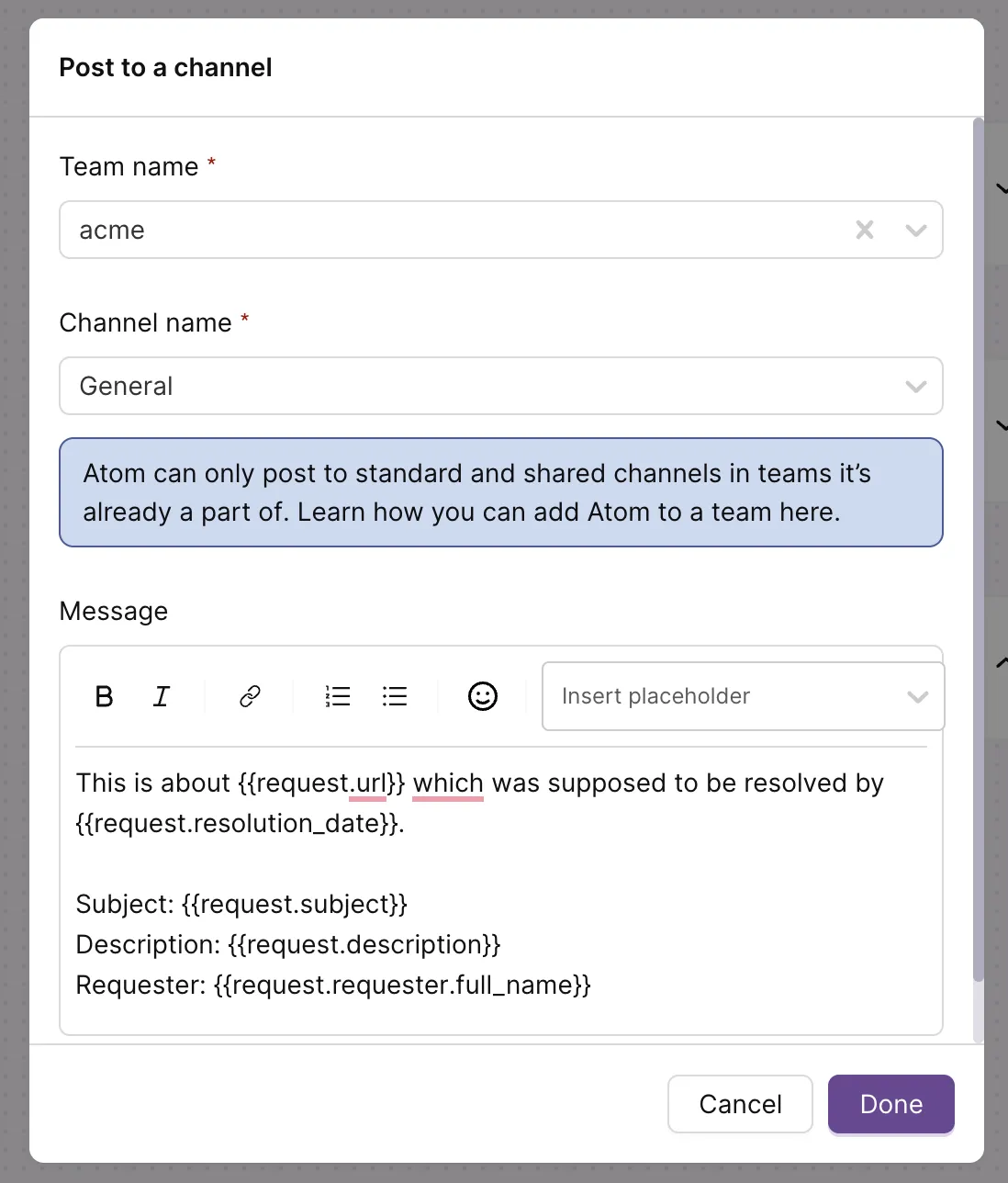
IT issues often require collaboration among team members. Posting to a Teams channel enables IT professionals to collaborate on problem-solving, share insights, and collectively work towards resolving issues. When you want to post to a Microsoft Teams channel, you must specify the team’s name to get a list of channels in the team so you can choose the channel you want to post to.
If you can’t see a channel name on the list, it might be because it’s a private channel. Atomicwork can post only to public and shared channels.
- Add users to a team.
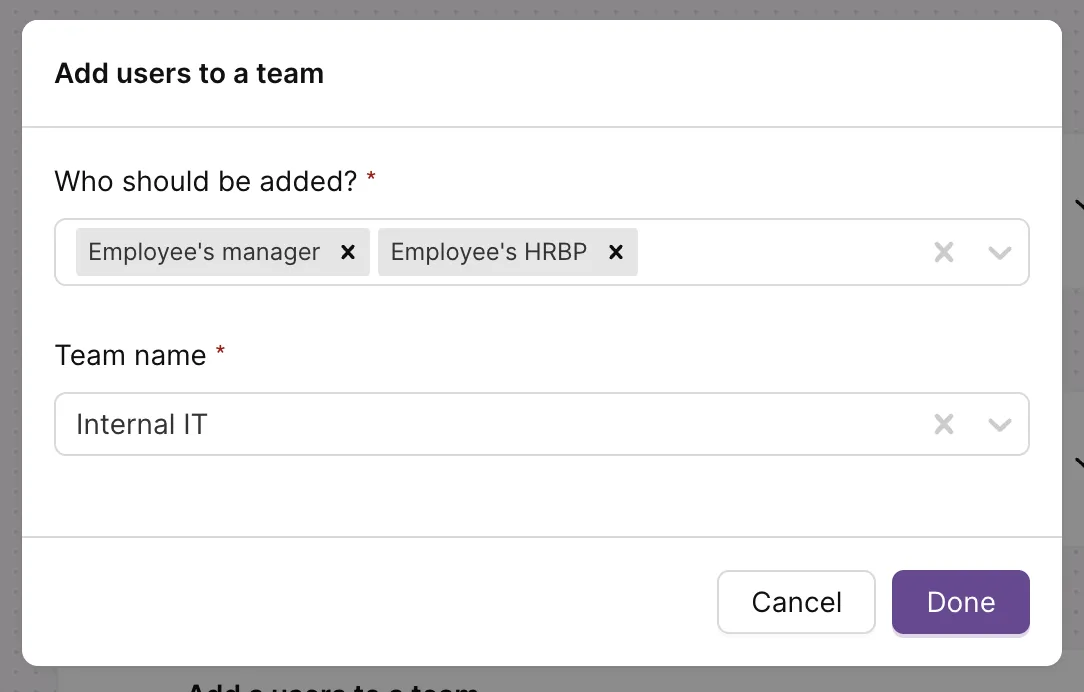
When onboarding new team members or providing training on specific projects or processes, adding them to the relevant Teams team ensures that they have immediate access to the information and discussions related to their role.
- Add users to a channel. Adding team members automatically streamlines the process of ensuring that the right people are involved at the right stages of a project or task. This reduces manual overhead and ensures consistency!
Before adding users to a channel, you must ensure they’re part of the tea m first. Just to be safe, we’d recommend you perform the “add user to a team” workflow action first and then, the add users to a channel action.
- Create a standard/private/shared channel In the event of an IT incident or outage, an automated workflow can create an incident response channel and add relevant personnel - this ensures swift communication and coordination during critical situations.
While creating a new shared channel, ensure you always add at least one owner of the Teams team to the channel.
Notes
-
Atom can add users to channels only if they’re part of the Teams team so make sure you create the “Add user to a Teams team” action first before setting up a “Add a user to a channel” action
-
Atom can create standard, private, and shared channels only in Teams teams that it’s a part of.
-
Atom can only post to channels that it’s a part of so Atom can only post to standard and shared channels.
-
If you want Atom to send a DM to multiple people, Atom will send DMs to each member individually and will not create a chat with all the mentioned members.
Microsoft Azure actions
These actions manage users in Azure AD (now Microsoft Entra ID) through the Microsoft Azure integration.
-
Create a user Manual creation of user accounts can be time-consuming, especially in organizations with many employees. Automation saves time and allows IT managers to focus on more strategic tasks. When you create a new Azure AD user, you can:
-
Ask users to reset their password when they log in the first time for information security practices
-
Enable the account as soon as you create it. This means that once the account is created, the employee can login
-
Once an Azure AD account is created, their work email can be synced back to Atomicwork
-
-
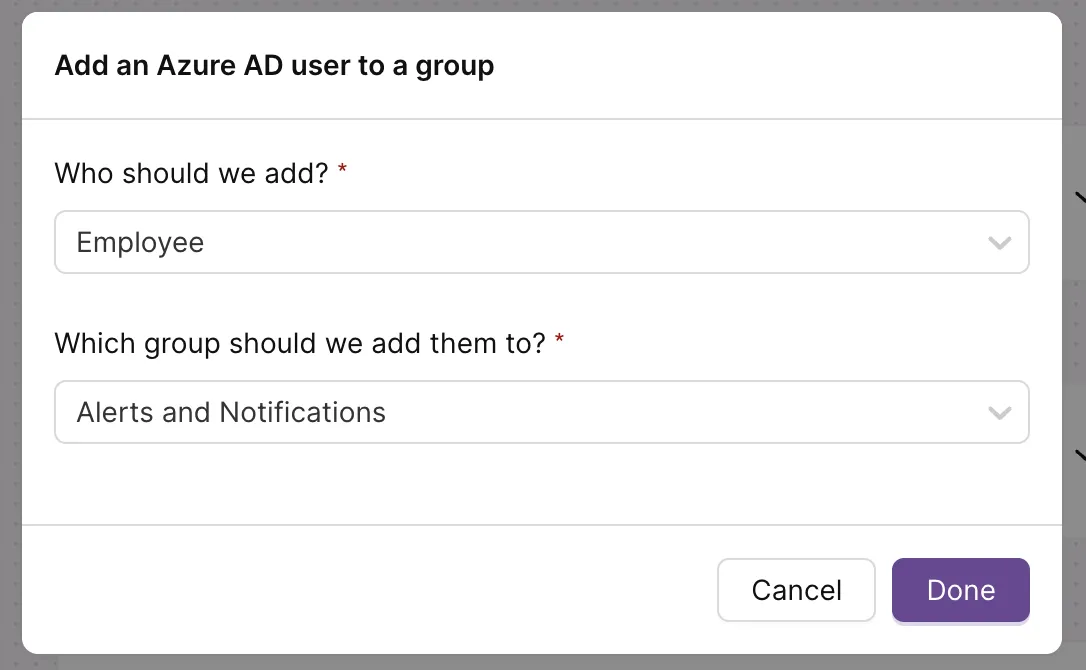
Add a user to a group Dynamically adjust group memberships based on changes in user attributes or roles. For example, if an employee’s role changes, the workflow can automatically update their group memberships accordingly.
-
Remove a user from a group If there are changes in access requirements or security policies, automated removal from groups helps promptly revoke access to specific resources. This is critical for minimizing security risks.
-
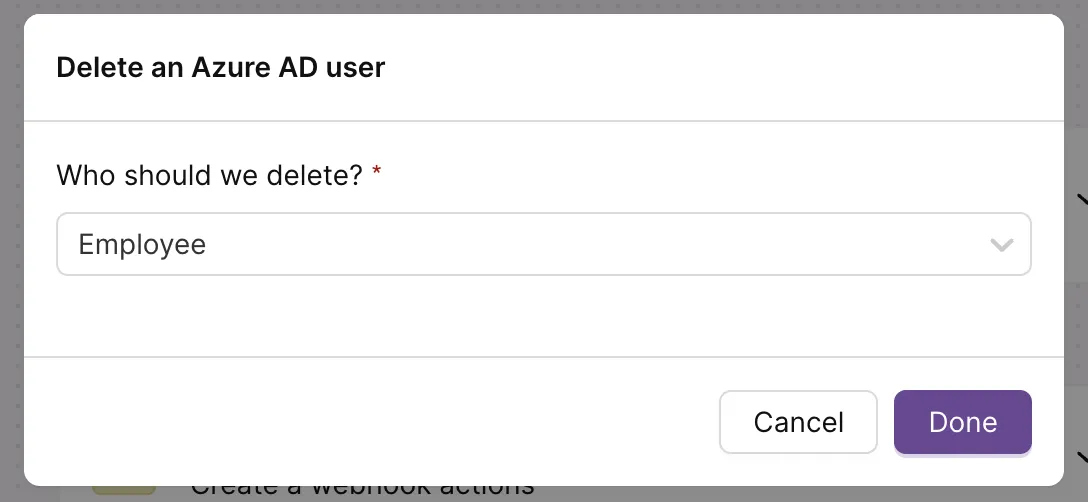
Delete a user Automated deletion of unused or inactive accounts helps in efficient resource management. It reduces clutter and ensures that resources are allocated only to active and necessary accounts.
Okta actions
You can create, suspend and deactivate Okta users, and add or remove them from groups. For setup steps and details on each action, see Okta: Workflow and journey actions.