
Email ingestion logs
When someone says their email to support never became a ticket, finding out what happened usually means a support escalation. Email ingestion logs give admins a record of every email a workspace received — when it arrived, who sent it, and what Atomicwork did with it — so you can answer “where did my email go?” without digging through backend systems.
You can ask Admin Assist about email delivery instead of checking the logs manually. Try a prompt like “Why didn’t the email from jane@acme.com become a ticket?” or “Show me the emails for REQ-123.”
To open the logs, go to Settings > Your workspaces > [Workspace name] > Channels (Workspace settings) > Email and click the Logs tab. The log lists every email received by the workspace’s support addresses over the past year.
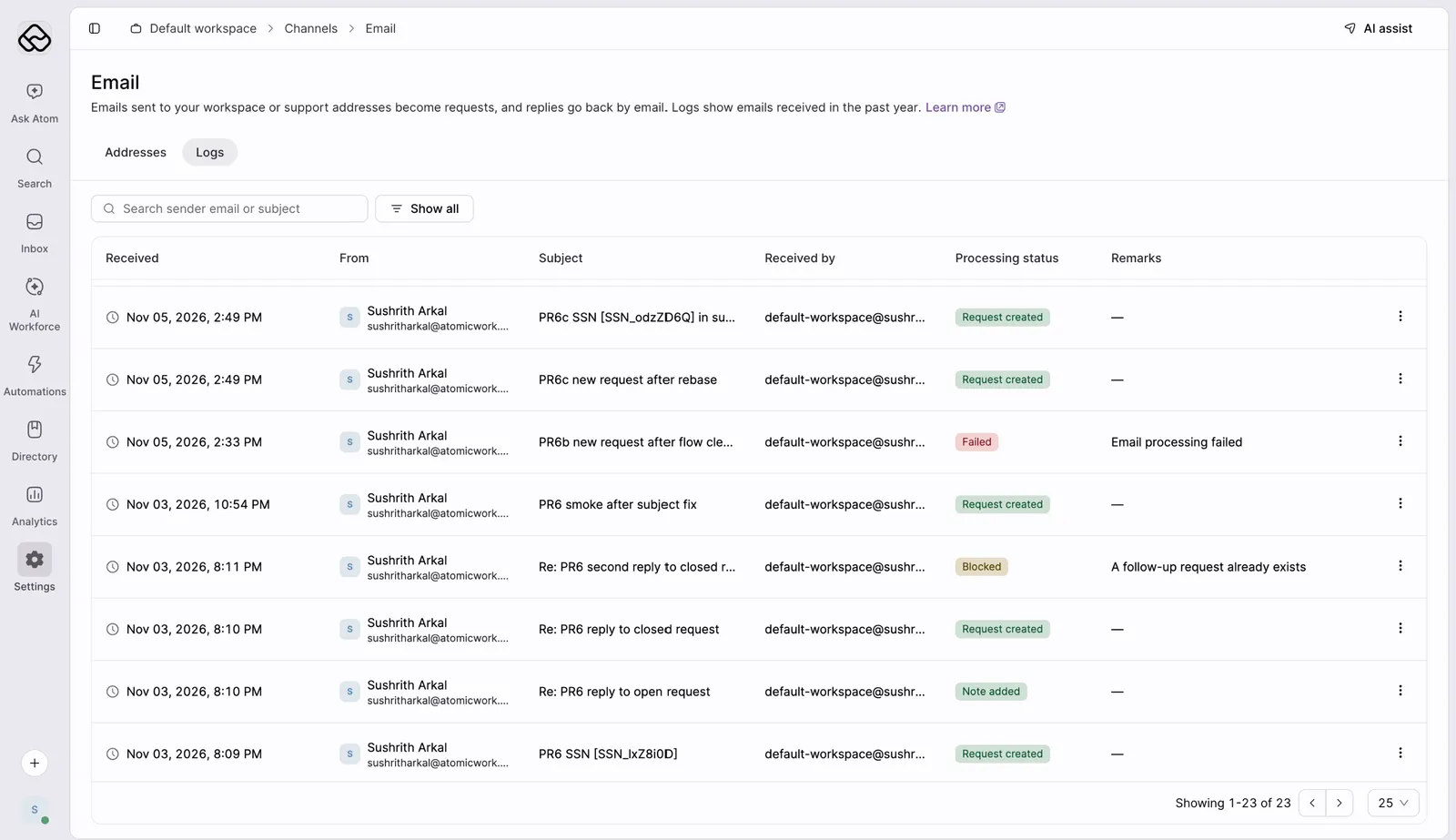
What the logs show
Each row includes:
- Received at: when the email arrived.
- Sender: the email address that sent it.
- Subject: the email subject line. If the workspace uses a data masking policy, masked values appear as tokens (for example,
[SSN_...]). - Received by: the support address that received the email.
- Status: one of four processing outcomes — Request created, Note added, Blocked, or Failed.
- Remarks: an explanation when the email wasn’t processed as expected, or a note about adjustments made to a successful email (such as an attachment that was left out).
You can search by sender email or subject and filter by processing status to narrow the list.
Processing statuses
Blocked email remarks
When an email is blocked, the remark tells you which rule applied. If the block points to a setting you need to change — a missing allowed domain, for example — update the setting and ask the sender to resend.
Failed email remarks
Failed emails indicate a processing error. If a failure persists after the sender retries, contact Atomicwork support with the email headers (see Viewing email headers).
Additional remarks
These remarks can appear alongside any status, including successful ones:
- Left out attachments: an attachment was excluded because its file type isn’t allowed, it couldn’t be copied, or it was removed to allow the request to be created.
- Left out Cc recipients: a Cc address was excluded because it’s invalid or because it’s the workspace’s own support address.
- Email over the size limit: the email body exceeded the size limit or couldn’t be downloaded, so it was replaced with a placeholder.
- Private quoted content was left out: quoted content from a private reply was removed to prevent it from being shared.
- Reply was added as a public note: the sender can’t add private notes, so the reply was saved as a public note instead.
- Reply was saved as a private note to protect quoted content: the reply contained quoted content that would have been visible to the requester, so it was saved as a private note.
Viewing email headers
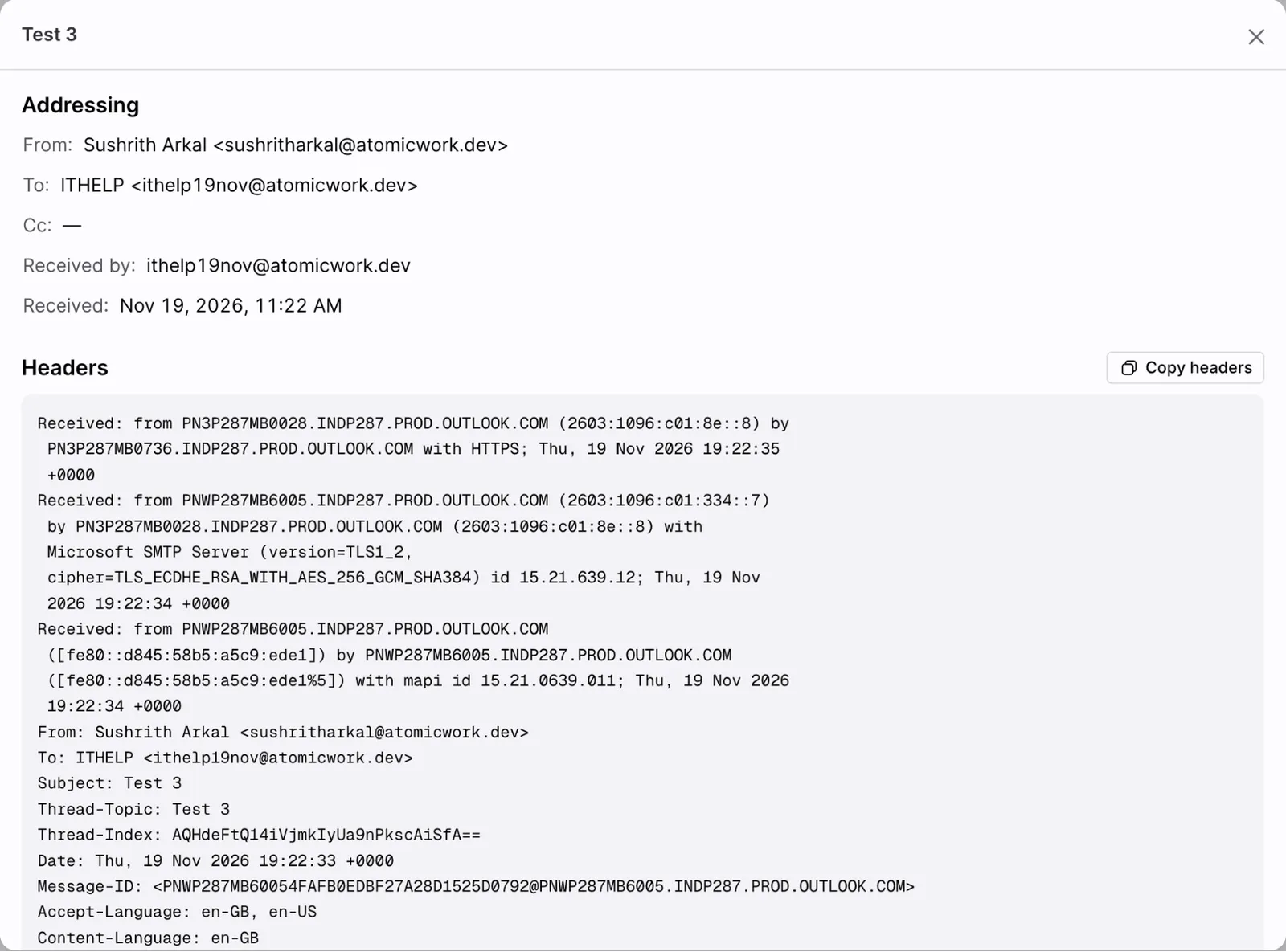
Click the ⋮ menu on any row and click View headers. The header view shows the From, To, and Cc addresses, the address that received the email, and the full raw email headers. Click Copy headers to copy the raw headers to your clipboard — useful when working with your IT team or mail provider to debug forwarding rules, auto-reply loops, or delivery issues.
FAQ
- How far back do the logs go? Logs cover up to one year of email received by the workspace.
- I don’t see older emails. Logs begin from the date the feature was enabled for the account. Emails received before that date don’t appear.
What’s next
- Set up email as a support channel to start receiving requests by email.
- Configure trusted email domains to control which sender domains can create requests.
- Email integrations for setup instructions on connecting your email provider.