
Microsoft Teams
Connect Microsoft Teams and Atomicwork
Connect Atomicwork to your Microsoft Teams account so that your employees can get instant help, raise requests, and get status updates via Atom.
You can also setup workflow actions to execute automatically like post to a Teams channel or create an Azure AD user.
In this article, we cover:
- Giving Atom the right permissions
- Adding Atom to your Teams account
- Sync employee data from Teams
- Adding Atom to a Teams team and channel
- Atom learning from Teams channels
- Notes about workflow actions involving Teams
To connect your accounts, you need:
- Atomicwork admin access: You need to have org admin access in Atomicwork.
- Microsoft Teams admin access: You need Teams admin access to review permissions and install the app.
Giving Atom the right permissions
Before adding Atom to your Teams account, you need to ensure that it has the required permissions.
- Go to admin.teams.microsoft.com.
- Go to Teams apps > Manage apps. Search for Atom to bring up the app listing.
- Click the app to view its policies in detail. Click Permissions.
- Click the Grant admin consent button to review all the permissions required by the app.
If you are not already signed in, you will be required to sign in to your Microsoft Teams admin account.
You will need to grant admin consent for the following permissions to use the app:
- Click Accept to provide consent.
- You are all set and the app will be available to your users within 24 hours.
Adding Atom to your Teams account
- Go to your Teams marketplace and search for Atomicwork.
- Click Add to add the app to your team. Note: Team owners can restrict who can add apps. Some apps can be installed only by a team owner because they require additional permissions. If you can’t see Add, please talk to your Microsoft admin.
- Once you do, Atom will send you a message introducing itself and asking you to sign into your Atomicwork account. Click “Sign in”.
- Click Connect in the interim connection screen.
- And we’re done! 🎉
Pinning Atom for easy access
-
Once you’ve connected the accounts, you can find Atom in the Apps section of your Teams account.
-
You can pin Atom for all users in your account by going to admin.teams.microsoft.com. Click “Setup policies” > “Global (Org-wide default)”. Scroll to the “Pinned apps” section and click “Add apps”.
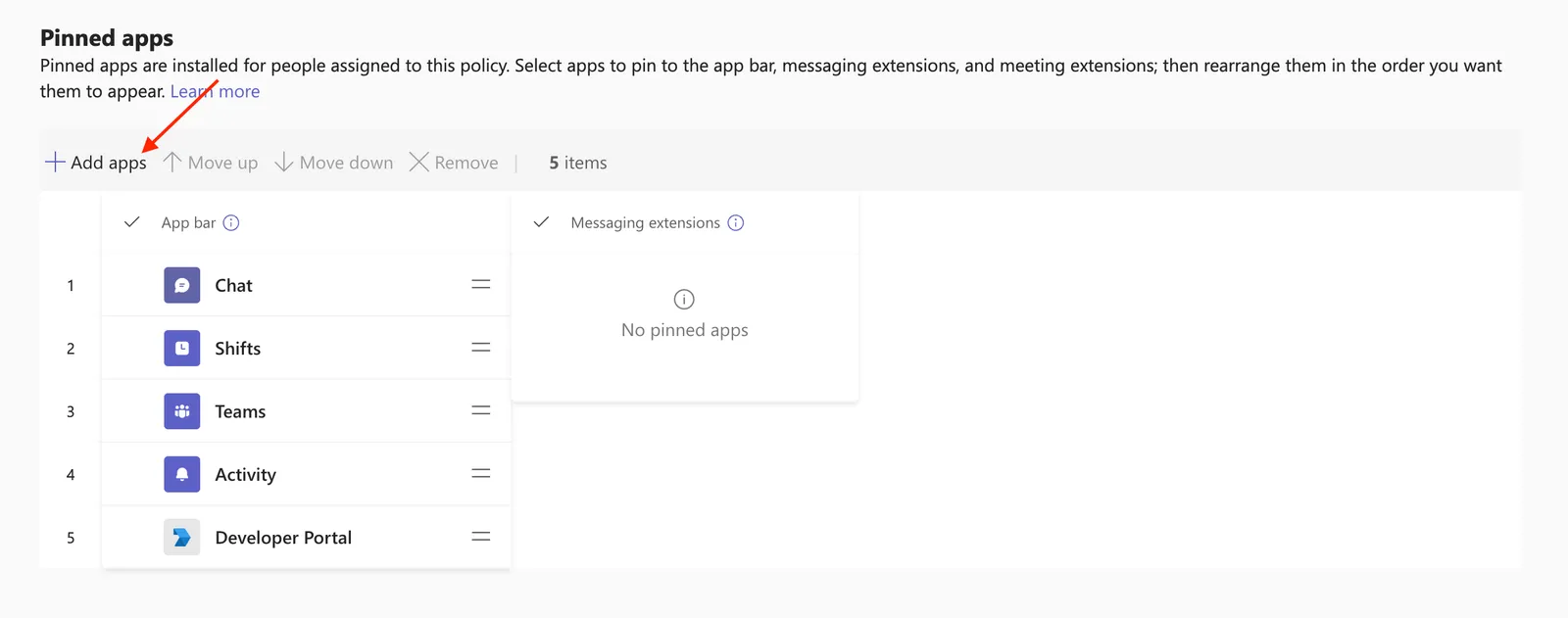
- Search for Atom and add it to the list of pinned apps. Hit “Save” > “Confirm” on the modal that pops up.
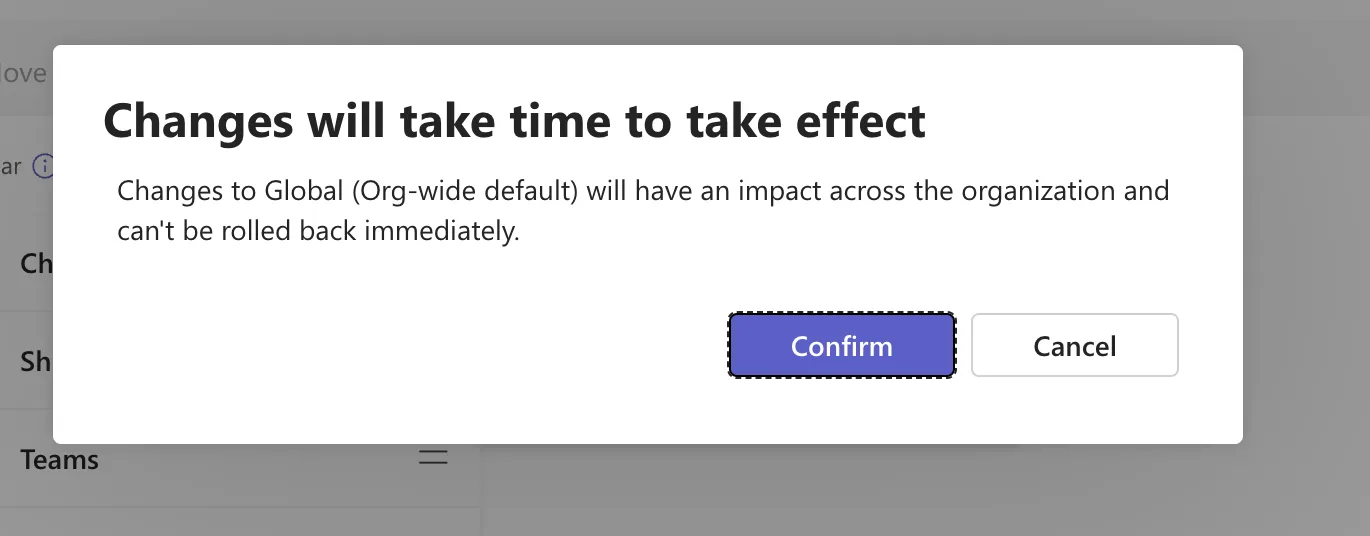
- And you’re done!
Sync employee data from Teams
- Go to Settings > Enterprise integrations > App store > Teams > Settings OR Settings > Import people > Teams > Settings.
- Toggle the “Sync employee data” option. Once you toggle it on, Atomicwork will sync data from Teams every 24 hours.
Once you enable sync, Atom will use these fields to provide personalized responses. For example, if you have a list of holidays by location, it will provide relevant responses based on location. If an employee from Australia asks for a holiday list, they’ll only get the Australia holiday list and not the UK or the US list.
You can also use these fields to personalize journey messages and trigger journeys.
Adding Atom to a Teams team and channels
Atom can be added to standard channels in your organization only if it’s part of the Teams team to which these channels are mapped. You can add it to Teams teams only if you have admin privileges.
- Go to your Teams account and click “Apps”. Search for and open Atom’s listing page.
- Click “Add to a team” to add Atom to a Teams team in your organization. Once you’ve added it to a Teams team, you can add it to a channel.
Using Atom in Teams
- Your end users can talk to Atom through DM or in a channel.
- It only responds in channels when tagged so please make sure to let your employees know that it has to be “@” mentioned when they are looking for help. Atom can be mentioned only in standard channels.
Atom learning from Teams channels
Atom picks up insights from your team’s responses over the past year when it’s added to standard channels in Teams. It learns from these channels once a day so you’ll be able to see it using relevant answers from these channels the next day.
Workflow actions involving Teams
- Atom can add users to channels only if they’re part of the Teams team so make sure you create the “Add user to a Teams team” action first before setting up a “Add a user to a channel” action.
- Atom can create standard, private, and shared channels only in the Teams teams that it’s a part of.
- Atom can only post to channels that it’s a part of so it can only post to standard and shared channels.
- If you want Atom to send a DM to multiple people, it will send DMs to each member individually and will not create a chat with all the mentioned members.